Alert Types
This page describes the different types of alerts that can be generated in Slide.
Alert type reference
The Key is the alert type's name in the Slide API. Agentless alerts only apply to accounts that use agentless backup. The SaaS alert types apply to Microsoft 365 tenants protected with SaaS backup.
| Alert type | Key | Category | Default priority | Resolve rule |
|---|---|---|---|---|
| Slide Box Not Checking In | device_not_checking_in | Appliance | High | checked_in |
| Slide Box Storage Not Healthy | device_storage_not_healthy | Appliance | High | storage_healthy |
| Slide Box Storage Low | device_storage_space_low | Appliance | Medium | storage_above_threshold |
| Slide Box Storage Critical | device_storage_space_critical | Appliance | High | storage_above_threshold |
| Slide Box Version Out of Date | device_out_of_date | Appliance | Low | up_to_date |
| Agent Not Checking In | agent_not_checking_in | Backup | Medium | checked_in |
| Backup Failed | agent_backup_failed | Backup | High | consecutive_successful_backups |
| Missed Scheduled Backup | agent_not_backing_up | Backup | High | scheduled_backups_on_time |
| Boot Verification Failed | agent_boot_verification_failed | Verification | High | recent_backups_verified |
| Replication Behind | agent_replication_behind | Backup | Medium | replication_caught_up |
| Conflicting Agent Connection | agent_duplicate_connection | Backup | Medium | single_connection |
| Backup Target Promoted | agent_backup_target_promoted | Backup | Medium | min_age_only |
| Hypervisor Not Checking In | hypervisor_not_checking_in | Connection | High | checked_in |
| Hypervisor Unreachable | hypervisor_communication_failed | Connection | High | communication_restored |
| Hypervisor Host Agent Not Checking In | hypervisor_host_agent_not_checking_in | Connection | High | host_agents_checked_in |
| Cluster Host Removed | hypervisor_host_removed | Connection | Medium | host_rejoined |
| New Virtual Machine Discovered | hypervisor_guest_discovered | Backup | Low | guest_protected |
| Virtual Machine Missing | hypervisor_guest_missing | Backup | High | guest_seen_again |
| New Virtual Disk Discovered | hypervisor_guest_disk_discovered | Backup | Low | disks_settled |
| SaaS Backup Failed (SaaS backup accounts only) | saas_backup_failed | Backup | High | condition_cleared |
| Tenant Credentials Not Working (SaaS backup accounts only) | saas_connection_failed | Connection | High | condition_cleared |
| SaaS Discovery Failed (SaaS backup accounts only) | saas_discovery_failed | Connection | Medium | condition_cleared |
Slide Box alerts
Slide Box Not Checking In
This alert is triggered if your Slide Box has not been seen by the Slide Cloud in over 4 hours.
It is assumed that your Slide Box is constantly connected to the internet, and is able to connect to the Slide Cloud. If this alert is triggered, please check if your Slide Box is online and connected to the internet, and that it can connect to cloud.slide.tech and other Slide services.
Refer to the networking requirements for more information.
This alert is eventually auto-resolved once the Slide Box checks back in.
Slide Box Storage Not Healthy
This alert is triggered if your Slide Box's storage has entered an unhealthy state. This could be due to a failing hard drive, or other storage-related issues.
Please contact support if you see this alert. We will help you determine if the disk is bad, or how else to resolve the issue.
This alert is eventually auto-resolved once the storage is detected as healthy again.
Slide Box Storage Space Low/Critical
This alert is triggered if your Slide Box's backup storage is running low on space. There are two levels of this alert:
- Low: This alert is triggered if your Slide Box's storage is more than 80% full.
- Critical: This alert is triggered if your Slide Box's storage is more than 90% full.
There are a few possible reasons why your Slide Box's storage is running low:
- A lot of data churn: If your data on the Protected Systems changes frequently, your backups will be larger. Consider reducing the frequency of backups, or using a more aggressive retention policy.
- Too conservative retention: Your retention policy may be too conservative, and you may be keeping too many backups. Try adjusting your policy to "Lean" to keep fewer backups. You can do so in the Protected Systems sidebar.
To resolve this issue, you can either:
- Delete old backups: You can delete old backups to free up space. You can do so in the Snapshots page.
- Adjust retention policy: You can adjust the retention policy to keep fewer backups. You can do so in the Protected Systems page.
This alert is eventually auto-resolved once the storage space does not exceed the threshold anymore.
Slide Box Version Out Of Date
This alert is triggered if your Slide Box is running an outdated version of the Slide Box software for more than 7 days. This may be due to a virtualization restore or an ongoing long-running backup.
Please log in to your Console to check if any backups are in progress or if any virtualization restores are active.
This alert is eventually auto-resolved once the Slide Box is updated to the latest version.
Slide Agent alerts
Agent Not Checking In
This alert is triggered if your Slide Agent has not been seen by the Slide Cloud in over 24 hours.
It is assumed that your Slide Agent is somewhat regularly connected to the internet, and is able to connect to the Slide Cloud. If this alert is triggered, please check if your Slide Agent is online and connected to the internet, and that it can connect to cloud.slide.tech and other Slide services.
Refer to the networking requirements for more information.
This alert is eventually auto-resolved once the Slide Agent checks back in.
Missed Scheduled Backup
This alert is triggered if your Slide Agent has missed a scheduled backup, i.e. the last expected backup according to the backup schedule has not occurred.
There are a few possible reasons why your Slide Agent is not backing up:
- Previous backup is running long: If the previous backup is still running, the next backup cannot start, so a scheduled backup time is missed. This could be due to a large amount of data, or a slow network connection. To alleviate this, you should adjust the backup schedule to run less frequently, e.g. move from hourly backups to backups every two hours.
- Protected System or Slide Agent is offline: The Slide Agent may be offline, or the Slide Box may be offline. To alleviate this, make sure your Slide Agent and Slide Box are online and connected to the internet, and to each other. Check the Protected Systems page for the online indicator ().
Agent Backup Failed
This alert is triggered if your Slide Agent was not able to back up to your Slide Box. This could be due to a variety of reasons, such as a network issue, a Slide Box issue, or a Slide Agent issue.
Each backup failed alert has a unique error code and error message, which can be used to diagnose the issue. The error code is shown in the alert detail sidebar:

You can find descriptions and suggested resolutions in the Error Codes section. If the issue persists, please contact support.
This alert is eventually auto-resolved after the protected system has taken at least 10 consecutive successful backups.
Boot Verification Alerts
By default, every backup will run a series of verifications to validate success. Verifications that report Partial or Unsupported are informational results, not failures, and don't raise an alert. See Verification Results. During a boot verification, Slide will test to see that your system can boot to a login screen. If the system cannot be confirmed to have booted successfully, an alert will be sent including a screenshot of the screen at the end of the verification attempt. Service verification runs as part of this process, and reports failed services in a Boot Verification Failed alert too. See Service Verification Alerts below.
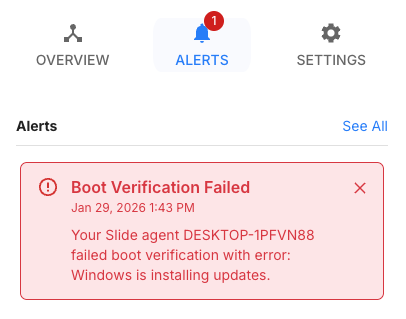
Each boot verification failed alert has a unique error message, which can be used to troubleshoot (e.g. Windows applying updates). The error message is shown in the alert detail sidebar:
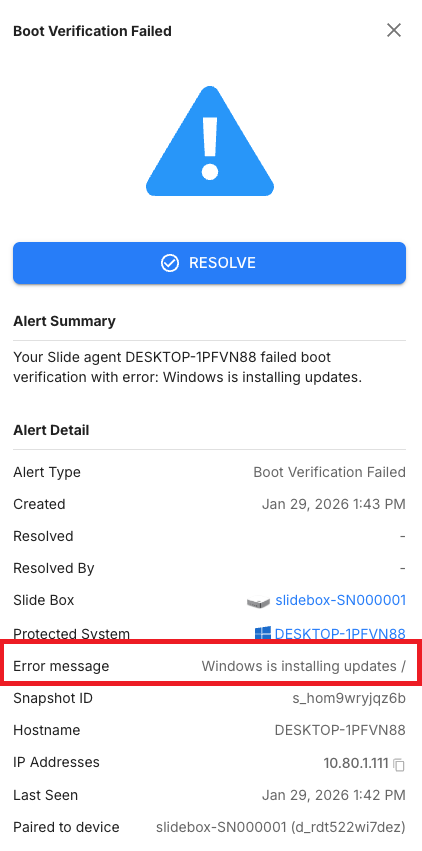
Troubleshooting a failed boot verification can vary based on the error message. In the case of a message like "Windows applying updates" the protected system will need to be updated so that boot verification can complete in the allotted time. If the issue persists, or you need assistance troubleshooting a boot verification failure, please contact support.
This alert is eventually auto-resolved once none of the protected system's 3 most recent backups has failed boot or service verification.
If boot verification failures persist after a baseline of 3 consecutive successes has been established, Slide will automatically schedule a self-healing differential backup for the affected system's boot volumes. This happens after 5 consecutive failures and is intended to resolve failures caused by data inconsistencies without requiring manual intervention.
Service Verification Alerts
When boot verification succeeds but one or more configured services are not in the Running state at the end of the verification, a service verification alert is sent. It's a Boot Verification Failed alert (agent_boot_verification_failed) that lists the failed services; there's no separate alert type for it:
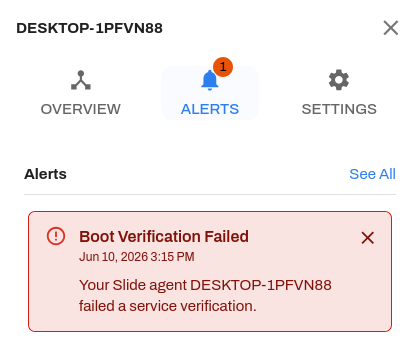
This alert does not mean your backup has failed. The alert signals that specific services did not reach a Running state inside the isolated verification environment and requires further investigation.
The alert includes a list of the affected services but does not include a screenshot. The same information is visible in the snapshot sidebar under Verification Results.
It's important to remember, Service Verification is a test of a backup in an environment that is not identical to production nor is it identical to how a true disaster VM will be set up. Verification VMs are created without networking and are short lived (less than 15 minutes). We do this intentionally so that verifications can complete in a timely manner. If a service expects a network connection, or takes longer to start than the verification run time, then it's likely they will fail to verify successfully.
When a service fails to verify, investigation should begin with creating a test VM on your Slide Box or in the Slide Cloud. From the test VM, check the Windows System event log filtered by source Service Control Manager. Look for startup errors, or a large gap between boot and the SCM event which may indicate the service is timing out. You can also enable network access to rule out connectivity-dependent failures.
Slide Support can assist in guiding your troubleshooting, but diagnosing the behavior of 3rd party applications is out of scope.
To investigate a service verification failure:
- Check which services failed. The alert email and the snapshot sidebar both list them.
- Look up whether those services need network access to start. If they do, the failure is expected and your backup is likely fine.
- If a critical service failed (database, line-of-business app), spin up a test VM to inspect the event logs and confirm the system is recoverable before relying on the backup.
- If a service consistently fails due to the isolated environment and you've confirmed the backup is healthy, remove it from the list via CONFIGURE SERVICE VERIFICATION on the Protected Systems page.
Troubleshooting
From the Slide Console, create a test virtualization for the affected snapshot on the Slide Box with no network. Start the VM and log into Windows.
Use Windows Event Viewer to compare the system boot time with the time a service entered the running state.
Events to Look For
| Event | Source | Event ID | What It Means |
|---|---|---|---|
| Boot | Microsoft-Windows-Kernel-General | 12 | Windows started |
| Service started | Service Control Manager | 7036 | A service entered the running state |
| Boot fallback | EventLog | 6005 | Event Log service started |
Use Event ID 12 as the boot time when available. Use Event ID 6005 only as a fallback.
Steps
- Open Event Viewer.
- Go to Windows Logs > System.
- In the right pane, click Filter Current Log...
- In Event sources, select
Microsoft-Windows-Kernel-General,Service Control Manager, andEventLog. - In Event IDs, enter
12,7036,6005. - Click OK.
Find the Boot Time
Look for Event ID 12 from source Microsoft-Windows-Kernel-General. This is the system boot event.
If Event ID 12 is not available, use Event ID 6005 from source EventLog as a fallback. This indicates the Event Log service started, which is close to but not exactly boot time.
Find the Service Start Time
Look for Event ID 7036 from source Service Control Manager. Open the event and find the entry that reads:
The [service name] service entered the running state.
Use the first matching service start event after the boot event.
Calculate the Time Difference
Subtract the boot event time from the service start event time.
Example:
In this example, the service started 43 seconds after boot.
Note
- Search by the service’s display name, not just the short service name.
- Make sure the service start event happened after the boot event.
- If there are multiple
7036events for the same service, use the first one after boot. - Use the event’s displayed timestamp consistently for both events.
Conflicting Agent Connection
This alert is triggered when two instances of the same Slide Agent connect to the Slide Cloud simultaneously from different machines. This typically occurs when a protected system has been imaged or virtualized, resulting in a duplicate agent running on a second machine with the same identity.
Please identify and shut down the duplicate machine immediately. Backup integrity may be impacted until the conflict is resolved, as both machines share the same agent identity and backup state.
The alert detail shows the gateway IP addresses of both the existing (active) connection and the new (conflicting) connection to help you identify which machine is the duplicate.
To resolve this alert:
- Identify the duplicate machine using the IP addresses shown in the alert.
- Shut down or disable the Slide Agent on the duplicate machine.
- Mark the alert as resolved once the duplicate has been removed.
If you need additional assistance in resolving this alert, please contact support.
Slide Agentless alerts
These alerts apply to hypervisors and their agentless guests. Agentless guests can also raise Backup Failed, Missed Scheduled Backup, Boot Verification Failed, and Replication Behind, as described above. Alerts that depend on the Slide Agent, such as Agent Not Checking In and Service Verification Alerts, don't apply to agentless guests. Open a hypervisor's Alerts tab to see its unresolved alerts. The number on the tab shows how many are active. Select an alert to view its details or resolve it, or select See All to open the account-wide Alerts page filtered to unresolved alerts for that hypervisor.
Hypervisor Not Checking In
The Slide Box is online but hasn't reported the paired hypervisor for at least two hours.
Confirm that the Hyper-V host is powered on and reachable from the Slide Box, and that its connection settings are still valid.
The alert resolves automatically after the Slide Box reports the hypervisor again.
Hypervisor Unreachable
The Slide Box has reported a communication failure with the paired hypervisor for at least 30 minutes. The host may be powered off or unreachable, its credentials may be incorrect, or another error may be preventing an inventory refresh. Review the reported error in the alert details.
Backups of guests on the hypervisor can't run until communication is restored. The alert resolves automatically after the Slide Box completes a successful inventory refresh.
Hypervisor Host Agent Not Checking In
The Windows Agent on the Hyper-V host hasn't checked in for at least two hours. Slide reaches the hypervisor through this agent, so guests on the host can't be backed up while it is offline.
Confirm that the host is powered on, the Slide Agent service is running, and the agent meets the networking requirements.
The alert resolves automatically after the host agent checks in again.
New Virtual Machine Discovered
After the hypervisor's initial inventory, Slide found a new guest while Auto Protect was off. The guest appears on Unprotected Systems. Slide doesn't raise this alert when Auto Protect is on.
The alert resolves automatically after you protect the guest or it disappears from the hypervisor.
New Virtual Disk Discovered
Slide found a new virtual disk attached to a protected guest. Depending on the guest's Disks settings, the new disk may not be backed up until you include it.
The alert resolves automatically once you've ruled on each new disk. If Slide didn't include the disks automatically, including each of them resolves the alert; excluding them leaves it open. If Slide included them, excluding each of them or the next backup that captures them resolves the alert.
Virtual Machine Missing
A protected guest hasn't been reported by the hypervisor for at least two hours. It may have been deleted or moved to another host. Slide matches guests by their stable Hyper-V VM ID, so renaming a VM doesn't raise this alert.
The alert resolves automatically if the guest reappears or the associated protected system is deleted.
SaaS alerts
These alerts apply to Microsoft 365 tenants protected with SaaS backup. They're only listed for accounts that use SaaS backup. Slide checks each protected tenant every 15 minutes, and raises one alert per tenant for each problem, rather than one per user or mailbox. The alert lists the affected resources, and its details stay up to date while it's open.
Slide only checks tenants that are protected and not paused. Time a tenant, resource or application spends paused or not yet protected never counts towards an alert: when you resume a paused tenant, it gets the full time again before it can alert.
The times below are Slide's defaults, and Slide may adjust them. Each alert says the time it used.
Each SaaS alert says:
- Cause: why the alert is open, such as access for the Slide apps having been revoked in the tenant.
- Who can fix this: you, from the tenant's page in the Slide Console; a Global Administrator of the Microsoft 365 tenant; or Slide support.
- What to do: the next step for that cause.
- Failing since: when the problem started.
The alert email links straight to the tenant in the Slide Console.
SaaS Backup Failed
One or more resources in the tenant aren't backing up. Slide checks each application of a resource on its own, such as a user's mail and their OneDrive, and a resource is affected when any of its applications hasn't backed up successfully for 24 hours beyond the longest gap in that application's backup schedule. So a user whose OneDrive is failing is affected even if their mail is backing up fine. For example:
- an application backed up every 3 hours (the default) alerts after about 27 hours;
- an application backed up daily alerts after about 48 hours;
- an application backed up only at weekends alerts after about 6 days and 24 hours.
Each application's time is counted from its last successful backup, or from when Slide started checking it if that's later. An application counts whether its backups failed or weren't attempted at all.
It's still one alert for the tenant, not one per resource or per application. The alert shows how many resources are affected, how many of them had no backup attempted, and up to 20 of them by name and kind (user, shared mailbox, group or site), with when the resource's longest-failing application last backed up.
Finding the failing application
The alert names the affected resource but not which of its applications is failing. To find out whether it's the user's mail, OneDrive or another application, open the resource in Resources and check the last backup of each of its applications. A backup that finishes with some items failed counts as a success, because data was backed up. A backup that's still running isn't counted against the resource.
A mailbox that Microsoft 365 won't serve, because it's unlicensed, inactive, soft-deleted, hosted on-premises or blocked from app access, isn't counted. No retry fixes these, so they would hold the alert open.
The alert resolves automatically once every affected application has backed up successfully again.
Tenant Credentials Not Working
Slide hasn't been able to sign in to the tenant for at least an hour. Backups of the tenant aren't running while this continues.
Timeouts, throttling and Microsoft 365 service outages don't count, so a Microsoft outage doesn't raise this alert for all your tenants at once.
The usual fix is to Re-Authorize the tenant from its page in the Slide Console, signed in as a Global Administrator of the tenant, or have one do it. A tenant connected through GDAP has no Re-Authorize: if access for the Slide apps was revoked, ask a Global Administrator of the tenant to grant admin consent to the Slide apps in Microsoft Entra, and contact Slide support if that doesn't fix it within a few hours. For any other credential problem on a GDAP tenant, contact Slide support.
While this alert is open, Slide doesn't raise SaaS Backup Failed or SaaS Discovery Failed for the same tenant, because they'd have the same cause. After the credentials work again, Slide waits for the tenant's next scheduled backups and its next discovery to run, with two hours to spare, before it raises either of them. An alert that was already open before the credentials failed stays open.
The alert resolves automatically once Slide can sign in to the tenant again, and no sooner than three hours after it was raised.
SaaS Discovery Failed
Slide hasn't been able to discover what to back up in the tenant for 48 hours, and the latest attempt failed or only partly completed. Discovery is how Slide finds new users, mailboxes, groups and sites, so they aren't found or protected while this continues.
The alert resolves automatically after the next successful discovery.
When a SaaS alert closes
As well as resolving once its problem clears, a SaaS alert resolves straight away when Slide stops checking its tenant: when you pause or unprotect the tenant, delete it or disconnect it, or when SaaS backup is turned off for your account.
Thirty days after you delete a tenant, the names of the affected users, mailboxes, groups and sites are removed from its alerts. The counts, the kinds of resource, the cause and the times stay. Disconnecting a tenant doesn't remove them, so a tenant you reconnect keeps its alert history.
Notifications for SaaS alerts
SaaS alerts are a new alert type, so they show in the Slide Console but notify no one by default. If your account turns on SaaS backup from now on, your Owners and Admins get one email saying SaaS alerts are available. Accounts that already had SaaS backup when this email started weren't emailed.
- Email: each user turns on email for each SaaS alert type on the My Settings page. The account's Alert Email List receives SaaS alerts without any change, except alerts about your own organization's tenant, which are emailed only to Owners and Admins.
- PSA tickets: on Alerts > Monitors, turn on Create PSA Tickets for each SaaS alert type you want tickets for. You need permission to manage integrations to change it. If you don't see Monitors under Alerts yet, contact support to turn it on. The ticket title starts with the tenant's name, and its client, so you can see whose tenant it is from the board. Two tenants on one client get separate tickets.
- Tenants without a client: a SaaS alert opens its ticket in the tenant's client. For a tenant that isn't assigned to a client, set a Fallback client for SaaS alerts on the HaloPSA integration's Client Mapping tab. If PSA tickets are on for a SaaS alert type and there's no fallback client, the HaloPSA integration page warns you, and those alerts don't open tickets. They still show in the Slide Console and are emailed to users who turned email on. ConnectWise PSA has no fallback client, so alerts for a tenant without a client don't open ConnectWise tickets.
When SaaS alerts first turn on for your account, problems that already exist show in the Slide Console without sending email or opening PSA tickets, so you aren't flooded with tickets on day one. Such an alert stays quiet until it closes. If the problem comes back later, the new alert notifies as normal.
A SaaS alert for a tenant that isn't assigned to a client is only shown to users who can see the whole account, not to users limited to particular clients.
In the Slide API, SaaS alerts carry tenant_id and tenant_display_name, and you can list one tenant's alerts with GET /v1/alert?tenant_id=. See SaaS alert fields for the details each alert carries.