Unprotected Systems
The Unprotected Systems page shows the systems that Slide found in your account but doesn't back up yet, so you can protect them from one place. It lists two kinds of unprotected systems together:
- Slide Agent systems: Computers running a Slide Agent that isn't paired with a Slide Box yet. These are agents you installed with your account pair secret (magic pairing).
- Hypervisor guests: Virtual machines on a connected hypervisor that don't have a Slide Agentless protected system yet.
A guest that already has a Slide Agent installed is already a protected system, so it doesn't count as unprotected. It's only listed when Show hidden is on, with the status Slide Agent installed.
The badge on Unprotected Systems in the left menu, and on the shield in the top bar, shows how many unprotected systems need your attention. It doesn't count hidden systems or guests that a Slide Agent already protects.
Unprotected Systems list
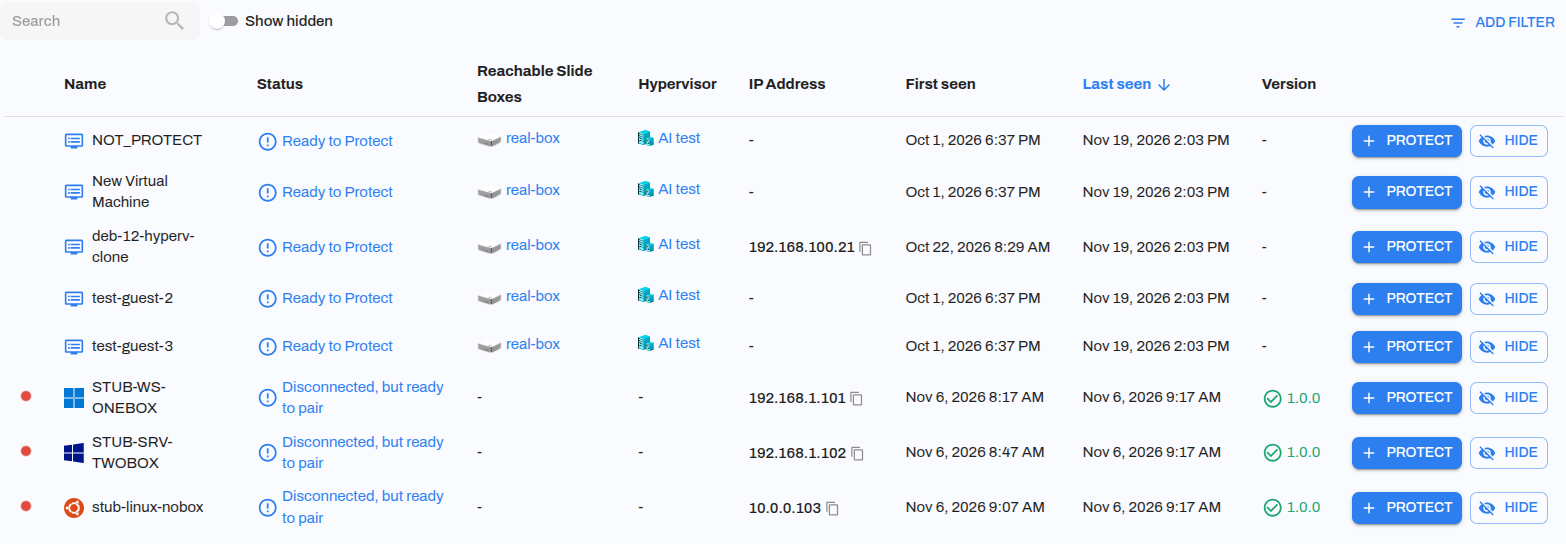
The list shows the following information:
- For a Slide Agent system, a dot that shows whether the agent is connected to Slide Cloud. Hover over the dot to see its connection status.
- The Name of the system, with its operating system icon when Slide knows the operating system.
- The Status of the system, which can be one of the following:
- Ready to Pair: A Slide Agent system that you can pair with a Slide Box.
- Disconnected, but ready to pair: A Slide Agent system that is disconnected right now. You can still pair it.
- Ready to Protect: A hypervisor guest that you can protect with Slide Agentless.
- Hidden: A system that someone hid.
- Slide Agent installed: A guest that already has a Slide Agent installed.
- The Reachable Slide Boxes: For a Slide Agent system, the Slide Boxes it can reach on its local network. For a guest, its hypervisor's Slide Box.
- The Hypervisor that runs the guest.
- The IP Address of the system.
- First seen and Last seen: When Slide first and last saw the system.
- The Version of the Slide Agent.
By default, the list is sorted by Last seen, newest first. You can also sort it by Name, Status, Reachable Slide Boxes, or Hypervisor.
Each row has two buttons: Protect (see Protecting a system) and Hide (Unhide for a hidden system, see Hiding a system). A guest that already has a Slide Agent installed has only Protect.
Searching & Filtering
- Search: Finds systems by name, operating system, IP address, or ID.
- Show hidden: Also shows hidden systems and guests that already have a Slide Agent installed.
- Hypervisor: Under Add filter, shows only the guests on one hypervisor.
You can also open this page already filtered to one hypervisor from the hypervisor details.
Unprotected system details
Select a row to open the details for that system. The Protect and Hide buttons are at the top of the details.
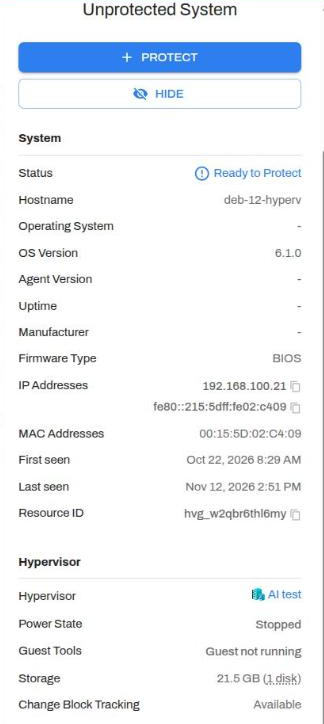
The System section shows the following for both kinds of systems:
- Status, Hostname, Operating System, OS Version, and Agent Version.
- Uptime, Manufacturer, and Firmware Type.
- IP Addresses and MAC Addresses.
- First seen and Last seen.
- Resource ID: The system's ID, used in the Slide API and by Slide support.
For a guest, the Hypervisor section also shows:
- Hypervisor: The hypervisor that runs the guest.
- Slide Agent: The Slide Agent installed in the guest, if there is one.
- Power State: The guest's power state, such as Running or Stopped.
- Guest Tools: Whether Slide detected the hypervisor's guest services in the VM. See Guest Tools.
- Storage: The guest's virtual disks, with details for each disk.
- Change Block Tracking: Whether change block tracking is available for the guest.
Note
A guest's Hostname, OS Version, and IP Addresses come from the hypervisor's guest tools. They are empty when the guest tools aren't running in the guest.
Protecting a system
Select Protect on the row or in the details.
Slide Agent systems
- Choose the Slide Box that will protect the system. Slide Boxes that can already reach the system on its local network are listed first.
- On a multi-tenant Slide Box, also choose the Client.
Slide pairs the system with the Slide Box and opens its protected system details. To pair agents without this step, see Auto-pair or use a Slide Box's device pair secret.
Hypervisor guests
Slide creates an agentless protected system for the VM and opens it. On a multi-tenant Slide Box, Slide first asks you to choose the Client.
If a Slide Agent is already installed in the guest, Slide asks you to confirm first:
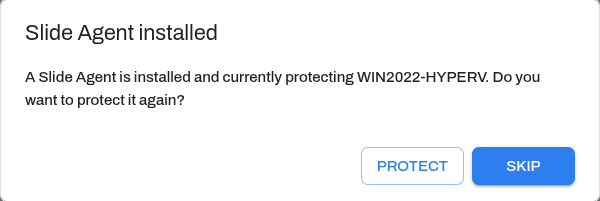
Select Protect only if you want an agentless backup of the VM in addition to the Slide Agent backup. Select Skip to cancel.
See Protecting a guest for what happens next.
Hiding a system
Select Hide to remove a system from the default list and from the badge count. Hiding applies to everyone in your account.
Hiding doesn't delete anything, and you can still protect a hidden system. To see hidden systems, turn on Show hidden. To show a system in the default list again, select Unhide.
Note
Auto-pair does not pair a hidden Slide Agent system. To let auto-pair pair it, select Unhide.