Single Sign-On (SSO)
Single Sign-On (SSO) lets your team sign in to the Slide Console with your existing identity provider (IdP) instead of managing separate Slide passwords. Slide supports SSO via OIDC (OpenID Connect). This guide walks through configuring SSO with Microsoft Entra ID.
How sign-in works
Slide does not support IdP-initiated login, so sign-in must start at the Slide Console, not an app tile in your IdP. See Troubleshooting if that's not what you expected.
Prerequisites
Before you begin, make sure you have:
- Owner or Admin access to your Slide account
- Permission to create app registrations in your identity provider
- Ability to add a DNS TXT record at the apex of each domain you want to use
- At least two users in your Slide account; one must remain a non-SSO break-glass account
Step 1: Get your Redirect URL from Slide
You need this value before you create the app registration, so start in the Slide Console.
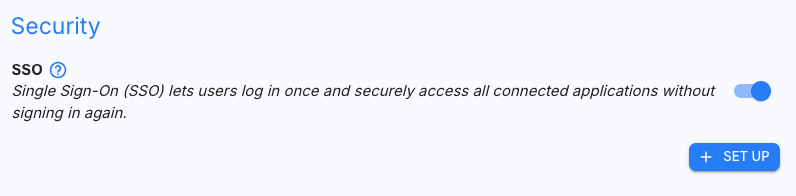
Navigate to Account Settings > Security > SSO and toggle SSO on.

Once enabled, click SET UP.
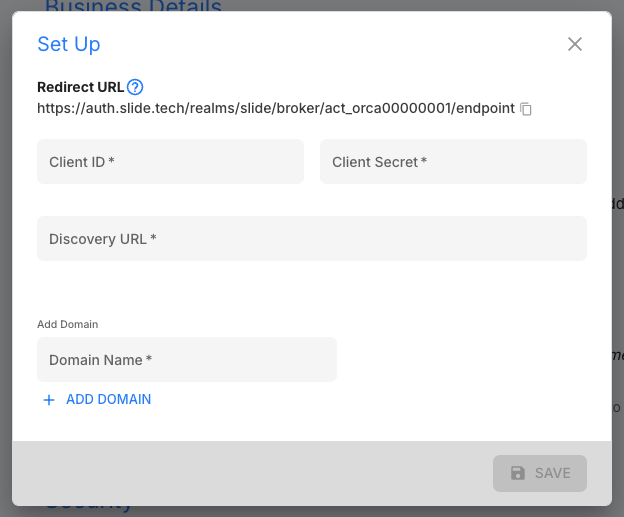
The setup modal displays your Redirect URL. Copy it. You will paste it into your IdP in the next step.
Warning
This Redirect URL is a callback endpoint, not a sign-in link. It only accepts a callback carrying state that Slide itself generated. Don't use it as the target for an app tile, bookmark, or launcher; use your Slide Console URL instead.
You can leave this modal open and return to it in Step 6.
Step 2: Create an app registration in Microsoft Entra ID
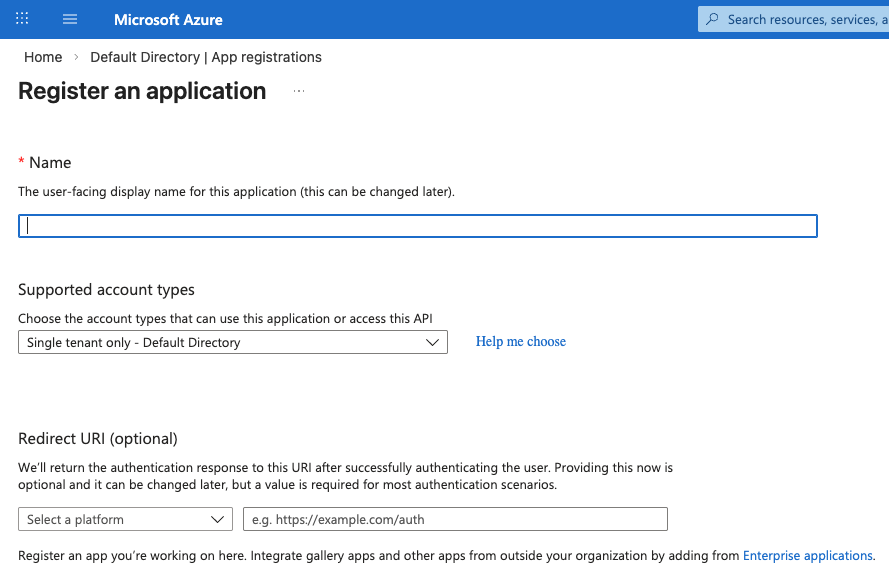
Go to entra.microsoft.com and navigate to Identity > Applications > App registrations > New registration.
Set the following:
| Field | Value |
|---|---|
| Name | A name of your choosing (e.g. Slide Console) |
| Supported account types | Single tenant (recommended) |
| Redirect URI | Platform Web, using the Redirect URL you copied in Step 1 |
Click Register.
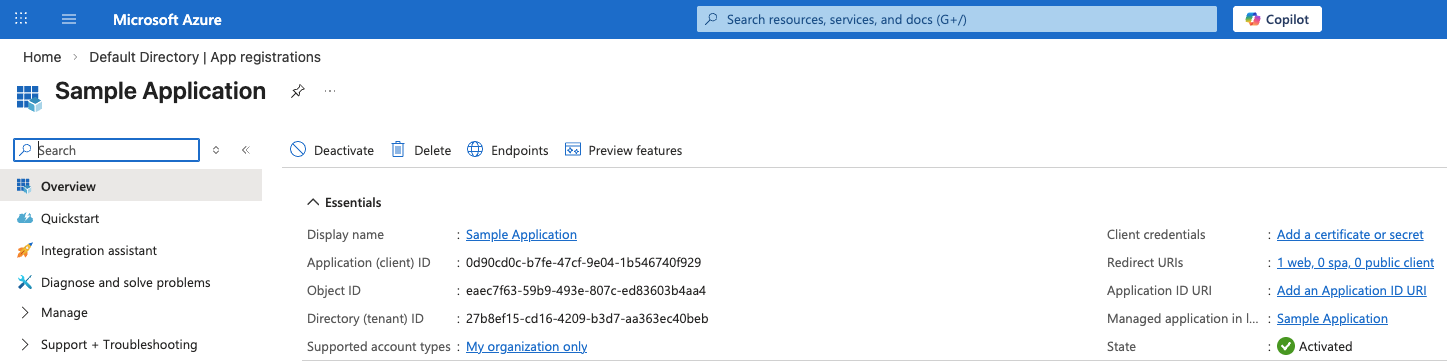
From the Overview page, copy the Application (client) ID. This is your Client ID.
Tip
Also note your Directory (tenant) ID from this page. You need it to build the Discovery URL in Step 6.
Step 3: Configure authentication
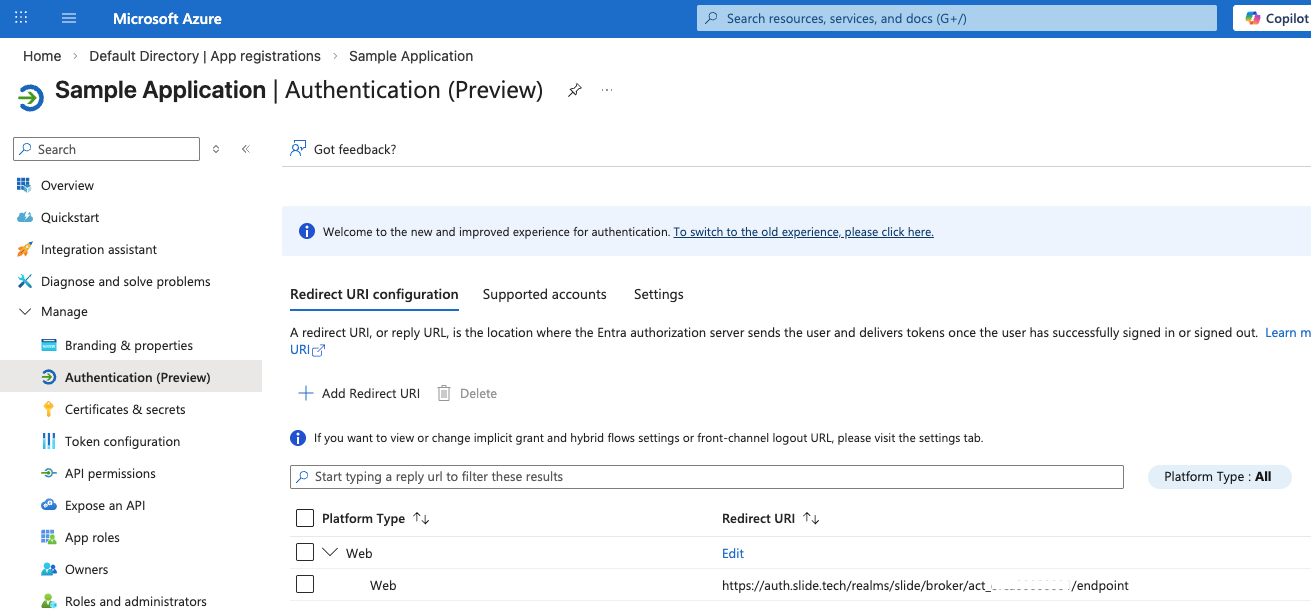
Navigate to Authentication. If the Web platform was not created during registration, click Add platform > Web, then:
- Confirm the Redirect URI matches your Slide Redirect URL exactly
- Under Implicit grant and hybrid flows, enable ID tokens
Click Save.
Note
The Redirect URI may already be present if you entered it during app registration. It must match the Slide value character for character, including the trailing /endpoint.
Step 4: Create a client secret
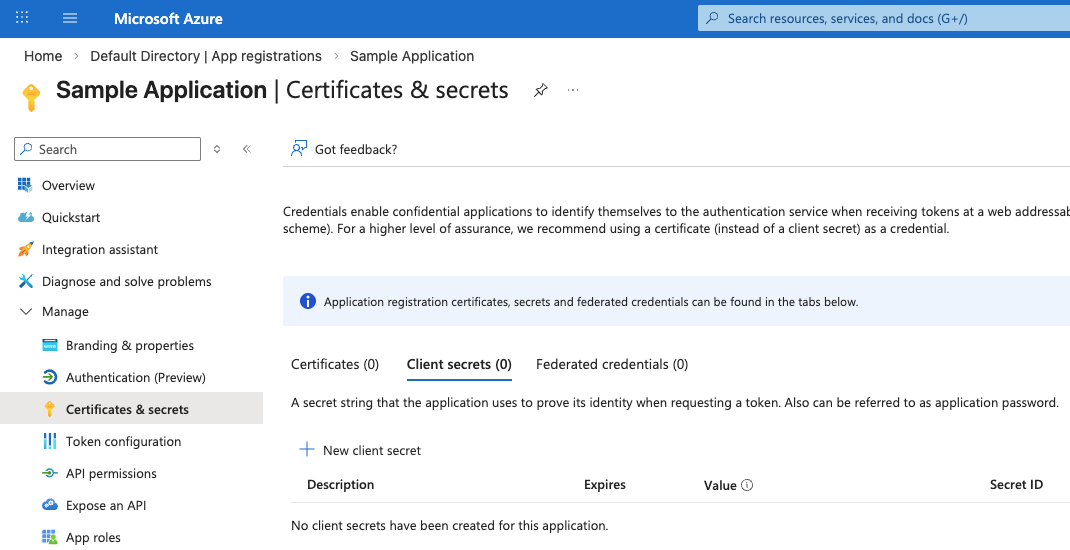
Navigate to Certificates & secrets > Client secrets > New client secret.
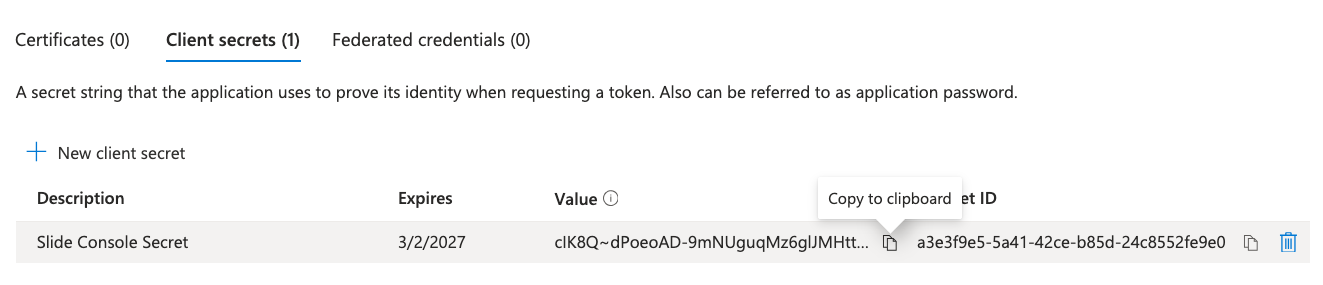
Copy the secret Value immediately. Entra will not display it again after you leave the page.
Warning
Client secrets expire. When the secret expires, SSO stops working for every user in your account at once. Record the expiration date and set a reminder to rotate the secret before it lapses. See Troubleshooting.
Step 5: Add the required token claim
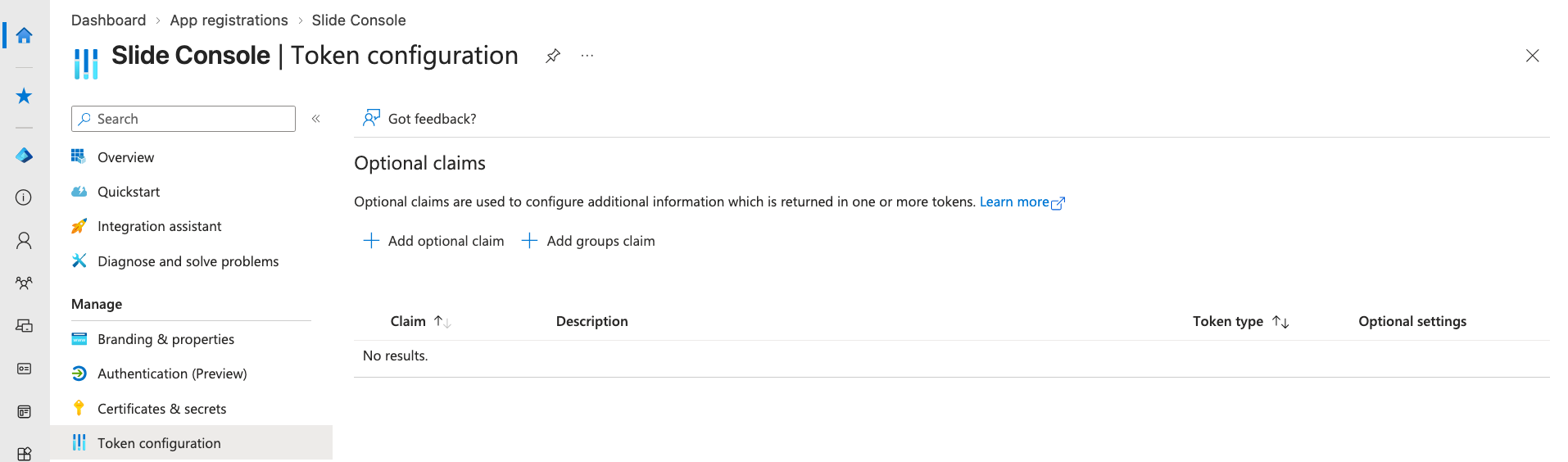
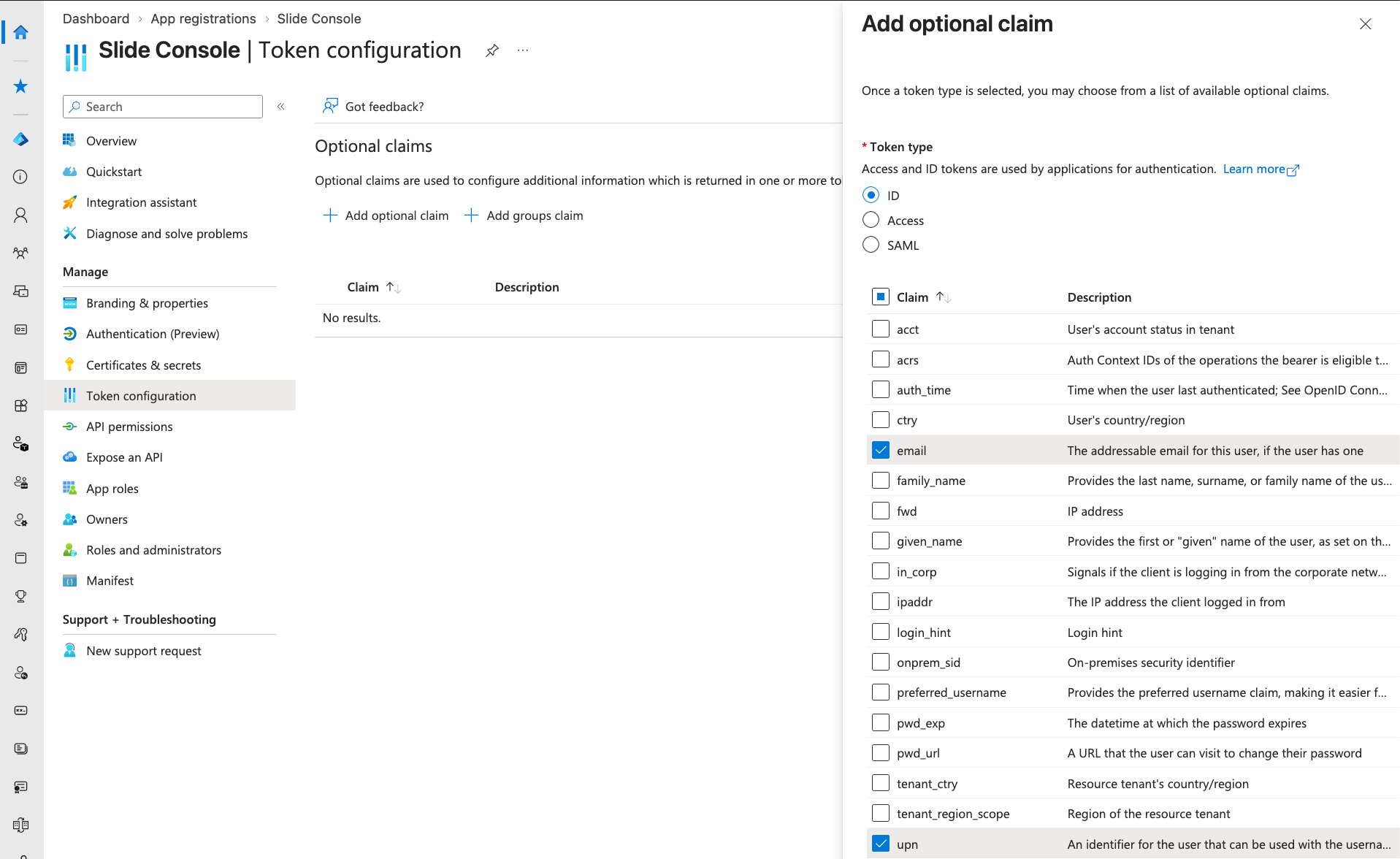
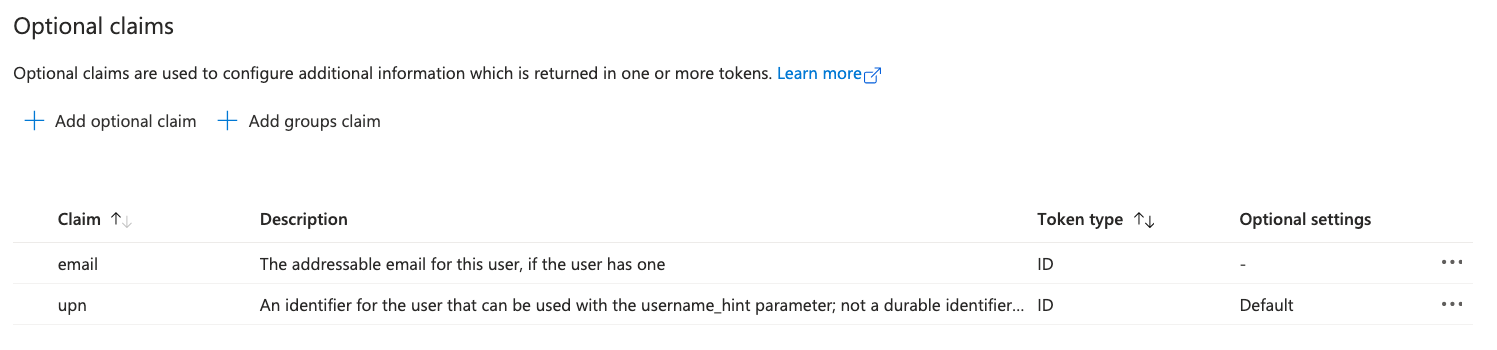
Slide identifies the returning user from the upn claim in the ID token. If this claim is missing, sign-in will fail.
Navigate to Token configuration > Add optional claim:
- Select token type ID
- Select the
upnclaim (addingemailas well is recommended) - Click Add
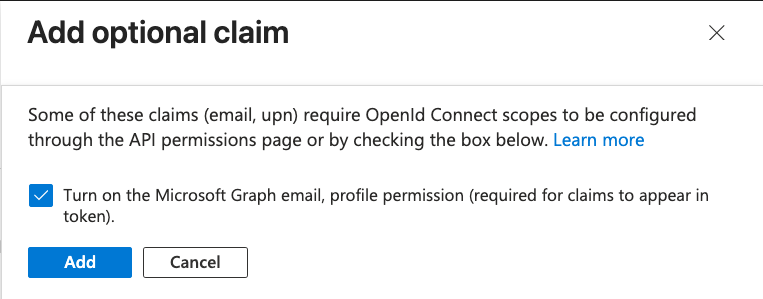
- If prompted, check the box to turn on the Microsoft Graph profile permission
Important
The upn claim is required. Slide maps upn to the user's email address in Slide, and that address must match the user's Slide account email.
For reference, Slide requests the scopes openid email profile and uses PKCE (S256) with the client_secret_post authentication method.
Step 6: Complete the SSO configuration in Slide
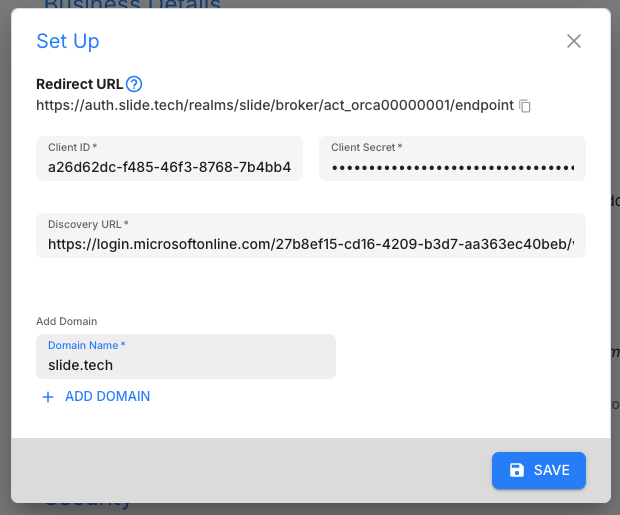
Return to the SSO setup modal in Account Settings > Security > SSO.
Enter your IdP details
| Field | Value |
|---|---|
| Redirect URL | Pre-filled by Slide; this is the value you configured in your IdP |
| Client ID | The Application (client) ID from Step 2 |
| Client Secret | The secret value from Step 4 |
| Discovery URL | Your IdP's OpenID configuration endpoint (also called the OpenID Connect metadata document) |
For Microsoft Entra ID, the Discovery URL is:
Add your domains
Under Add Domain, enter a company email domain (e.g. slide.tech). Click ADD DOMAIN to add more.
When all domains are entered, click SAVE.
Note
A domain can only be claimed by one Slide account. If you see a "domain already in use" error, the domain is already verified on another Slide account. Contact Slide support.
Step 7: Verify domain ownership
SSO does not become active for a domain until you prove you own it.
After saving, open Manage Domains.
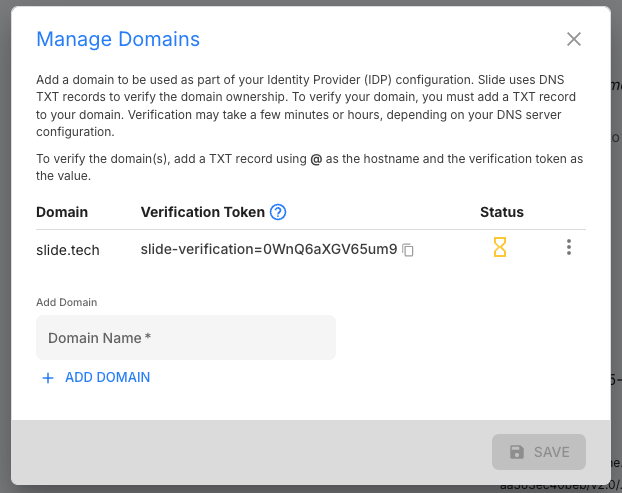
- Copy the Verification Token. It looks like
slide-verification=aB3xY7kQ9mZp2R. -
Add a DNS TXT record on the domain:
Field Value Host @(the domain apex, not a subdomain)Type TXTValue slide-verification=<your token> -
Wait for DNS propagation. This can take anywhere from a few minutes to several hours depending on your DNS provider and TTL.
- Refresh Manage Domains until the status shows verified.
Warning
Slide re-checks pending domains automatically about every 30 minutes and gives up after 5 failed attempts, marking the domain Failed. If your DNS record was not live in time, delete the failed domain and add it again to get a fresh token and a new set of attempts.
Confirm the configuration
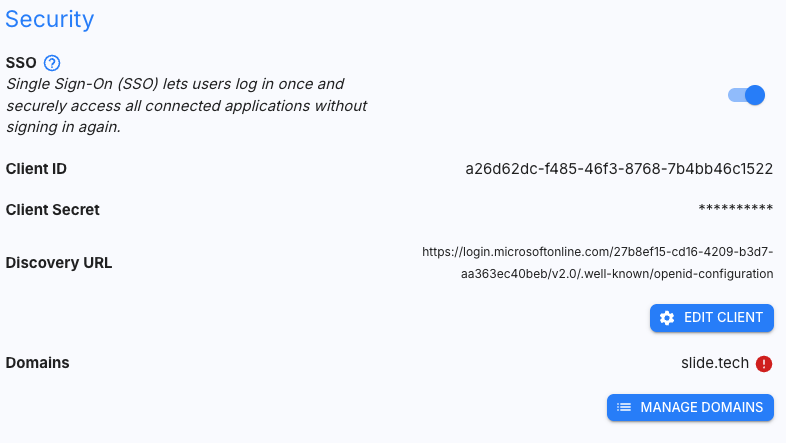
Once a domain is verified, your SSO settings display the Client ID, Discovery URL, and verified domains.
The break-glass account
Every SSO-enabled Slide account must keep at least one user who does not use SSO. This is your break-glass account: it lets you get back into the Console if your IdP is unavailable, your client secret expires, or your tenant is misconfigured.
Slide enforces this. You will be blocked from:
- Enabling SSO for the last remaining non-SSO user
- Deleting the last remaining non-SSO user
Important
Use an Owner or Admin account for this purpose, give it a strong unique password, and document where the credentials are stored. An account you cannot find in an outage is not a break-glass account.
Enabling SSO for users
Configuring SSO at the account level does not switch anyone over. You enable SSO per user.
Note
A user's email domain must match one of your verified domains. Plus addressing / subaddressing (e.g. name+slide@example.com) is not supported.
Existing users
From the Users page, click the user you want to update.
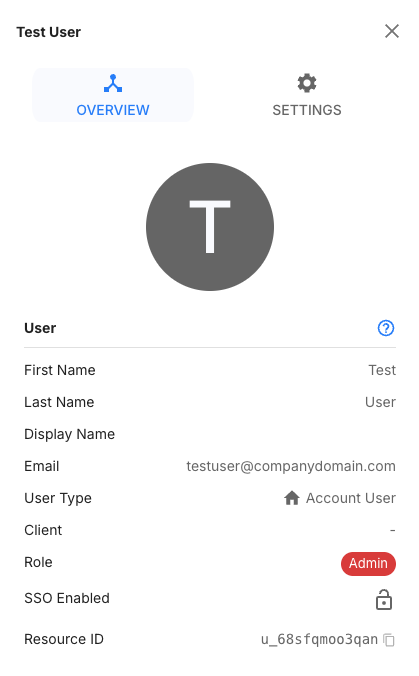
Select the Settings tab. Under Role, switch Enable SSO on, then click Save.
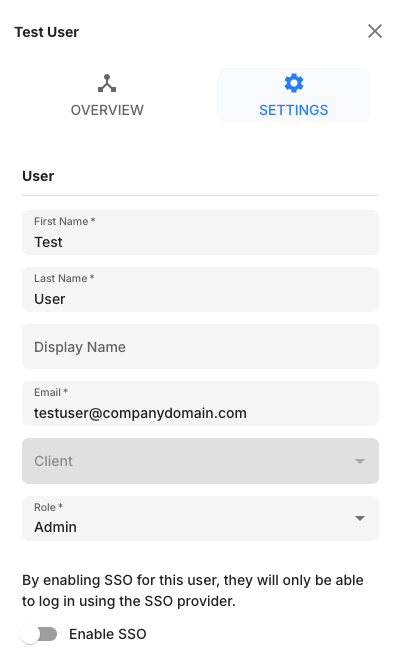
The Users list shows which users are using SSO.

Warning
Enabling SSO for a user removes their Slide password. From that point on, they can only sign in through your IdP.
New users
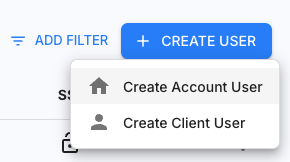
From the Users page, click Create User in the top-right corner, then select Create Account User.
Complete the form with the new user's details. Enable SSO is on by default. Click Save.
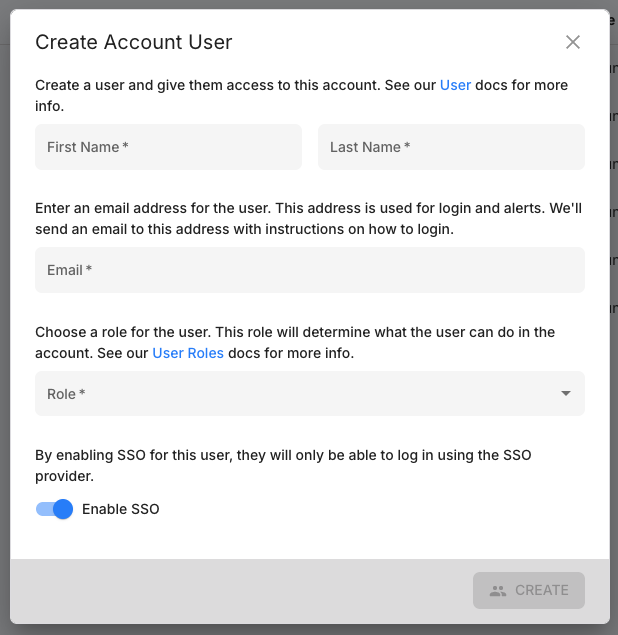
SSO users are not sent a temporary password; they sign in through your IdP instead.
Disabling SSO
For an individual user
Switch Enable SSO off in the user's Settings tab.
Slide generates a temporary password and emails it to the user. At their next sign-in they are required to set a new password and configure multi-factor authentication.
For the whole account
Turn SSO off in Account Settings > Security > SSO.
Warning
Users who were signed in via SSO will not be able to log in until they reset their password. Plan this change during a maintenance window and notify your users first.
Troubleshooting
I am asked for my email instead of being signed in automatically
This is expected. Slide does not support IdP-initiated login, so sign-in must start at the Slide Console. There's no endpoint on the Slide side that accepts a session handed over from your IdP. Sign-in is always SP-initiated:
- Go to the Slide Console, from an app tile, a browser bookmark, or by typing the URL. These are all equivalent.
- The Slide login page asks for your Email.
- Enter your email address and submit.
- Slide matches your email domain against your verified domains and redirects you to your IdP.
- You authenticate with your IdP and return to the Console signed in.
Step 2 is not skippable. Slide does not display a "Sign in with \<your organization>" button; IdP discovery is done entirely by email domain. Being asked for your email is the product working correctly, not a misconfiguration.
Clicking the Slide tile in Entra does not sign me in
An app tile in Entra (or any IdP portal) is just a bookmark that navigates to the Console URL. It does not sign you in directly. Clicking it lands you on the Slide login page, where you enter your email as described above.
Make sure the tile points at your Slide Console URL and not at the Redirect URL. The Redirect URL is a reply/callback endpoint that only accepts a callback carrying state Slide itself generated during a login. Navigating to it directly does nothing.
SSO stopped working for everyone at once
The most common cause is an expired client secret. Check the expiration date on your app registration in Entra under Certificates & secrets, create a new secret, and update it in Account Settings > Security > SSO.
Use your break-glass account to sign in to the Console while you fix this.
A specific user cannot sign in
Check each of the following:
- The user's email domain matches a verified domain in your SSO configuration
- The user's email address does not use plus addressing / subaddressing
- Enable SSO is switched on for that user
- The
upnclaim is configured on the app registration (see Step 5) - The user's email in Slide matches the
upnvalue returned by your IdP
I cannot enable SSO for a user
Slide requires at least one non-SSO user per account. If this is the last user without SSO, you cannot convert it. Create or designate another user as your break-glass account first.
My domain will not verify
- Confirm the TXT record is on the domain apex (
@), not a subdomain - Confirm the record value includes the
slide-verification=prefix - Check propagation with
dig TXT yourdomain.com +shortor an online DNS lookup tool - If the domain is already marked Failed, delete it and add it again for a fresh token
I am prompted to sign in at my IdP every time
Slide requests re-authentication at the identity provider on each Console sign-in rather than silently reusing an existing IdP session. This is intentional.