Manage Your Slide Subscriptions
The Subscriptions page in Console is where you can view and manage the service attached to each of your Slide Boxes. From here, you can change your service plan or storage, upgrade or downgrade a device, pause or cancel service, and reactivate service. Slide bills for service in advance. Unless otherwise noted, changes to an active subscription take effect at the end of the current billing cycle.
Note
Account Owners and Admin Users can make billing changes and receive billing emails. Billing Users can view billing information and receive billing emails, but cannot make changes.
Activating a Subscription
Once you make a purchase, your new subscription appears on the Subscriptions page in Console. Service activates in one of two ways:
- You receive your device and turn it on for the first time.
- 30 days after fulfillment, the activation grace period expires and service activates automatically.
Once activated, you will be billed monthly for service.
Subscription Statuses
Each row on the Subscriptions page represents a device and the service attached to it. You can hover over a status in Console for additional information.
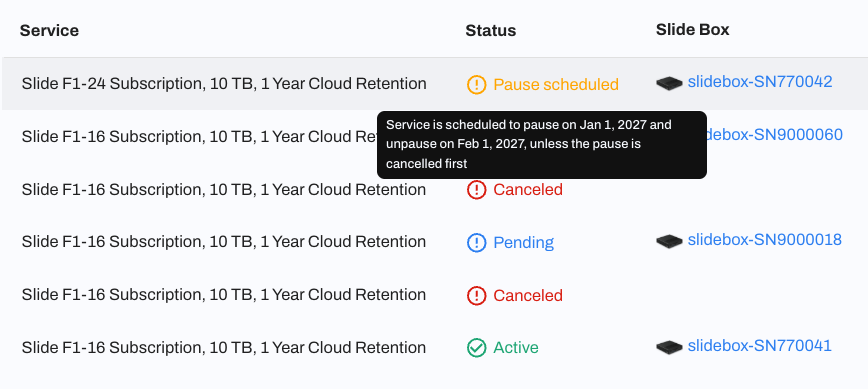
| Status | What it means |
|---|---|
| Pending | The device has been purchased, but service is not yet active. |
| Active | Service is running and billing normally. |
| Past Due | An invoice has not been paid. Address the outstanding payment to prevent service disruption. |
| Pending cancellation | Cancellation has been requested. Service remains active until the scheduled end date. |
| Paused | Service and billing are temporarily suspended. Service will resume automatically at the end of the pause. |
| Cancelled | Service has ended. |
View Subscription Details
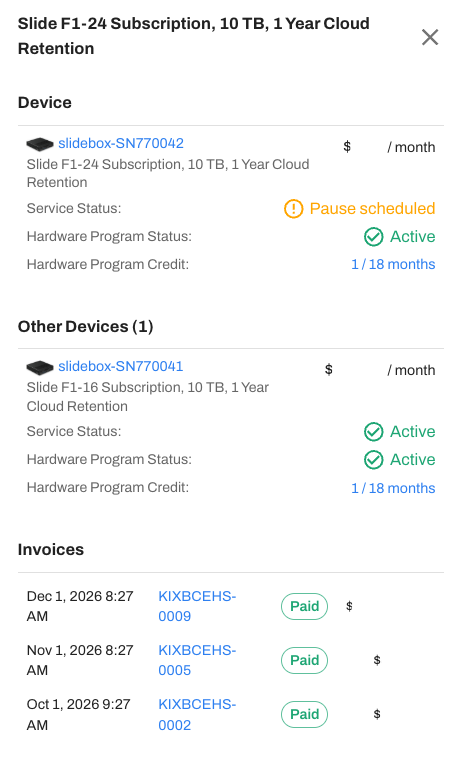
Click any subscription row to open its detailed slideout. From here, you can see:
- The devices associated with the subscription, with links to their device details.
- Free to Own status and ownership progress, when applicable.
- Invoices associated with the subscription, including any past-due invoices that require payment.
Change Your Subscription
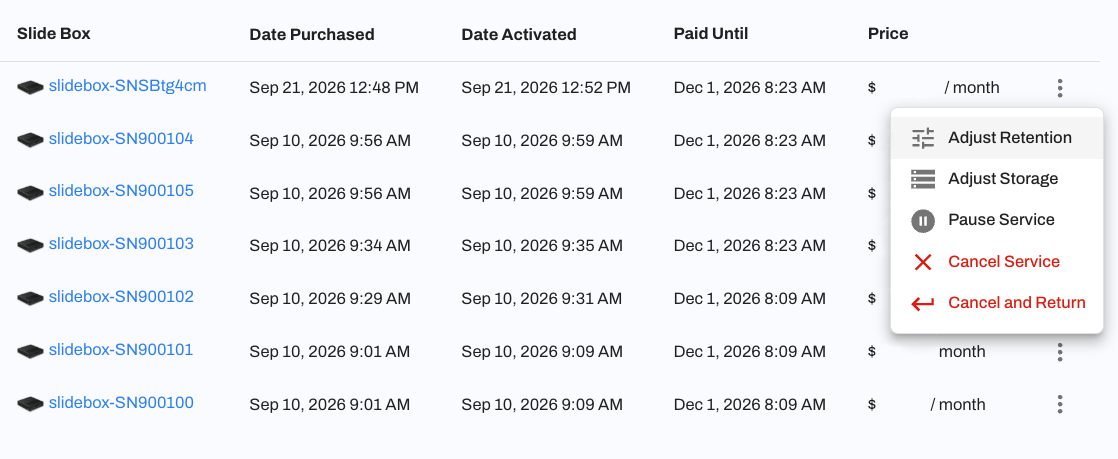
To request a change, find the subscription you want to update and open its three-dot menu. Depending on the change, our billing team may follow up for additional information or send you a quote to review and accept before the change takes effect. You will receive an email confirming your request and can track its status from your Slide support portal.
Change Your Service Plan
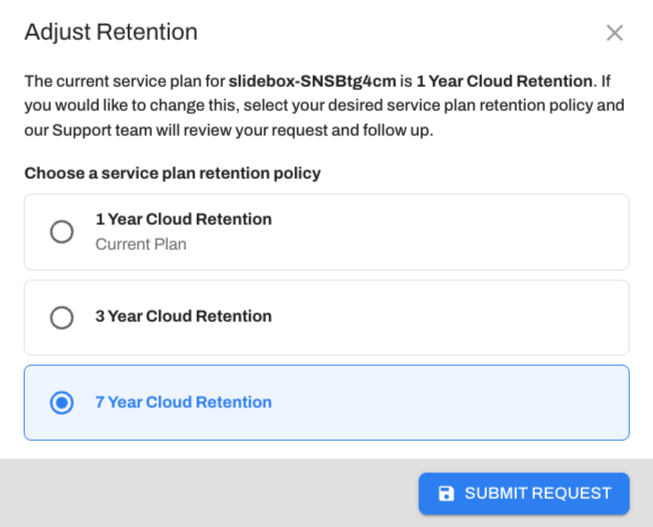
Use Adjust Retention to change how far back your recovery points are kept without replacing your Slide Box.
- Open the three-dot menu for the subscription.
- Select Adjust Retention.
- Choose the retention option that best fits your needs.
- Submit your request.
What happens next
Submitting the request automatically creates a billing support ticket that is viewable from the Support Portal. A Slide billing representative will verify the change and provide a quote for your review.
Once you accept the quote, the updated plan will be assigned to your device with no downtime, backup disruption, hardware replacement, or reinstallation required. A corresponding entry will appear on your Orders page.
Any existing discounts on your subscription will carry over to the adjusted plan.
Change Your Storage
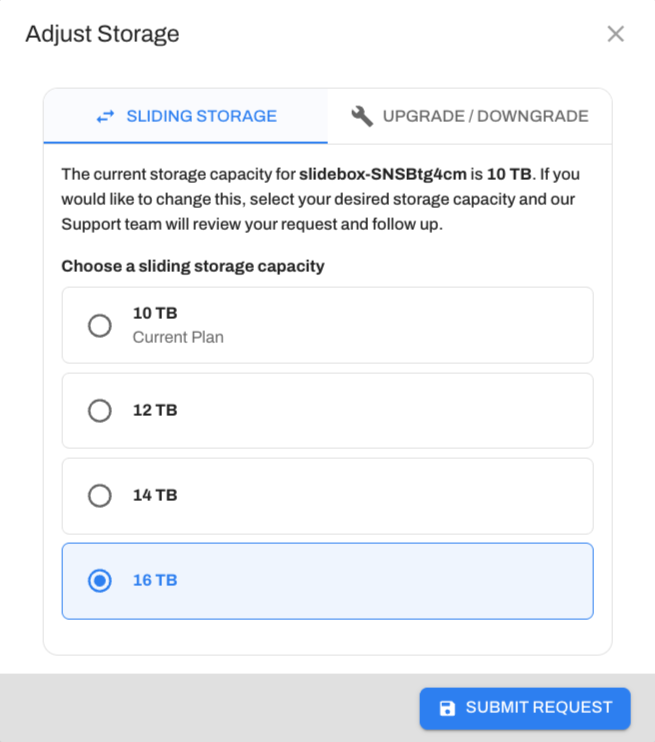
Devices that support sliding storage can move between available storage sizes without replacing the Slide Box.
- Open the subscription's three-dot menu.
- Select Adjust Storage.
- Choose from the storage sizes available for that model.
- Submit your request.
If your device does not support sliding storage, Adjust Storage will not appear. Instead, you will need to upgrade or downgrade the Slide Box.
What happens next
Submitting the request automatically creates a billing support ticket that is viewable from the Support Portal. A Slide billing representative will verify the change and provide a quote for your review. Accepting the quote completes your order, and a corresponding entry will appear on your Orders page. The storage change does not require a hardware replacement or reinstallation, and existing subscription discounts will carry over.
Upgrade or Downgrade a Slide Box
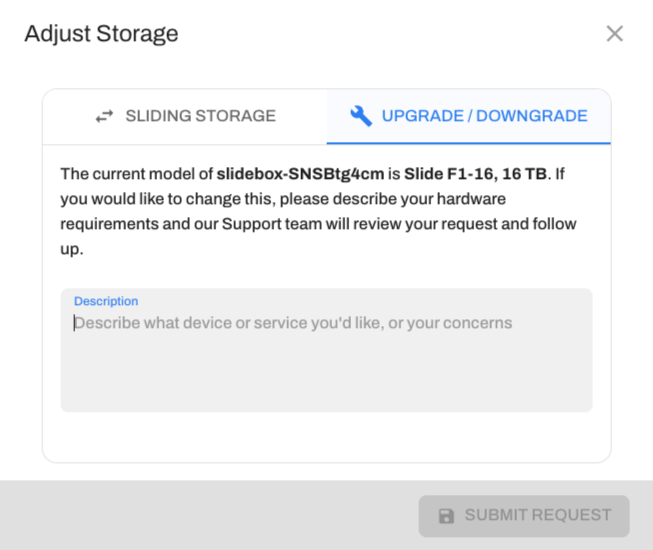
Use Upgrade / Downgrade when you need to move to a different Slide Box model.
- Open the subscription's three-dot menu.
- Select Upgrade / Downgrade.
- Choose the hardware and service you want, or ask Slide for help determining the appropriate sizing.
- Submit your request.
A Slide representative will contact you to verify the selected hardware and provide a quote. Accepting the quote completes your order, and a corresponding entry will appear on your Orders page.
What happens to the old Slide Box?
- If the device is enrolled in Free to Own: When accepting an order for an upgrade or downgrade, any earned Free to Own credits are transferred to the new unit, resetting the previous device's Free to Own balance to 0. Slide retains ownership until the Free to Own term is complete. The original device must therefore be returned unless you plan to immediately redeploy it to another client site. A prepaid return shipping label will be included with your order, and you can monitor the return from the Orders page.
- If you own the device: No return is required and no return label will be issued. The old Slide Box remains yours.
- What happens to my backups? Your backups will not be disrupted. The replacement device will be shipped and seeded before the old device goes out of service.
Pause or Cancel Service
Pause Service
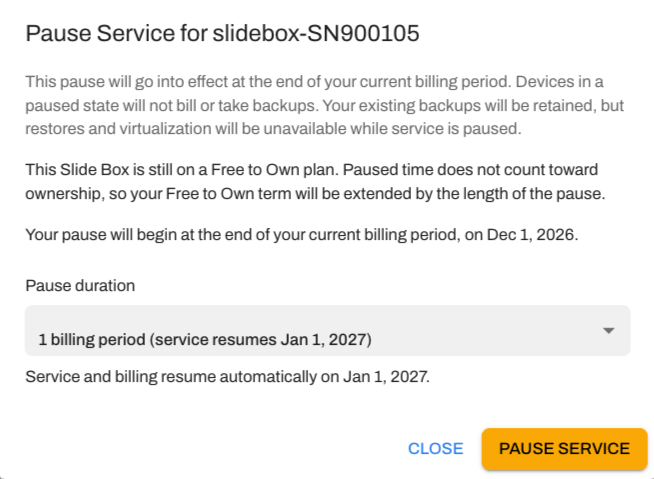
Pausing is an alternative to permanently cancelling service. You can pause service for one or two months, after which it will automatically resume.
How to pause service
- Open the subscription's three-dot menu.
- Select Pause Service.
- Choose a pause duration.
- Confirm your request.
When the pause begins
The pause takes effect at the end of your current billing cycle rather than immediately, so you retain access to the service you have already paid for. Your confirmation email will show both the date the pause begins and the date service is scheduled to resume.
While service is paused
- Billing: Billing is suspended for the duration of the pause.
- Backups and data: Backups are suspended for the duration of the pause.
- Free to Own: If the device is enrolled in Free to Own, ownership credits do not accrue while service is paused. Your existing ownership progress is retained.
Resuming service
Service automatically resumes on the scheduled resume date. Slide will send notification emails before the end of the pause period. You can also resume service early at any time by choosing Resume Service from the subscription's three-dot menu.
Cancel Service
Use Cancel Service when you want to permanently end service on a device you own.
Note
Free to Own device? If the device is still earning ownership through Free to Own, different cancellation options apply. See Cancelling a Free to Own subscription.
How to cancel service
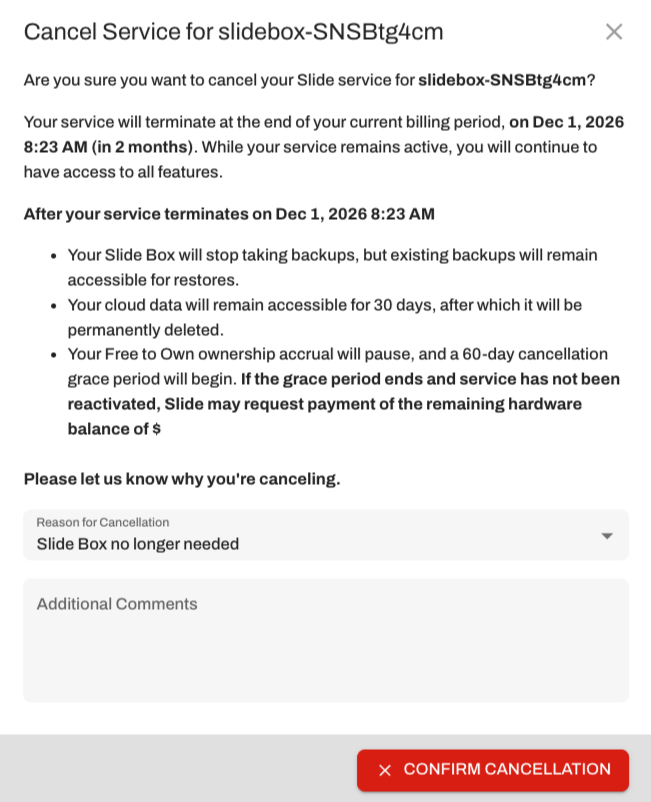
- Open the subscription's three-dot menu.
- Select Cancel Service.
- Choose a cancellation reason.
- Review the cancellation date and what will happen to your data.
- Confirm the cancellation.
When service ends
For month-to-month subscriptions, service continues through the end of the current prepaid billing period.
Your cancellation confirmation email will include your exact service termination date.
What happens to your data
You retain full cloud access through your service termination date.
After service terminates, Slide retains your cloud data for an additional 30 days. You can use this period to retrieve any data you want to keep.
At the end of the 30-day period:
- Cloud access is revoked.
- All cloud snapshots associated with the device are permanently deleted.
What happens to your Slide Box
You will continue to have access to the device's local restore features, but will no longer have access to Slide support.
Changed your mind?
As long as the scheduled cancellation date has not passed, you can reverse the cancellation from the same three-dot menu. Undoing the cancellation prevents any interruption to service or billing.
Cancelling a Free to Own Subscription
Cancelling service works differently when your Slide Box is still earning ownership through the Free to Own program.
The options available to you depend on the status of the device.
Is the device within its 30-day return window?
Yes → Cancel and Return Return the Slide Box to Slide and end service.
No → Is the Free to Own term complete?
Yes → Cancel Service You own the hardware, so you can cancel service normally and keep the Slide Box.
No → The hardware is still being earned
Free to Own rules apply because Slide still owns the hardware. Depending on the applicable workflow, you can buy out the remaining hardware balance or work within the Free to Own service grace period described below.
Cancel and Return
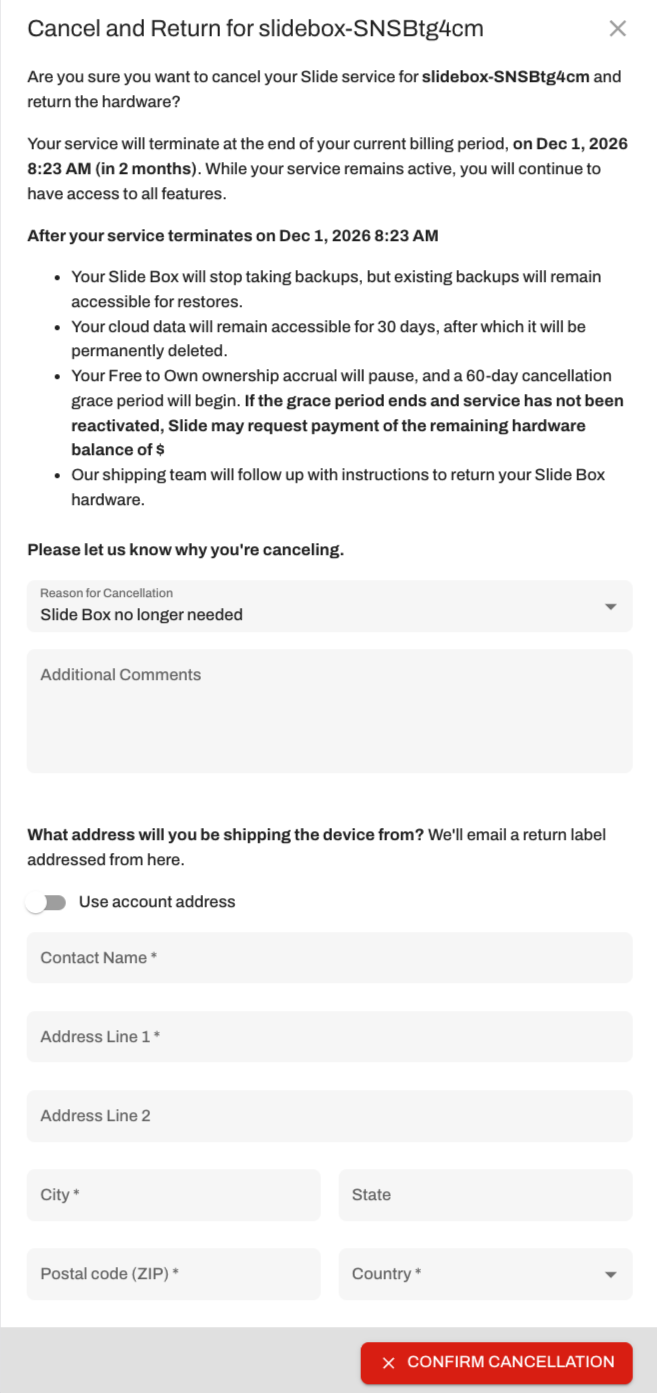
For newly purchased devices that are still within their 30-day return window, Cancel and Return appears in the subscription's three-dot menu.
The cancellation process works similarly to a standard service cancellation. You will select a cancellation reason and confirm your request.
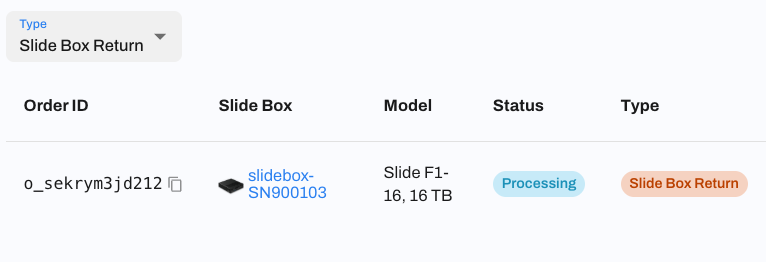
Once confirmed, Slide will initiate a return that you can track from the Orders page.
Track your return
Your return progresses through four stages:
Shipping label issued → In transit to Slide → Received at Slide → Complete
- Shipping label issued: Your prepaid return label is ready to print.
- In transit to Slide: The carrier has the device.
- Received at Slide: The device has arrived at Slide and is being checked in.
- Complete: The return has been verified and closed. Any refund due will be returned to your original form of payment.
Service terminates at the end of the current billing period.
Reactivate Service
You can restart service on a cancelled Slide Box that you own and still have in your possession.
How to reactivate service
- Navigate to the cancelled device.
- Open its three-dot menu.
- Select Add Service.
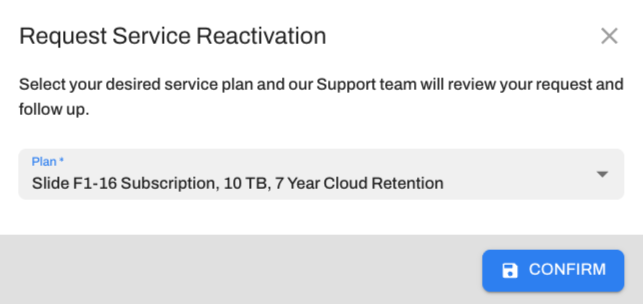
- Choose from the service plans available for that model.
- Confirm your selection.
Slide will send you a reactivation quote.
What happens next
Once you accept the quote:
- Service is immediately restored.
- The device resumes taking backups.
- Billing begins on the first of the following month.
- You receive an email confirming the change.
Free to Own devices For devices enrolled in Free to Own, hardware ownership credit accrual resumes once billing restarts and a monthly service invoice generates on the first of the month.
Need help?
If you need to make a change that is not available from the Subscriptions page, or have questions about your subscription, contact Slide Billing Support at billing@slide.tech.