My Settings
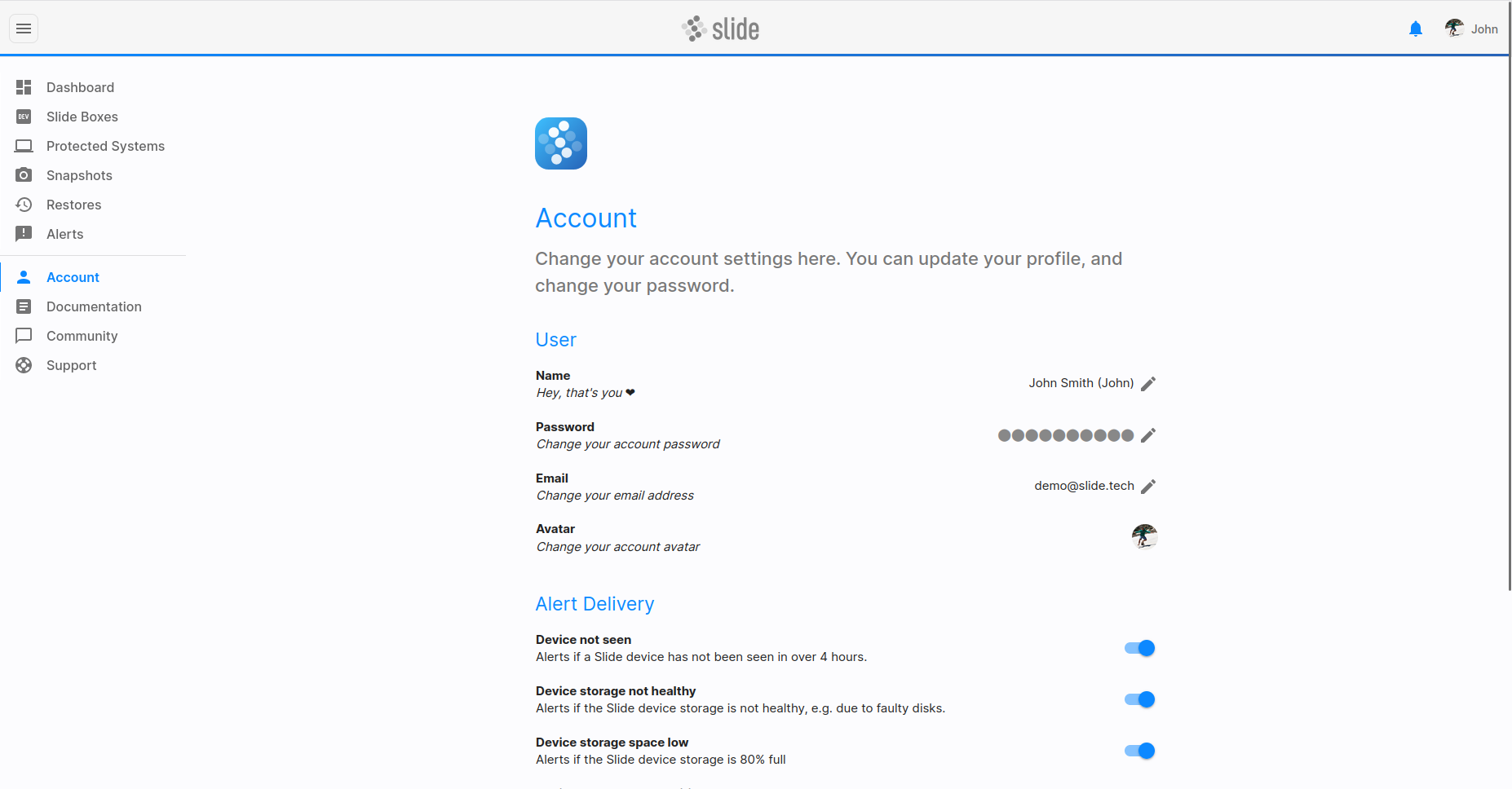
The Settings page shows you information about your Slide user account. This includes your user account details and alert settings.
User
The user section lets you change your user's name, your avatar, and your email address.
Updating the name/avatar
Changing your name only impacts the name that is displayed in the app bar and in alert emails. It does not impact your login name.
Updating the email address
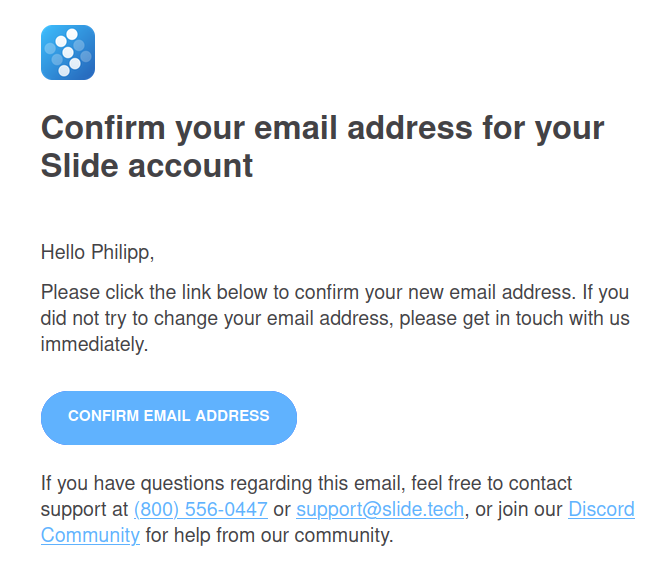
Changing the user email address will change the email address you use to log in to the Slide Console. You will receive a confirmation email to the new email address, which you need to confirm to complete the change. Please remember to update your email address in your password manager, if you use one.
How you sign in
The "How you sign in" section lets you view and manage your authentication methods and active sessions.
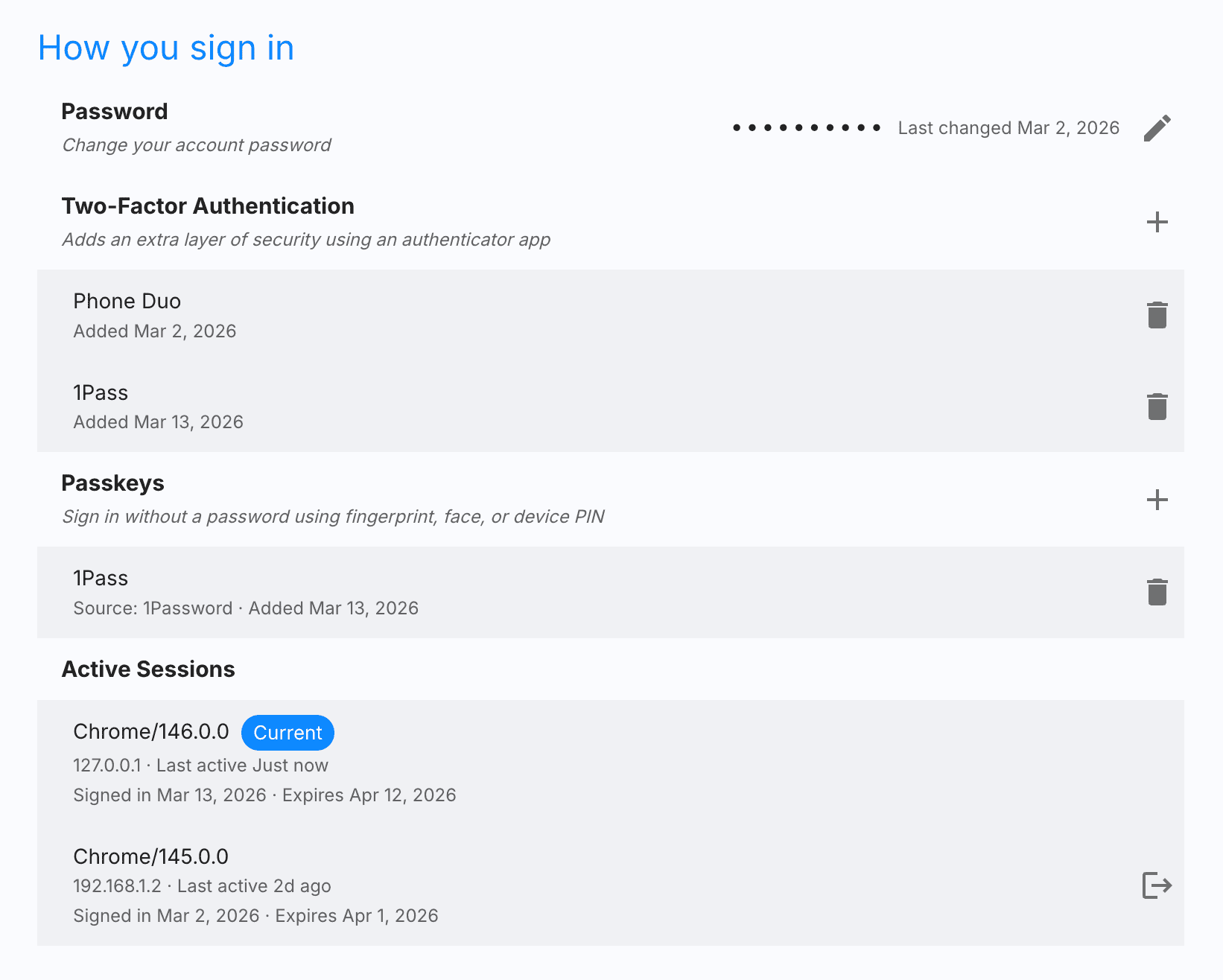
Password
You can change your account password by clicking the edit button (pencil icon) next to the password field. The date of the last password change is displayed for your reference. Please remember to update your password in your password manager, if you use one.
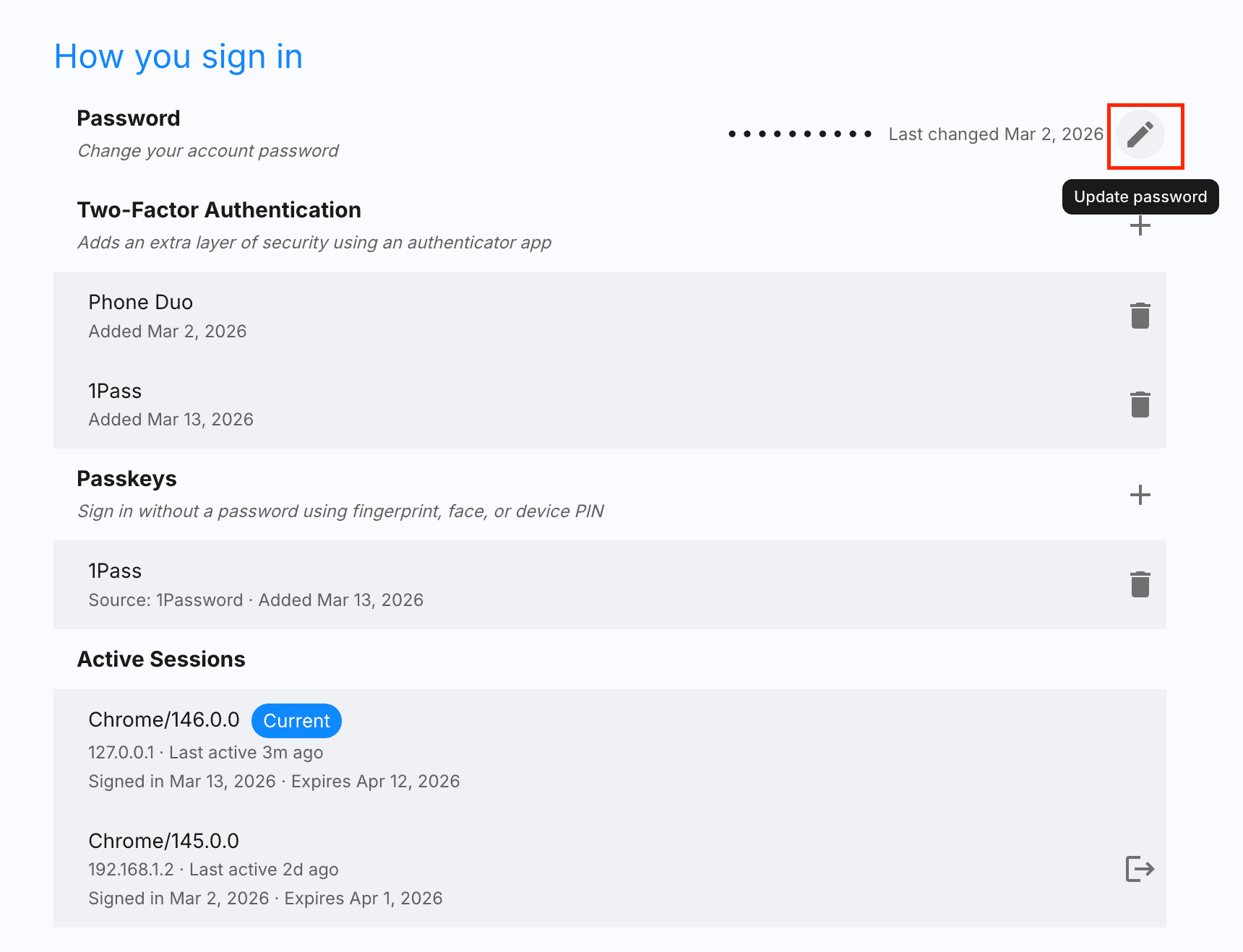
Two-Factor Authentication
Two-Factor Authentication (2FA) adds an extra layer of security by requiring a one-time code from an authenticator app when you sign in. 2FA is only required when signing in with a password — if you sign in using a passkey, 2FA is not prompted.
You can register multiple authenticator apps and remove any that are no longer in use. Each entry shows its label and the date it was added.
Adding an authenticator — Click the + button next to the Two-Factor Authentication header to register a new authenticator app.
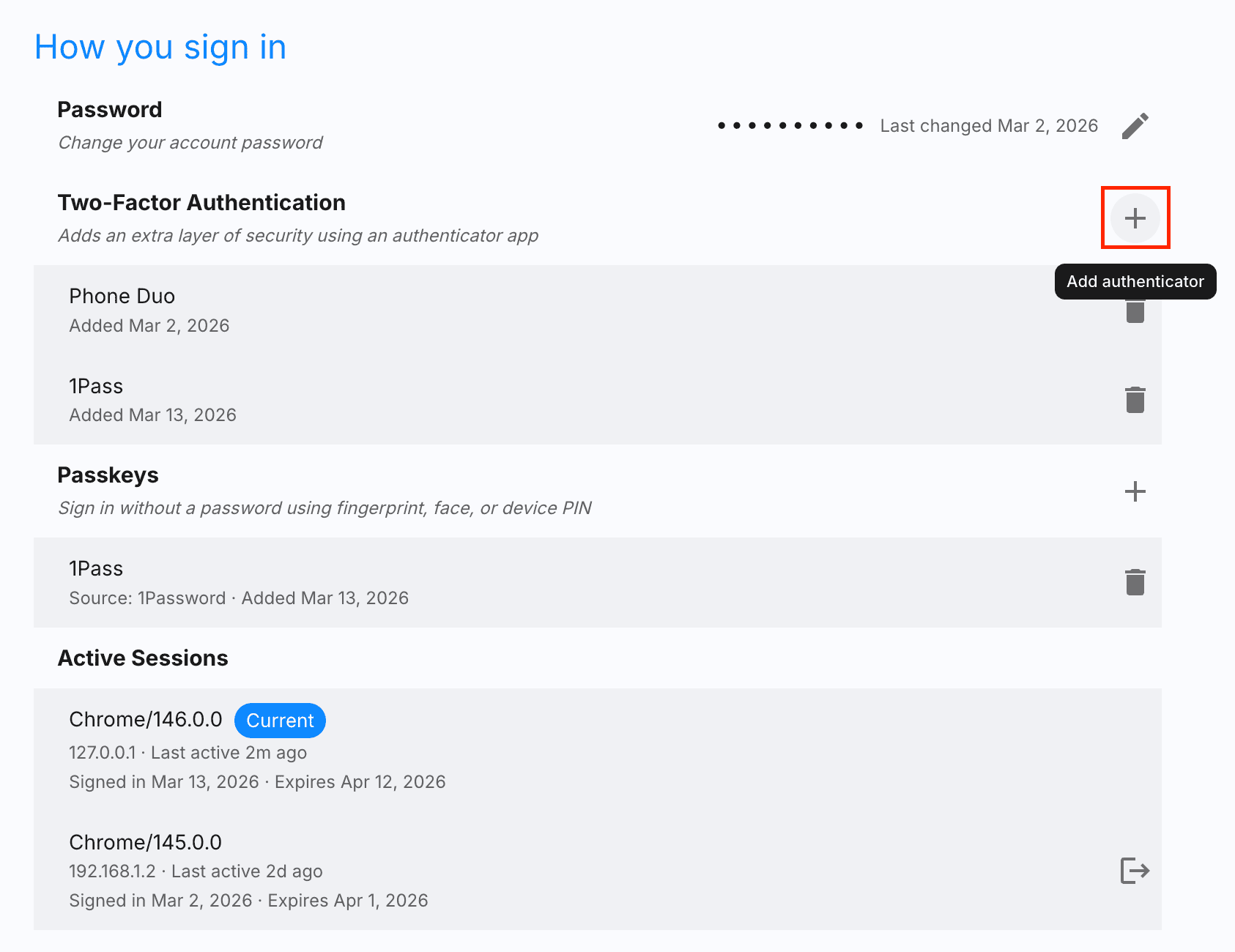
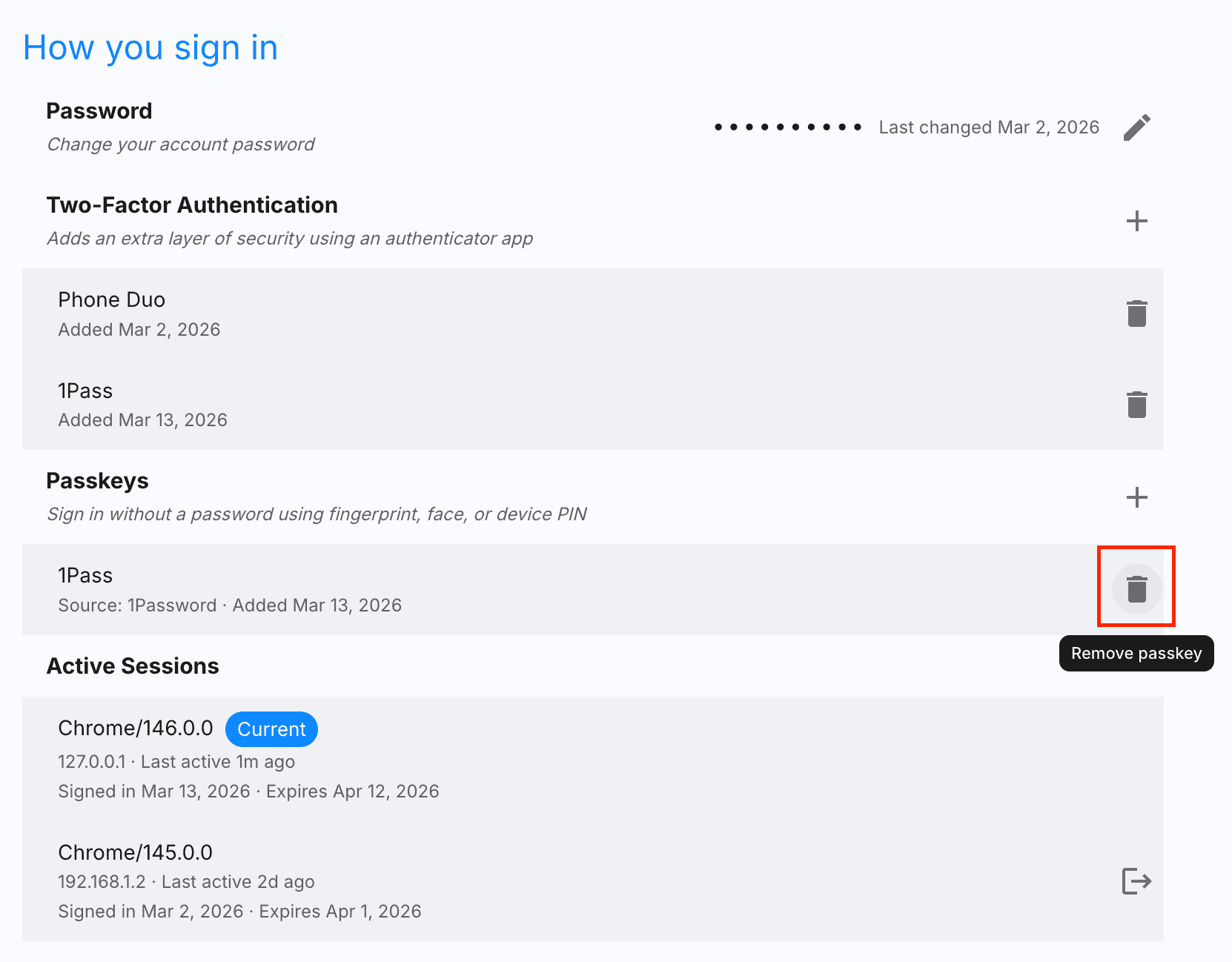
Removing an authenticator — Click the trash icon next to an existing authenticator to remove it.
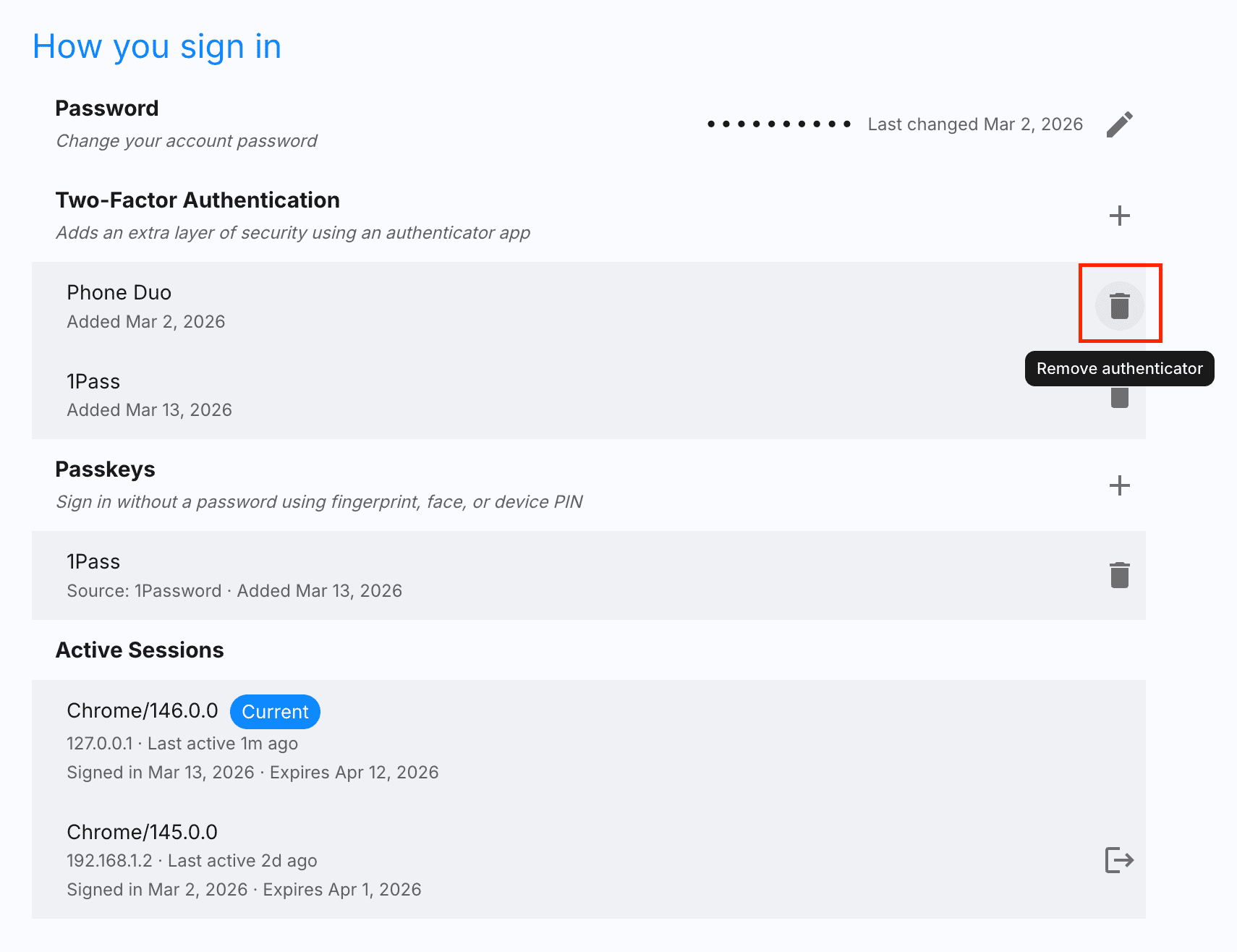
Passkeys
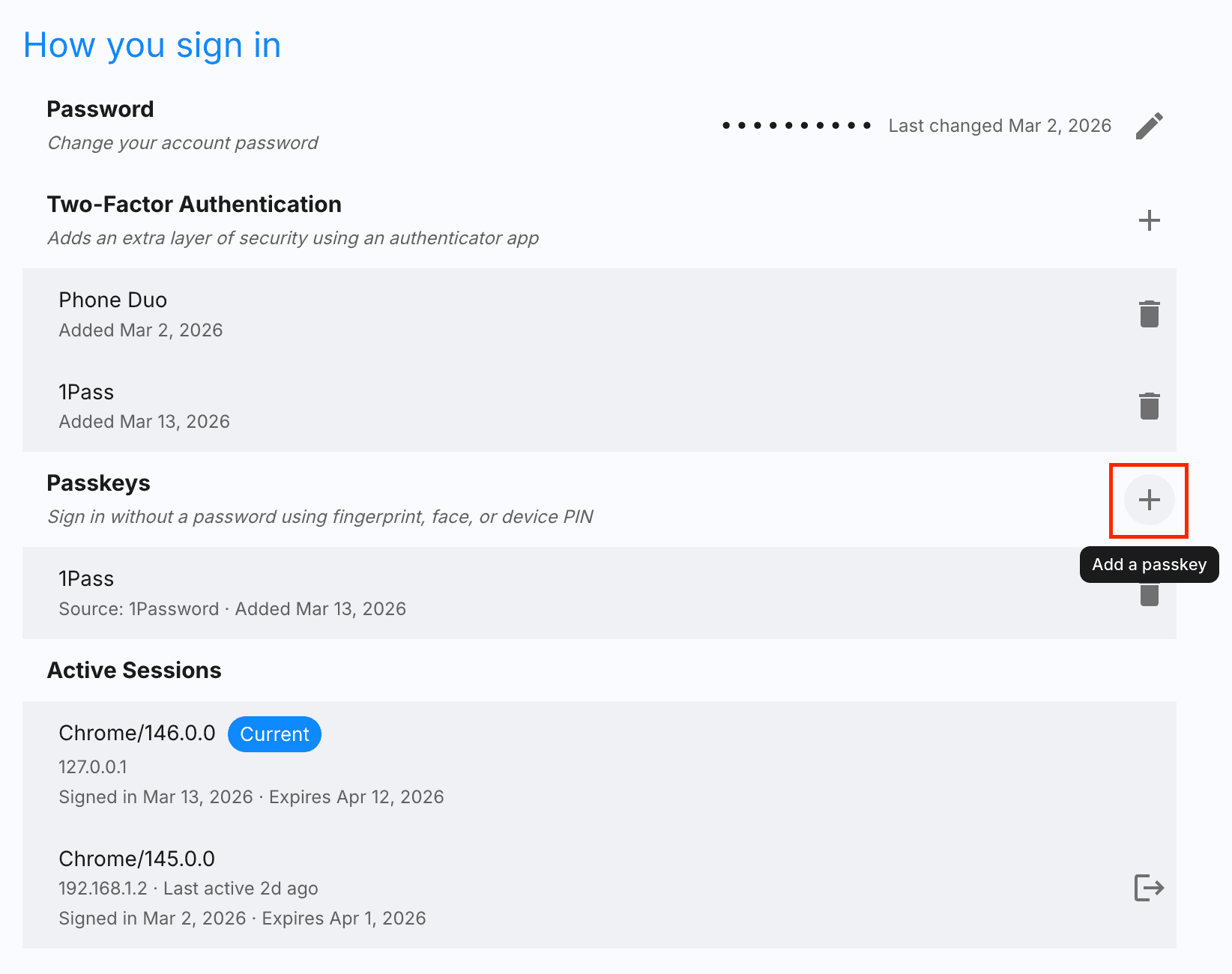
Passkeys let you sign in without a password using your fingerprint, face, or device PIN. When you sign in with a passkey, Two-Factor Authentication is not required. Each passkey shows its source (e.g. 1Password) and the date it was added.
Adding a passkey — Click the + button next to the Passkeys header to register a new passkey.
Removing a passkey — Click the trash icon next to an existing passkey to remove it.
Active Sessions
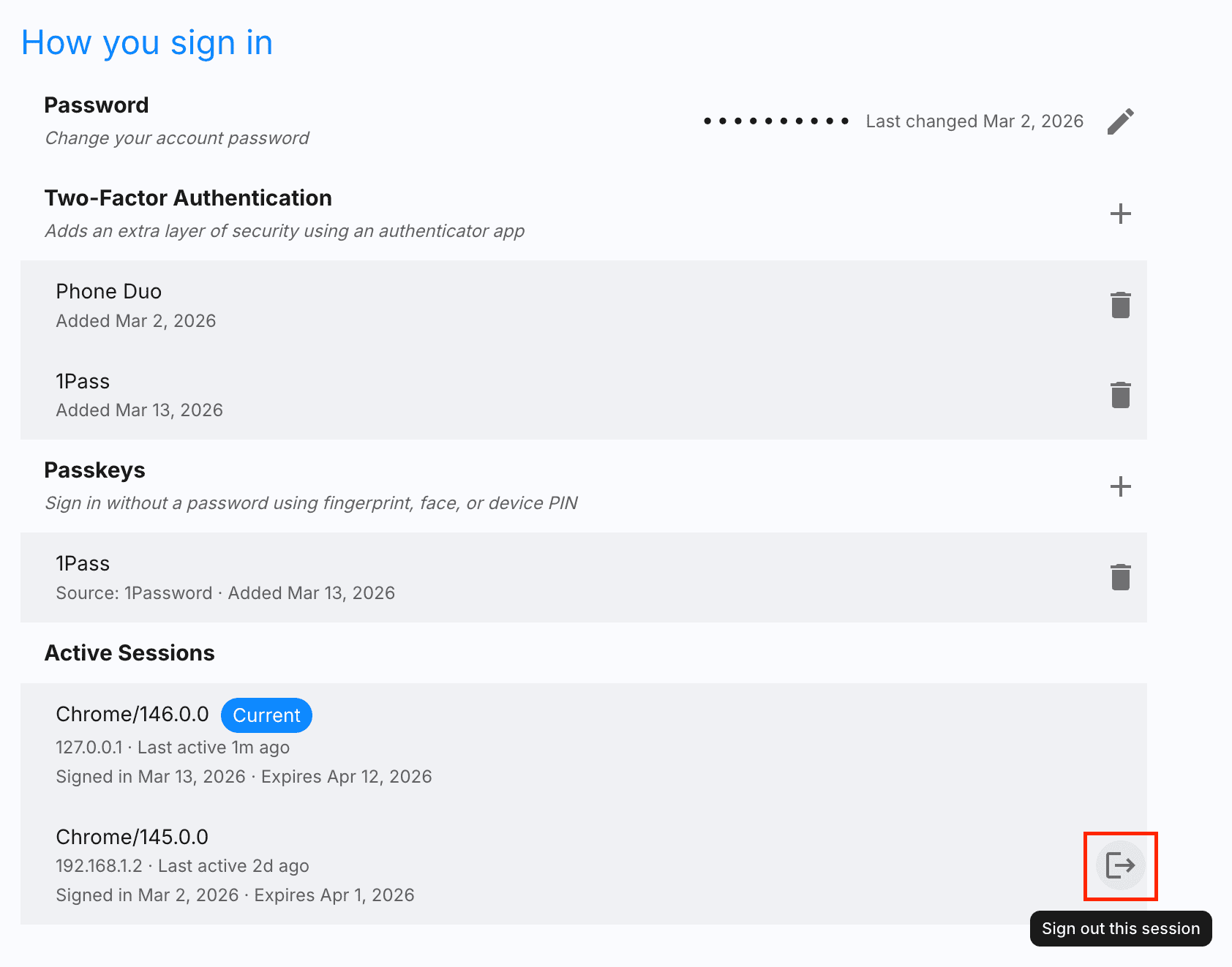
The active sessions list shows all devices and browsers where you are currently signed in. Each session displays the browser name, IP address, last activity time, sign-in date, and expiration date. Your current session is labeled with a "Current" badge.
You can remotely sign out of any other session by clicking the sign-out button next to it. This is useful if you suspect unauthorized access or forgot to sign out on a shared device.
Alerting
The alert delivery section lets you configure which alerts you want to receive. You can toggle each alert type on or off, depending on your preference.
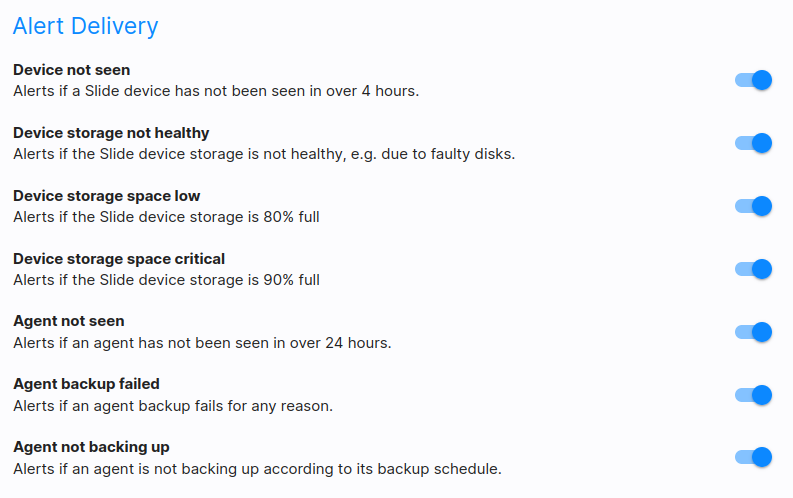
Alerts are delivered to all users of the account. Turning off the email notifications will not disable the alert itself. It merely disables the email notification for the logged-in user. Other users may still receive alert emails, and all alerts will always be shown in the Slide Console.
For details about the different types of alerts, please see the Alerts page.
API
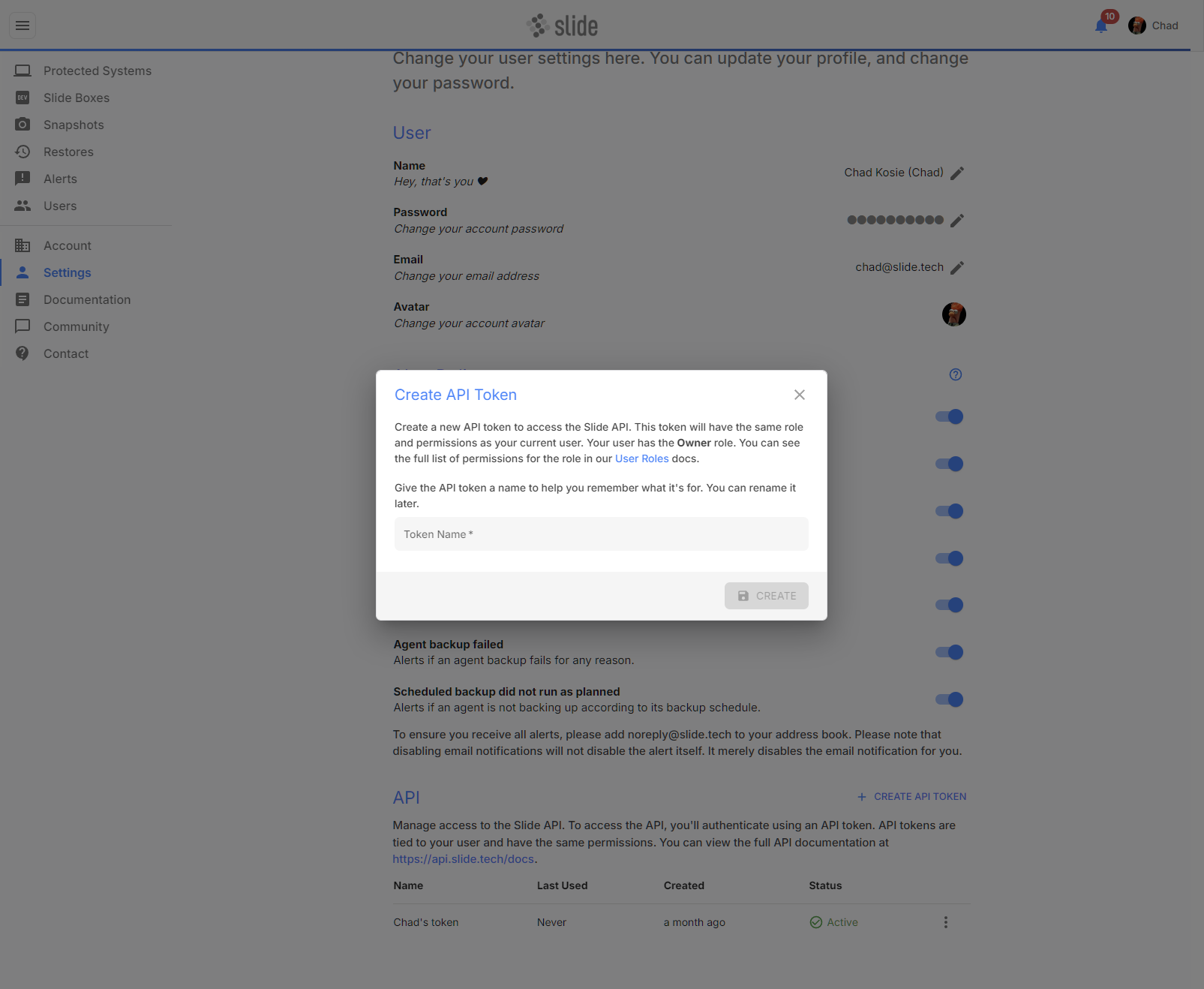
The Slide API allows for developers to integrate their own applications with Slide. The Slide API is secured with user-based API tokens and enables you to perform many of the actions found in the Slide Console. Check out the API reference documentation for details.
API tokens are used to authenticate requests to the Slide API. You can create and manage your API tokens in the Slide Console. The API tokens are user-based, and share the same role and permissions as the user that created them. Please take care to protect your API tokens as to not give unauthorized access to your Slide account.