NAS Backups
Slide supports file-level backups of SMB shares from NAS devices (Synology, QNAP, etc.) and Windows or Linux file servers directly to a Slide Box. NAS backups use the same scheduling, retention, replication, and alerting as image-based agent backups, giving you a single pane of glass for all of your backup data.
How It Works
Unlike image-based agent backups, which install a Slide Agent on the protected system and capture a full disk image via VSS, NAS backups connect to a shared folder over SMB and copy files incrementally. No software is installed on the NAS device.
Here's a high-level overview of the process:
- You provide the UNC path (e.g.
\\nas01\backups) and optional SMB credentials in the Slide Console. - Slide Box connects to the SMB share and verifies connectivity.
- On each scheduled backup, Slide Box mounts the share, syncs all files incrementally (only changed files are transferred), and takes a snapshot.
- Snapshots are replicated to the Slide Cloud via the same pipeline used for image-based backups.
- You can browse and download files from any snapshot using file restore.
Supported Platforms
NAS backups support any device or server that exposes an SMB file share (SMBv3). CIFS and Samba are both SMB-compatible — CIFS is an older dialect of SMB, and Samba is the open-source implementation used by Linux and many NAS devices. If your share is accessible via a UNC path (e.g. \\server\share), it will work with Slide.
| Platform | Supported |
|---|---|
| Synology NAS |  |
| QNAP NAS | |
| Windows file servers | |
| Linux file servers (Samba) | |
| Other SMB/CIFS-compatible devices | |
Note
NFS, iSCSI, WebDAV, and SSHFS shares are not supported. Only SMB-compatible shares (including CIFS and Samba) can be backed up.
Requirements
- The NAS or file server must be reachable from the Slide Box on the local network.
- SMBv3 must be enabled on the share.
- If the share requires authentication, you'll need valid SMB credentials (username and password).
- Guest/anonymous access is supported for shares that allow it.
Protecting a NAS Share
To start backing up a NAS share, navigate to the Protected Systems page in the Slide Console and click the Protect dropdown, then select NAS Share.
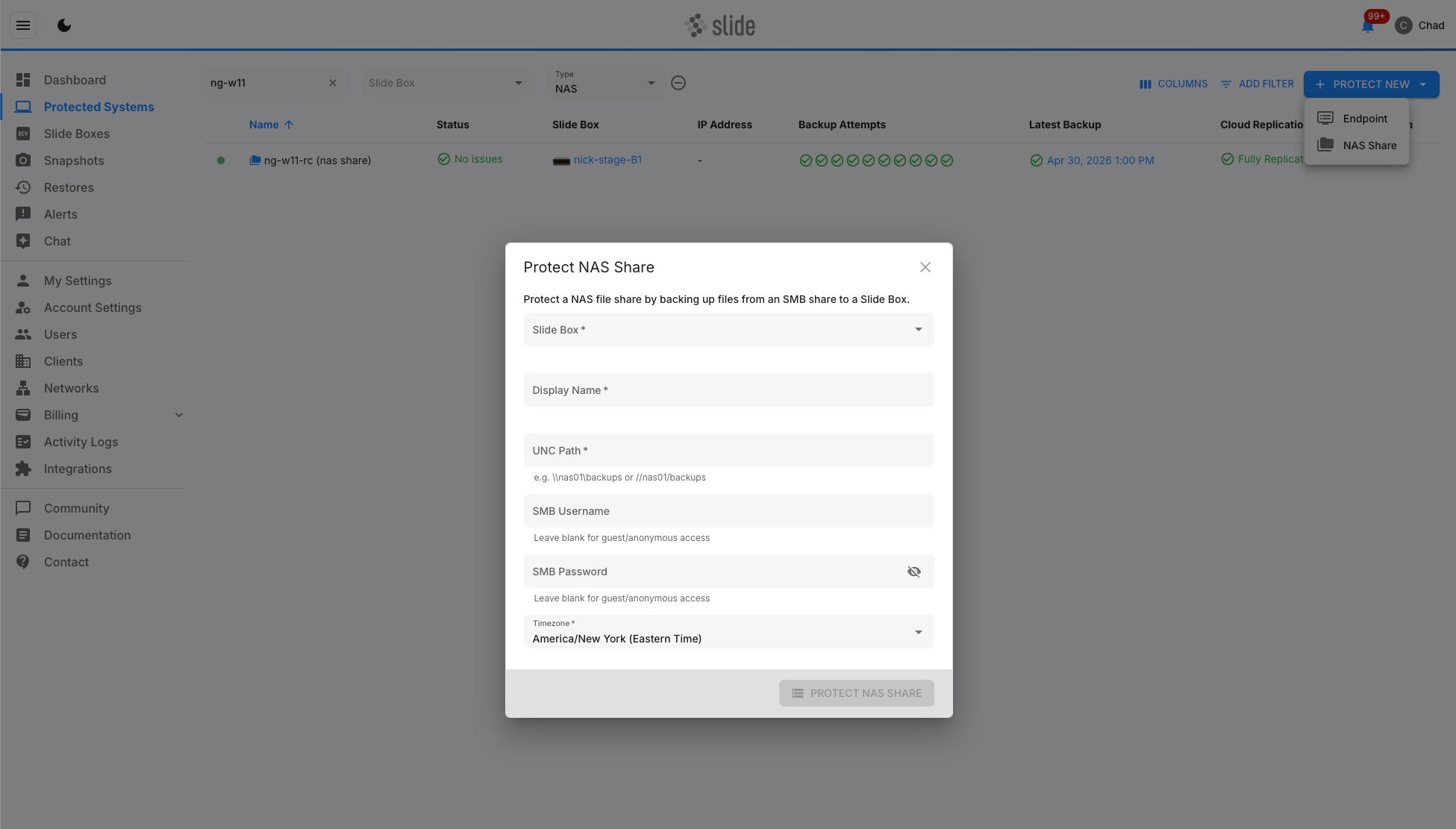
In the dialog that appears, fill in the following fields:
- Slide Box: Select the Slide Box that will perform the backups.
- Display Name: A friendly name for this NAS share (e.g. "Accounting Files" or "NAS01 - Backups").
- UNC Path: The network path to the SMB share, in
\\server\shareformat (e.g.\\nas01\backupsor\\192.168.1.100\backups). - SMB Username: The username to authenticate with the share. Leave blank for guest/anonymous access.
- SMB Password: The password for the SMB account. Leave blank for guest/anonymous access.
- Timezone: The timezone used for backup scheduling. Defaults to your browser's timezone.
When you click Protect NAS Share, Slide will test the SMB connection before creating the NAS agent. If the connection test fails (e.g. incorrect credentials or the share is unreachable), you'll see an error message and can correct the settings.
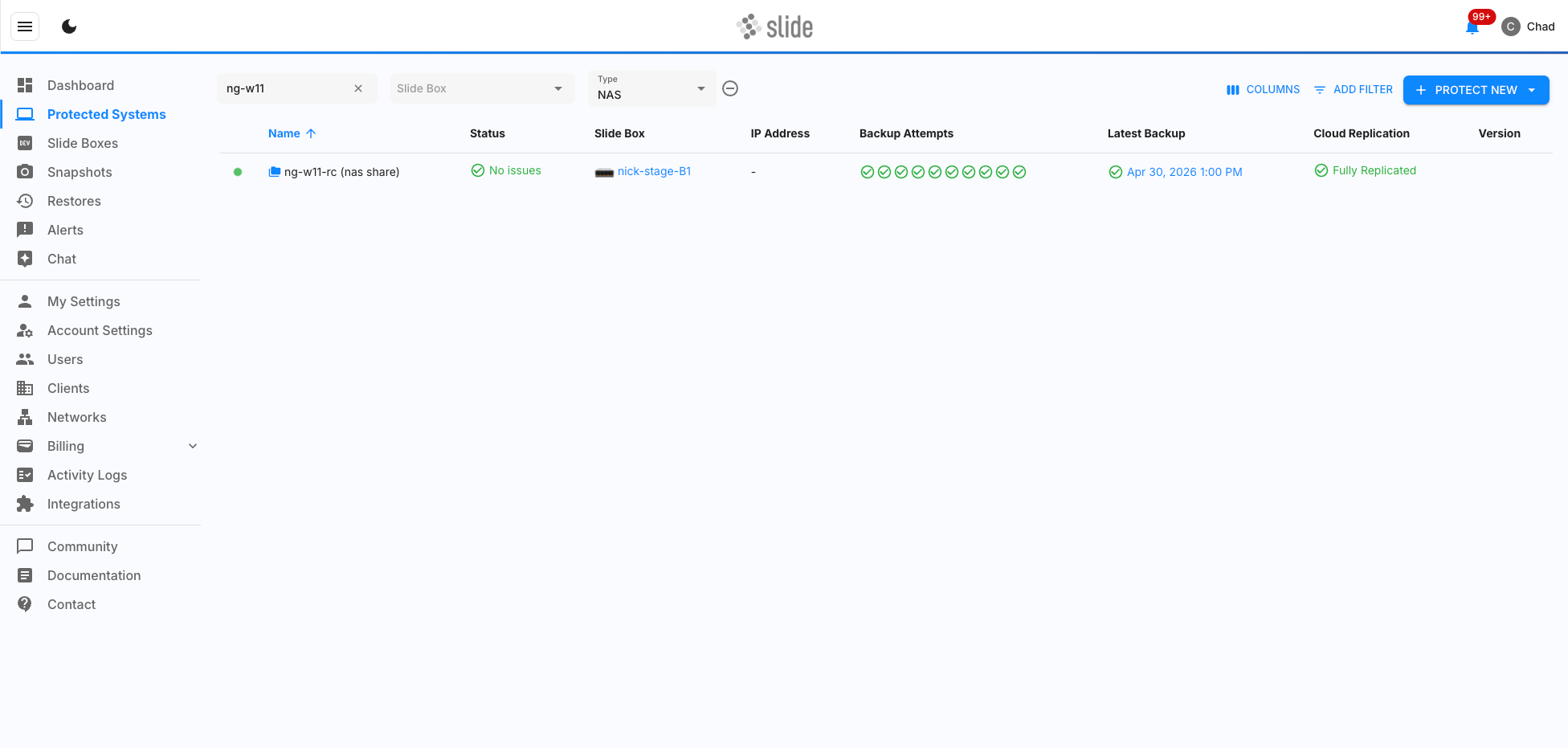
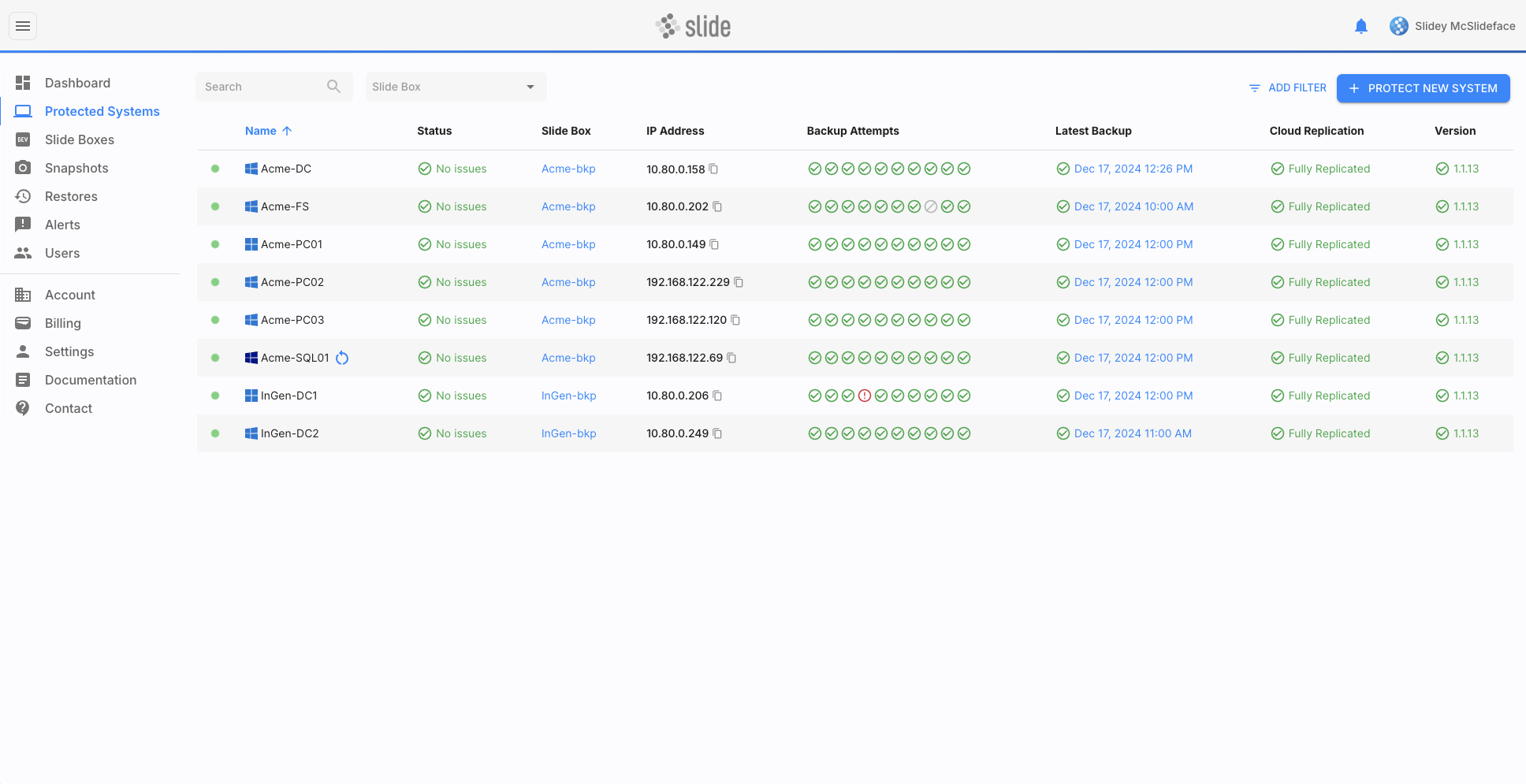
Once created, the NAS share appears in your Protected Systems list with a folder icon and is always shown as connected (green indicator), since there is no agent software running on the NAS device.
File Restores
You can browse and download files from any NAS backup snapshot using the file restore feature in the Slide Console. File restores for NAS backups work the same as they do for image-based backups — select a snapshot, browse the file tree, and download what you need.
Note
NAS file restores are read-only. You can browse and download files, but you cannot push files back to the NAS share. If you need to restore files to the original location, download them and copy them back manually.
Image Exports
You can export the disk image backing a NAS snapshot using the image export feature. Image exports produce a downloadable disk image file (VHD, VHDX, VMDK, QCOW2, or Raw) containing all backed-up files with their original NTFS permissions intact. This is useful when you need to preserve file permissions or mount the full backup in a hypervisor or other environment.
See Image Export for details on supported formats and export options.
Settings
NAS share settings are available in the Settings tab of the protected system slideout, the same as image-based agents. The following settings are available:
Display Name & Comments
Change the display name shown in the Protected Systems list, and add optional comments for your team.
NAS Credentials
Update the UNC path, SMB username, or SMB password for the NAS share. When you save updated credentials, Slide will test the connection before applying the changes.
Backup Schedule
Configure when backups run. The same options are available as for image-based agents:
- Backup Interval: Every 30 minutes, 1 hour, 2 hours, 3 hours, or 6 hours (default: every hour).
- Time Window: The hours during which backups should run (default: 9am–6pm).
- Days of the Week: Which days backups should run (default: every day).
- Timezone: The timezone used for scheduling.
See Schedule Backups for more details.
Snapshot Retention
NAS snapshots follow the same retention policies as image-based agent snapshots. You can choose between Balanced, Comprehensive, and Lean retention policies with a configurable max snapshot age.
See Snapshot Retention for full details on each policy.
Cloud Retention
Cloud retention is determined by your service plan and is displayed as read-only, the same as for image-based agents.
Alert Settings
Configure which alerts are enabled for this NAS share. See Alerts below for the types of alerts available.
File Search
Enable or disable file indexing for NAS snapshots. When enabled, you can search across all backed-up files by name. See File Search for details.
Delete Protected System
Deleting a NAS protected system removes all backup data from the Slide Box and the Slide Cloud, including all snapshots and settings. Cloud deletion is delayed by 30 days, the same as image-based agents.
Warning
Deleting a NAS protected system is irreversible. All backup data associated with this share will be permanently removed.
Alerts
NAS shares support the following alerts:
- Backup Failed: Triggered when a NAS backup fails (e.g. the share is unreachable, credentials are invalid, or there is insufficient storage). See Backup Failures below for error codes and how to resolve them.
- Scheduled backup did not run as planned: Triggered when a scheduled backup did not occur as expected.
Info
NAS shares do not trigger "Agent Not Checking In" alerts, since there is no agent software running on the NAS device.
See Alerting for more information on configuring alert notifications.
Backup Failures
Like image-based agent backups, NAS backups can fail, and Slide sends a Backup Failed alert for the first failure. NAS backup errors fall into two groups:
- Connection errors happen while the Slide Box is connecting to the SMB share. You'll usually see these right away in the Protect NAS Share dialog, or when saving updated NAS credentials, because Slide tests the connection before saving. They can also occur on a scheduled backup if the NAS later becomes unreachable.
- Sync errors happen after the share is mounted, while files are being copied. These show up as a failed backup and a Backup Failed alert.
If you cannot resolve the issue yourself, please contact support or ask in the Slide Community for further assistance.
Errors
Error 62000: SMB connection failed
A general SMB connection failure that doesn't match a more specific case below. Verify the UNC path and credentials, and confirm the share is reachable and running SMBv3. If it persists, contact support.
Error 62001: File sync failed
A general file-copy failure that doesn't match a more specific case below. This can be caused by an intermittent network issue or a read error on the NAS. Retry the backup; if it persists, contact support.
Error 62002: Could not resolve NAS hostname
The Slide Box couldn't resolve the hostname in the UNC path to an IP address. Confirm the hostname is spelled correctly and is resolvable from the Slide Box's network. If DNS is unreliable on your network, use the NAS's IP address in the UNC path instead.
Error 62003: NAS host unreachable
The Slide Box could not connect to the NAS on the SMB port (445). Confirm the NAS is powered on and on the same network as the Slide Box, that SMB is enabled, and that no firewall is blocking port 445 between them.
Error 62004: Access denied
The SMB username or password was rejected by the NAS. Double-check the credentials and make sure the account has permission to access the share. For shares that allow guest access, leave the username and password blank.
Error 62005: Share not found
The server was reachable, but the share named in the UNC path doesn't exist. Check the share name. Confirm the share is created and shared on the NAS.
Error 62006: SMB protocol negotiation failed
The NAS answered but couldn't agree on an SMB version. Slide requires SMBv3. Enable SMBv3 on the share — some older NAS devices default to the legacy SMBv1 or SMBv2 dialects, which are not supported.
Error 62010: Ran out of space during sync
The backup could not fit on the Slide Box. NAS backups are limited to 16 TB per share (see maximum share size). Confirm the share's used size is under 16 TB, and free up space on the Slide Box by deleting old snapshots or choosing a more aggressive retention policy.
Error 62011: Permission denied reading the share
The SMB account connected successfully but couldn't list the contents of the share itself. Grant the account read and list/traverse permission on the share's top-level folder. Individual files or subfolders the account can't read are skipped automatically and don't cause this error.
Error 62012: NAS share became unavailable during backup
The connection to the share dropped partway through the backup — for example, the NAS was powered off, rebooted, or lost network connectivity while files were being copied. Make sure the NAS stays online and reachable for the duration of the backup, then let the next scheduled backup run or start one manually.
List of Error Codes
| Error Code | Description |
|---|---|
| 62000 | SMB connection failed (more details above) |
| 62001 | File sync failed (more details above) |
| 62002 | Could not resolve NAS hostname (more details above) |
| 62003 | NAS host unreachable (more details above) |
| 62004 | Access denied (more details above) |
| 62005 | Share not found (more details above) |
| 62006 | SMB protocol negotiation failed (more details above) |
| 62010 | Ran out of space during sync (more details above) |
| 62011 | Permission denied reading the share (more details above) |
| 62012 | NAS share became unavailable during backup (more details above) |
FAQ
Can I back up NFS, iSCSI, or other non-SMB shares?
No. Only SMB-compatible shares (including CIFS and Samba) are supported at this time.
Can I restore files back to the NAS share?
NAS file restores are read-only. You can browse and download files from any snapshot, but you cannot push files back to the share. If you need to restore files to the original location, download them and copy them back manually.
Are file permissions preserved during file restore?
NTFS ACLs are captured during backup and can be restored via image exports, but downloading files via file restore does not restore their original permissions.
Can I back up only part of a share?
No. The entire share is backed up on each run. To back up a subset of files, create separate shares on the NAS.
What is the maximum share size?
Shares up to 16 TB are supported due to how backup data is stored on the Slide Box. Shares larger than 16 TB cannot be backed up at this time.
Can I use my Slide Box as a NAS share?
The Slide Box is not designed as a NAS device and cannot be used as one for day-to-day storage. That said, it can back up a NAS share — including shares used for Time Machine (Mac backup) data.
In a disaster scenario, the Slide Box can temporarily act as a NAS to maintain business continuity, but this is intended only for the duration of the disaster or disaster recovery testing — not as a permanent solution.