Hypervisors
A Hypervisor is a virtualization host that you connect to the Slide Console. Once connected, Slide keeps an inventory of the host's virtual machines (guests) so you can work with them from the Console without installing anything inside each guest.
Today, connected hypervisors are used for Slide Agentless backups. Hyper-V is the first supported provider.

Supported hypervisors
| Provider | Version |
|---|---|
| Microsoft Hyper-V (Single Node) | Windows Server 2016 and up |
What you can do with a connected hypervisor
- View basic information about each guest virtual machine.
- Protect guests with Slide Agentless backups, individually or automatically with Auto Protect.
- Receive alerts when the host stops reporting or a guest appears or disappears.
Hypervisors list
Open Hypervisors to see every connected hypervisor.
The main list of Hypervisors shows the following information:
- An Online Indicator to show if the Hypervisor was reported Slide Cloud and its associated Slide Box. The indicator should be green () if the hypervisor reports last check-in, orange () if it failed to report status within the last 30 minutes, and red () if it has not reported more 30 minutes ago.
- The Name of your Hypervisor, which is either the hostname (default), or a nickname you've given it in the settings.
- The Type of your Hypervisor, which only Hyper-V is supported at the moment.
- The Platform that your Hypervisor is running on.
- The Slide Box this Hypervisor is paired with, and protected by. Clicking on it will open the sidebar for the Slide Box.
- The Client that owns this protected system, if you manage multiple clients. Clicking on it will open the sidebar for that client.
- The Protected Guests in the hypervisor, which shows the count of guest VMs that are protected by Slide.
- The Protected Guests in the hypervisor, which shows the count of guest VMs that are not protected by Slide.
Hypervisor details
Overview
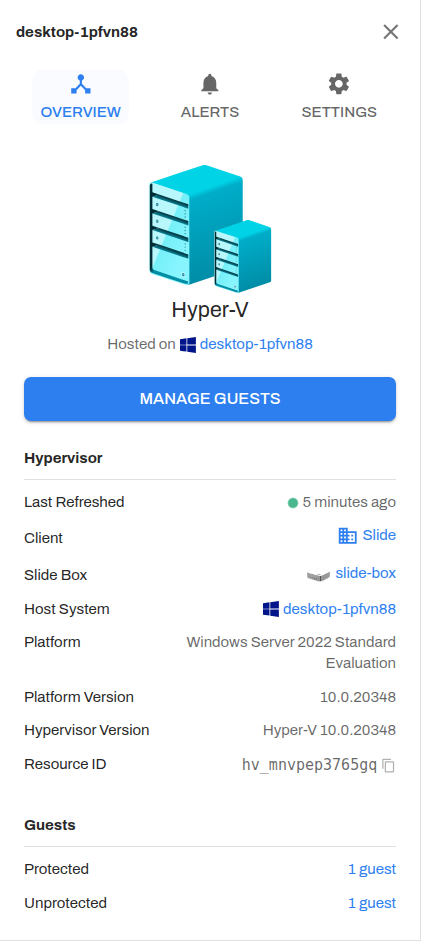
| Field | Description |
|---|---|
| Last Refreshed | When the Slide Box last refreshed this hypervisor's inventory. |
| Client | The client the hypervisor belongs to. |
| Slide Box | The Slide Box that manages the hypervisor. |
| Host System | The protected system for the Slide Agent installed on the host. |
| Platform / Platform Version | The host operating system and version. |
| Hypervisor Version | The hypervisor software version. |
| Resource ID | The hypervisor's ID, used in the Slide API and by Slide support. |
| Guests | The number of protected, unprotected, and missing guests. Select a count to open Manage Guests with that filter applied. |
Guests
Select Manage Guests to see the hypervisor's inventory.
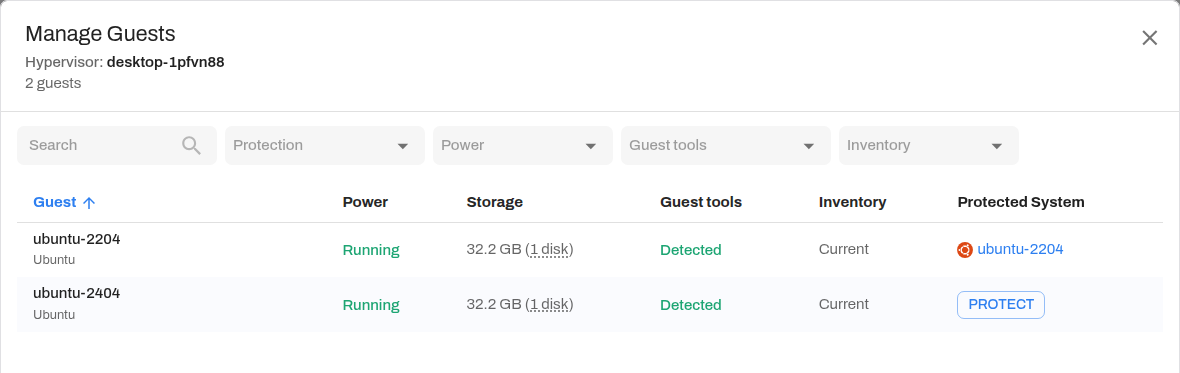
| Column | Description |
|---|---|
| Guest | The VM name and guest operating system. |
| Power | Running, Stopped, Paused, or Migrating. |
| Storage | The total size of the guest's virtual disks and how many disks it has. |
| Guest tools | Whether Slide detected the hypervisor's guest services in the VM. See Guest Tools. |
| Inventory | Current if the guest appeared in the latest refresh. Missing (with when it was last seen) if it has stopped appearing. Never reported if Slide has not yet seen it in a refresh. |
| Protected System | Protect for unprotected guests, or a link to the guest's protected system. |
Filter the list by Protection, Power, Guest tools, or Inventory.
Slide identifies each guest by its hypervisor VM ID, not its name. Renaming a VM on the host doesn't create a new guest or break protection.
Alerts
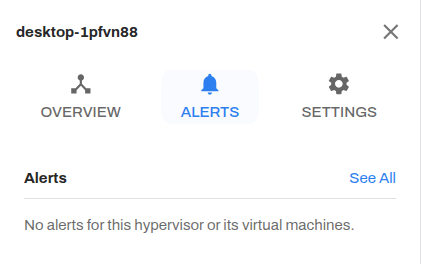
The Alerts tab lists unresolved alerts for the hypervisor and its guests. Select See All to open the Alerts page filtered to this hypervisor. See Slide Agentless alerts for each alert type.
Settings
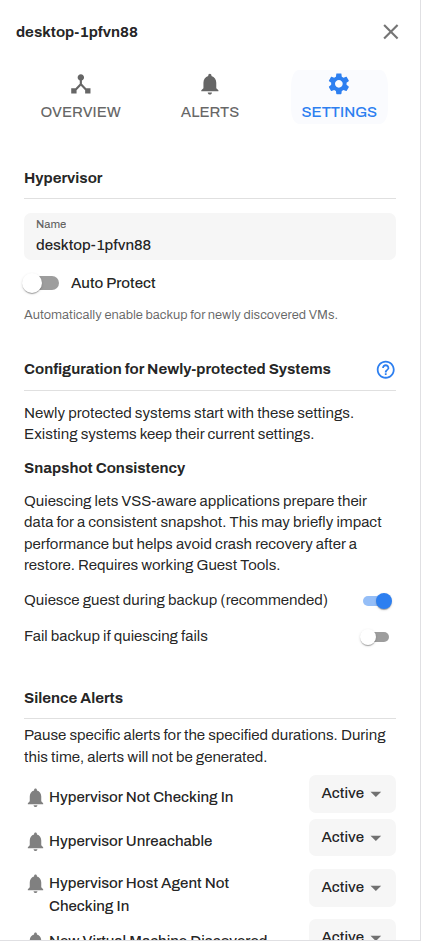
- Name: The display name for the hypervisor.
- Auto Protect: Automatically protects newly discovered VMs. See Auto Protect.
- Configuration for Newly-protected Systems: The Snapshot Consistency settings that new protected systems on this hypervisor start with. Changing these doesn't affect guests that are already protected.
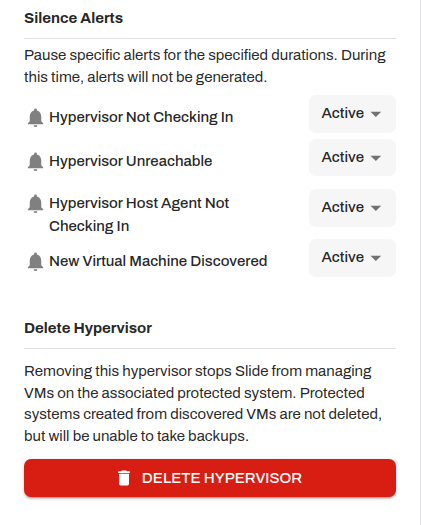
- Silence Alerts: Pause Hypervisor Not Checking In, Hypervisor Unreachable, Hypervisor Host Agent Not Checking In, or New Virtual Machine Discovered for a set duration.
- Delete Hypervisor: See Removing a hypervisor.
Connecting a Hyper-V host
Requirements
- Agentless protection must be enabled for your account and supported by the Slide Box that the host pairs with.
- The Hyper-V host must run the Slide Windows Agent and meet the agent network requirements.
- The host must be running Windows Server 2016 and above.
- The Hyper-V host must be a single-node Hypervisor; Clustered Hyper-V is not supported.
- Only VHDX-format disks are supported.
- The Slide Box must be able to reach the host.
Guest Tools
While not a hard requirement, we highly recommend having guest tools installed because of known issues, and only fall back to crash console as a last resort.
Step 1: Pair the Slide Agent on the host
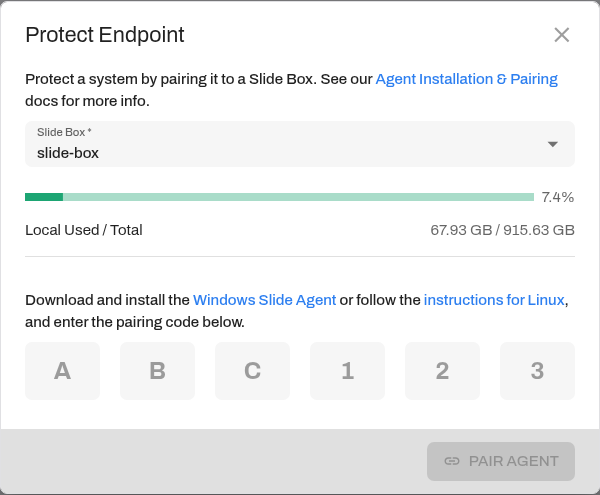
Install the Slide Windows Agent on the Hyper-V host, then pair it with a Slide Box using its pairing code, as you would for any protected system.
By installing the Slide Agent it will handle the backups for the guests on the Hypervisor and it will also be able to backup the host system.
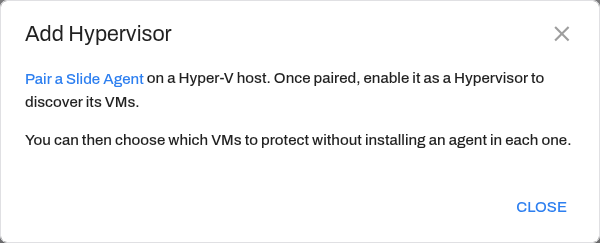
You can start from Hypervisors > Add Hypervisor, which links to the pairing flow when no eligible host is available yet.
Step 2: Enable the host as a hypervisor
When a newly paired host is running Hyper-V, Slide offers to set up agentless protection. Select Discover VMs.
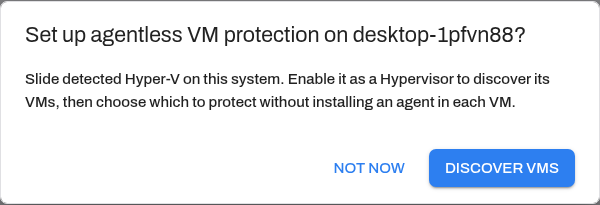
If you choose Not now, you can enable it later in either of two ways:
- Open the host's protected system and select Enable next to Hypervisor.
- Select Hypervisors > Add Hypervisor, choose the Hyper-V host, and select Discover VMs.
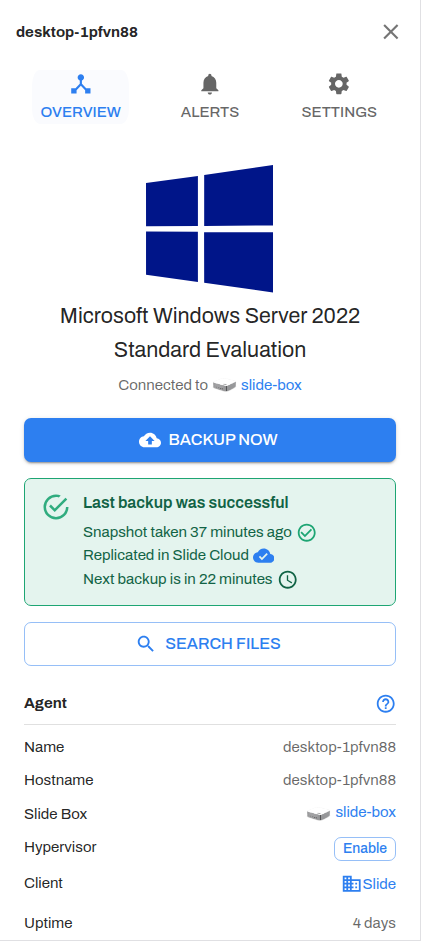
Slide adds the hypervisor and runs its first inventory. When it finishes, the hypervisor appears in the list with its discovered guests.
Step 3: Review the discovered guests
Open the hypervisor and select Manage Guests to see what Slide found. Then protect the guests you want to back up.
Guest Tools
Guest tools shows whether the hypervisor can communicate with its integration services inside the guest. For Hyper-V, these are the Hyper-V Integration Services.
| Value | Meaning |
|---|---|
| Detected | Slide detected the guest services. |
| Not detected | Slide did not detect the guest services. Some guest details and application-aware backup features may be unavailable. |
| Guest not running | Guest services can't be detected while the guest is powered off. |
Detected is required for quiescing, but it doesn't guarantee an application-consistent snapshot. See Snapshot Consistency.
Note
For more information, see Microsoft's Hyper-V docs: Managing Hyper-V Integration Services
Windows guests
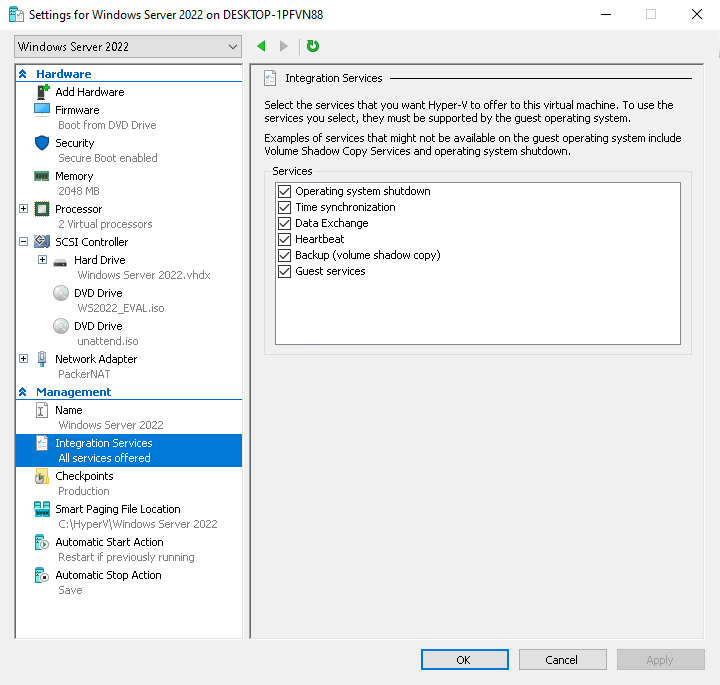
Supported Windows guests include the Hyper-V Integration Services by default, but each service must also be enabled in the VM's settings. In Hyper-V Manager, open the VM's Settings, select Integration Services, and make sure these services are enabled:
- Data Exchange: Lets Slide read guest details, such as the guest operating system.
- Backup (volume shadow copy): Required for application-consistent snapshots.
Linux guests
The guest services that handle data exchange and backup run as separate daemons. Install them with your distribution's package manager:
-
Debian:
-
Ubuntu:
-
RHEL and RHEL-based distributions (such as Rocky Linux, AlmaLinux, and Oracle Linux):
Removing a hypervisor
Open the hypervisor, select Settings, then select Delete Hypervisor.
Removing a hypervisor stops Slide from managing VMs on the host. Protected systems created from its guests are not deleted, and their existing snapshots remain, but they can't take new backups.
The host's own protected system (the Slide Agent on the host) is not affected.
Troubleshooting
| Message | What to check |
|---|---|
| Pair the hypervisor host agent with a Slide Box first. | Finish Step 1. of the Getting Started. |
| This protected system is already linked to a hypervisor. | The host is already connected. Open it from the Hypervisors list. |
| The selected protected system cannot manage hypervisors. | The selected system isn't a supported Hyper-V host, or its agent doesn't support hypervisor management. |
| The hypervisor host could not be reached. | Check that the host agent is running and connected to the Slide Box. |
| The hypervisor request timed out. | Check host load and connectivity, then try again. |
For alerts raised after connection, see Slide Agentless alerts.