HaloPSA Integration
The Slide HaloPSA integration creates tickets from your Slide alerts, maps your Slide clients to Halo clients, and synchronizes resolution between the two systems. You can manage backup issues in Halo while keeping the corresponding alerts up to date in Slide.
Overview
When enabled and configured, the integration provides:
- Automatic ticket creation: New supported Slide alerts create tickets for the mapped Halo client.
- Client synchronization: Slide retrieves your Halo client list so you can map it to your Slide clients.
- Two-way resolution: Resolving a Slide alert updates its Halo ticket. Moving a linked Halo ticket to your selected resolved status resolves the Slide alert.
- Recurring alert handling: A matching alert that returns shortly after resolution can reopen the existing Halo ticket.
You can configure one PSA integration per Slide account. If ConnectWise PSA is already configured, you must remove that integration before configuring HaloPSA.
Prerequisites
Before you begin, make sure you have:
- Halo administrator access: Permission to create roles, an API-only agent, and an API application, and to configure ticket types and webhooks.
- Slide integration permissions: Permission to configure and manage integrations in Slide Console.
- Your HaloPSA URL: Your tenant's HTTPS base URL, for example
https://yourcompany.halopsa.com. - A ticket workflow: A ticket type, a status for new tickets, a different status for resolved tickets, a priority, and optionally a team.
- Halo clients: Active Halo clients corresponding to the Slide clients whose alerts should create tickets.
- Network access: Your Halo API must be reachable by Slide, and Halo must be able to deliver webhook notifications to Slide. If your instance restricts API access, contact Slide support to confirm the access requirements.
Step 1: Configure an Integration Role and Agent in Halo
Use a dedicated API-only agent for Slide so you can manage its access independently of your technicians' accounts. Halo's API agent guide and agent permission guide provide additional setup details.
-
In Halo, open Configuration > Teams & Agents > Roles.
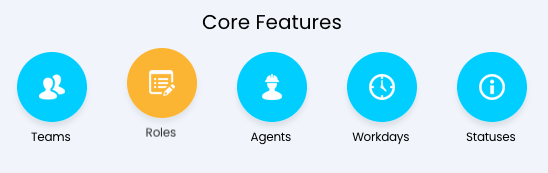
Creating Roles in HaloPSA -
Create a role named Slide Integration and save it, then edit its permissions.
- Give the role access to read clients and to create, read, and modify tickets for the clients and ticket types you will use with Slide.
- Allow it to view unassigned tickets and tickets assigned to other agents, and to update those tickets. Technicians may take ownership of a ticket after Slide creates it.
- Ensure the acting agent can manage the integration's webhooks and notifications. Slide creates these when you enable the integration.
- Save the role.
- Open Configuration > Teams & Agents > Agents and create an agent named Slide Integration.
- Select Is an API-only Agent, or choose API-only access from Agent Access if your Halo screen uses that dropdown. Assign the role you created and save.
-
Review the agent's team memberships and client restrictions. It must retain read and modify access to every team and client that Slide tickets can be routed to, including through Halo routing rules.
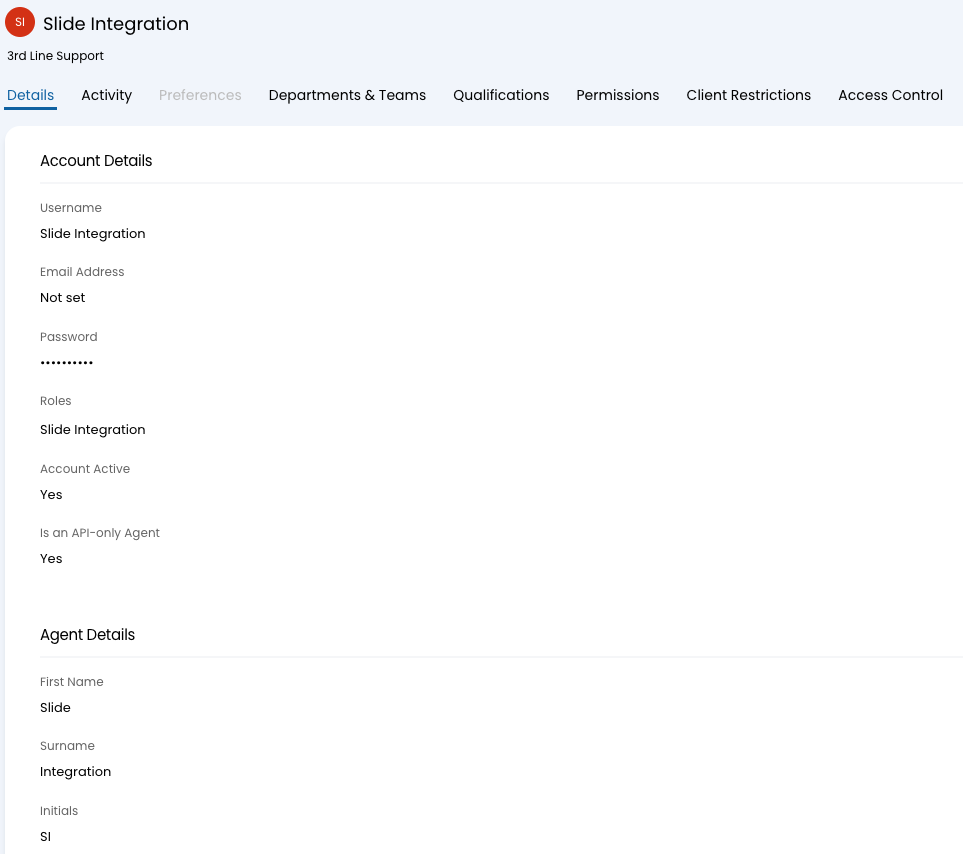
Creating Agents in HaloPSA
Note
Halo checks both the API application's permissions and the acting agent's access. A successful sign-in does not prove that the agent can list clients, update tickets, or manage webhooks. Review agent-level overrides as well as the assigned role.
Step 2: Create an API Application in Halo
Create a separate API application for Slide. Halo's API application setup instructions describe the authentication method and how agent permissions affect access.
- Open Configuration > Integrations > HaloPSA API. Some Halo screens label this Halo API.
- Click View Applications, then New.
- Enter an Application Name, such as Slide Integration, and make sure the application is Active.
- Set Authentication Method to Client ID and Secret (Services).
-
Set Login Type to Agent and Agent to log in as to the API-only agent from Step 1.
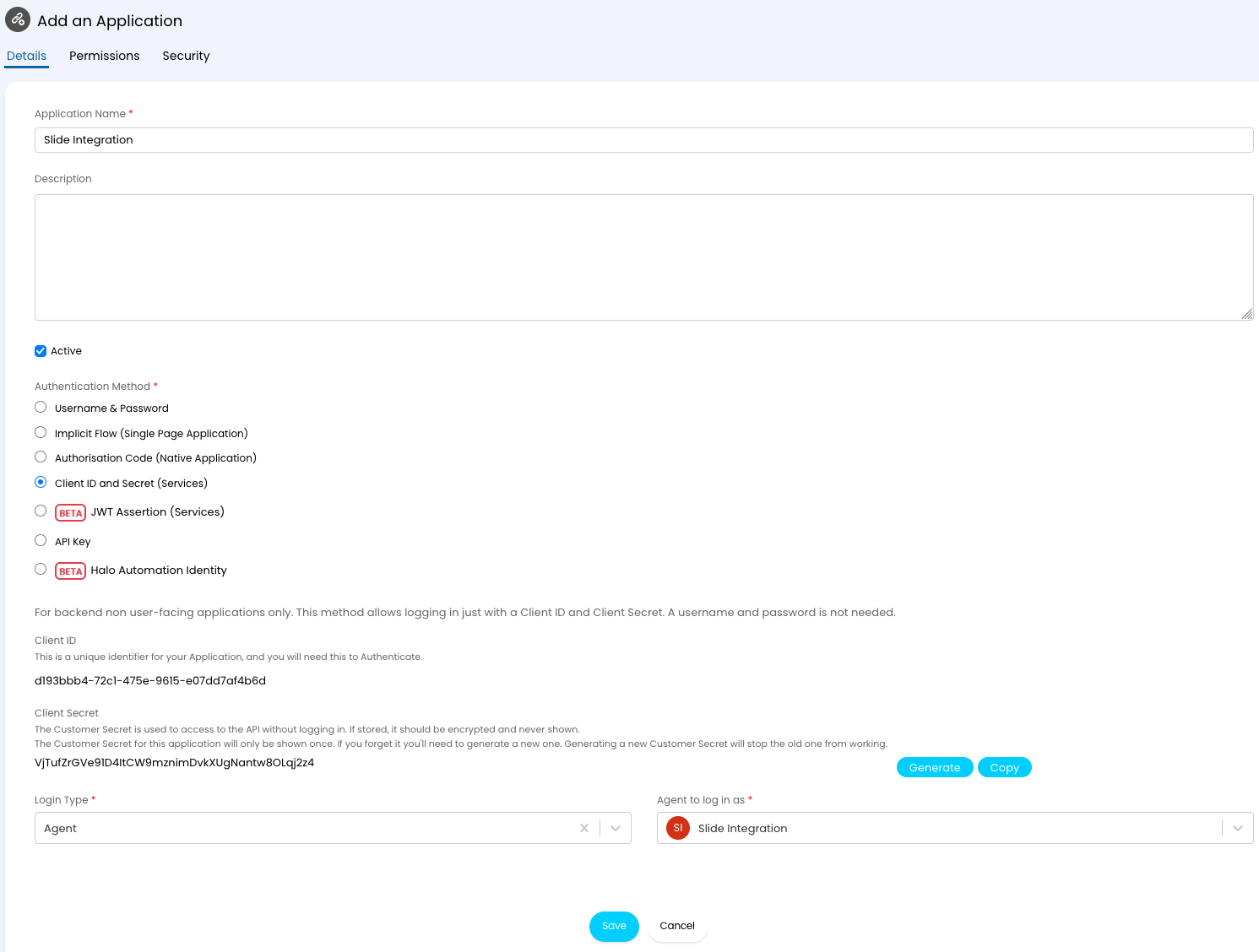
Creating Applications in HaloPSA -
On the Permissions tab, grant the following scopes:
Scope Used for read:ticketsRead tickets and ticket statuses. edit:ticketsCreate tickets, update their status, and add resolution notes. read:customersRetrieve Halo clients for mapping. admin:webhooksManage Slide's webhook and event subscriptions. 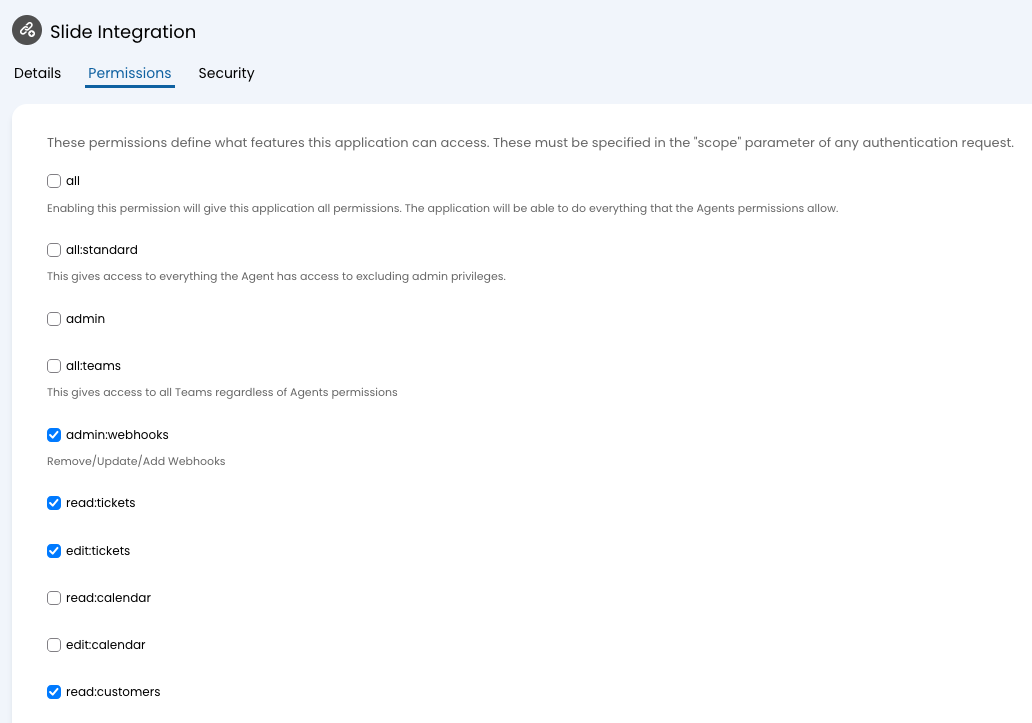
Configuring Application Permissions in HaloPSA -
Save the application and its permissions. Reopen it to generate a Client Secret if needed.
- Copy the Client ID and Client Secret into secure storage.
- Return to the Halo API configuration page and note your tenant URL. If the Resource Server is
https://yourcompany.halopsa.com/api, usehttps://yourcompany.halopsa.comin Slide.
Warning
Save the Client Secret when it is displayed. If you generate a replacement secret in Halo, update it in Slide as well. Slide does not display the stored secret after you save it.
Step 3: Prepare Your Halo Ticket Workflow
Choose the ticket type and routing you want Slide to use. You can use an existing type or create a dedicated Slide Alerts ticket type.
- In Halo's Configuration > Tickets settings, review the ticket type you will select in Slide.
- Choose a status for new tickets, such as New or Open.
- Choose a different status for resolved tickets, such as Resolved or Closed. Confirm your workflow allows tickets to move to this status through the API.
- Choose a priority and, optionally, a team. Ensure the API-only agent can work with tickets routed to that team.
- Review mandatory fields on the ticket type and its forms. Provide defaults for required fields that Slide does not supply, or make those fields optional for this ticket type.
Slide supplies the summary, description, mapped client, ticket type, initial status, priority, and optional team. It does not supply categories, impact, urgency, SLA selections, custom fields, or a specific end user. Requirements for those fields must be satisfied by your Halo configuration.
Tip
A dedicated ticket type lets you set defaults for automated tickets while preserving the requirements you use for tickets created by technicians.
Step 4: Configure the Integration in Slide
- Log in to Slide Console and open Integrations.
-
Find HaloPSA and click Configure.

Configuring HaloPSA in Slide Console -
Enter the credentials from Step 2:
- HaloPSA URL: Your HTTPS tenant base URL, for example
https://yourcompany.halopsa.com. Leave off/apiand/auth/token. - Client ID: The API application's Client ID. This is an authentication credential, not a Halo customer ID.
- Client Secret: The API application's Client Secret.
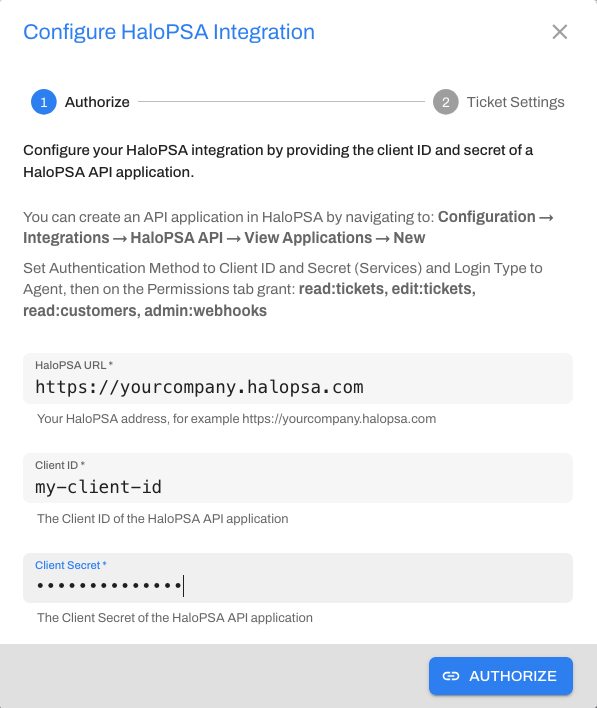
Configuring HaloPSA Credentials in Slide Console - HaloPSA URL: Your HTTPS tenant base URL, for example
-
Click Authorize to validate the credentials and load the ticket options.
-
In Ticket Settings, select:
- Ticket Type: The ticket type you prepared in Step 3.
- New Ticket Status: The initial status for new tickets and for tickets reopened by a recurring alert.
- Resolved Status: The status Slide applies when an alert resolves, and the status Halo must report to resolve a linked Slide alert.
- Priority: The priority for new Slide tickets.
- Team: An optional team, or Ticket type default to use Halo's default routing.
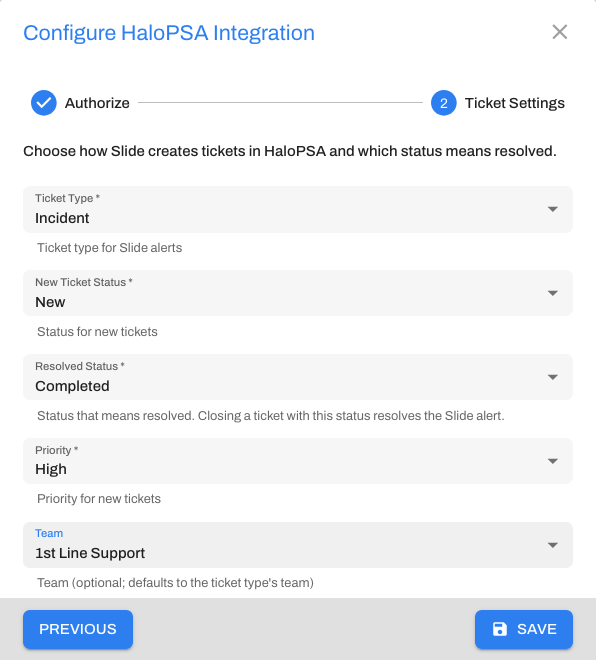
Configuring HaloPSA Ticketing in Slide Console -
Click Save to save the configuration and enable the integration.
- Confirm the integration shows Enabled and wait for the initial client sync to finish.
Slide registers the webhook and the Ticket Status Changed and Closed notifications in Halo automatically. You do not need to create a webhook or copy a callback URL yourself.
Note
Authorization is one step of setup. If saving the ticket settings or enabling the integration fails after the account is created, open its Ticket Configuration and API Settings tabs to finish setup, then enable it.
Map Halo Clients to Slide Clients
After the initial sync, review the client mappings before relying on automatic tickets.
- Open the HaloPSA integration in Slide and select Client Mapping.
- Find each Slide client and edit its row.
- Search for and select the corresponding HaloPSA Client.
-
Save the row and repeat for the remaining clients.
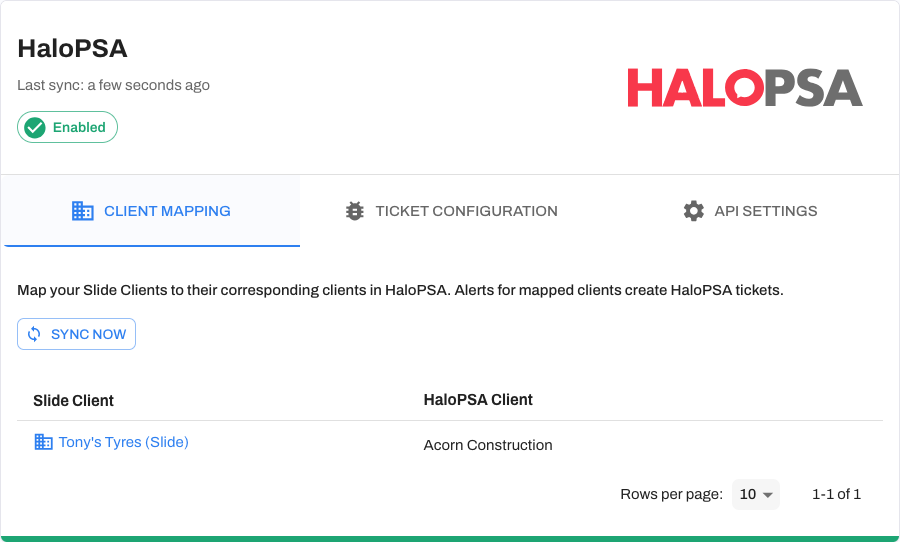
Configuring HaloPSA Client Mapping in Slide Console
Slide automatically maps an unmapped client when its name matches exactly one active Halo client. Similar names and duplicate matches require manual selection. Existing mappings are preserved during subsequent syncs.
- Unmapped clients: New alerts without a mapped Halo client do not create a new ticket. There is no default-client fallback.
- Active clients: The mapping picker offers active Halo clients. Halo's system Unknown client is excluded.
- Client-level mapping: You map to a Halo client; Halo supplies that client's main site. Site-level mapping is not supported.
- Client changes: Use Sync Now after adding, renaming, deactivating, or deleting clients in Halo, then review the affected mappings. Syncing retrieves Halo clients for selection; it does not create clients in either system.
Send a Test Ticket
- Open Ticket Configuration in the HaloPSA integration.
- Save any changes to the ticket defaults before testing.
- Select an active Halo client.
-
Click Create Test Ticket.
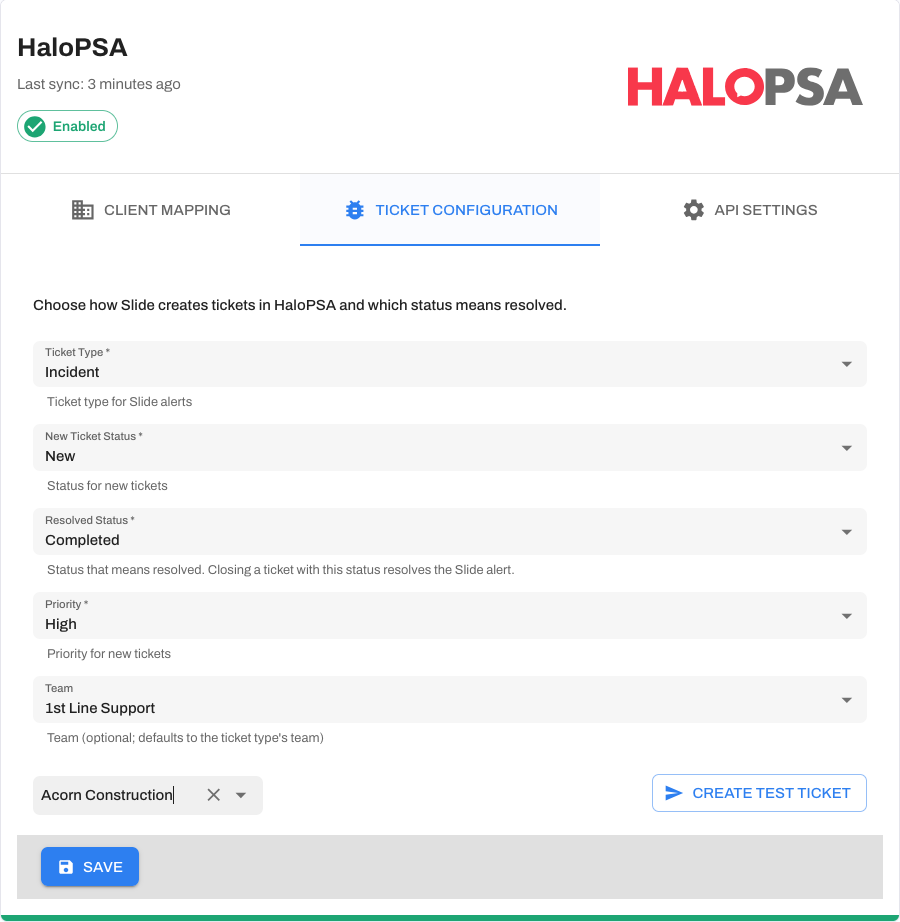
Creating a HaloPSA test ticket in Slide Console -
In Halo, find the ticket titled Slide test ticket - please ignore and close.
- Check its client, site, ticket type, status, priority, and team, then close it in Halo.
The test creates a real Halo ticket using your saved settings. It does not create a Slide alert and is not linked to one, so closing it does not test Halo-to-Slide alert resolution. To verify two-way resolution, use a real alert that the integration has linked to a ticket.
Operational Behaviors
Automatic Ticket Creation
With the integration enabled, a new supported alert creates a Halo ticket using the mapping for the Slide client associated with the alert's Slide Box. The ticket includes:
- Summary: A title based on the alert and affected resource.
- Description: Alert details and a link back to the alert in Slide Console.
- Client: The mapped Halo client.
- Ticket defaults: Your selected ticket type, new ticket status, priority, and team routing.
Supported alerts include Slide Box check-in, storage health, storage capacity, and outdated software alerts, along with agent check-in, missed backup, backup failure, boot verification failure, and conflicting agent connection alerts. Additional supported types depend on the features available in your account; not every Slide alert type creates a PSA ticket.
Enabling the integration or adding a mapping does not create tickets for alerts that already exist. Alerts generated while the integration is disabled are not backfilled when you enable it.
The integration uses one set of ticket defaults for your account. Per-alert routing, custom field mapping, category selection, and SLA selection are not supported.
Auto-Resolving Halo Tickets
When you resolve a linked alert in Slide, its Halo ticket moves to your configured Resolved Status and receives a note recording that it was resolved in Slide and when.
This also applies when Slide automatically resolves an alert. The integration follows the alert's resolution; it does not shorten Slide's auto-resolution waiting period or change the conditions required to resolve an alert.
Auto-Resolving Slide Alerts
When a linked Halo ticket moves to the exact Resolved Status selected in Slide, Halo notifies Slide through the managed webhook. Slide marks the corresponding alert resolved, updates the unresolved alert count, and records the resolution in Activity Logs.
Only the selected status counts as resolved. Another status with a name such as Closed, or another status your technicians treat as resolved, does not resolve the Slide alert unless it is the one selected in the integration settings.
Tickets created manually in Halo and synthetic test tickets are not linked to Slide alerts. Changing them does not resolve an alert. Moving a linked ticket back to another status in Halo does not reopen a resolved Slide alert.
Recurring Alerts
If the same alert type recurs for the same affected resource within one hour of resolution, Slide can reuse the previous ticket and move it back to New Ticket Status. The new alert is linked to that ticket. Outside that window, a new supported alert follows the normal ticket creation process.
Resolve the underlying issue before closing the alert or ticket. Slide can generate another alert if the condition returns; see alerting behavior.
Synchronization and Timing
Ticket creation and resolution are triggered by alert events and Halo webhook notifications. Slide also runs a background sync approximately every eight hours to refresh the Halo client list and check linked tickets.
Use Sync Now on Client Mapping to request a sync sooner. The request runs in the background; wait for Syncing to finish before checking the result.
Integration Status and Monitoring
Open Integrations to review the HaloPSA status:
- Enabled: The integration is configured to process new alerts and synchronize linked tickets.
- Disabled: New alerts do not create tickets, and linked resolution processing is suspended.
- Authentication Failed: Halo rejected the integration's credentials. Check the application and its Client Secret.
- Authorization Failed: Halo denied required access. Check the application scopes and the acting agent's permissions and restrictions.
Review the last successful sync time and any sync error shown in the integration. Syncing includes both waiting for a background sync to start and the sync itself. When it finishes, review any error before relying on the results.
Authentication and authorization failures stop new-alert ticket creation. Correct the credentials or permissions, save the settings as needed, and confirm the integration returns to Enabled. Background sync can also restore an integration after access is recovered.
Manage the Integration
Change Ticket Defaults
Open Ticket Configuration, change the defaults, and click Save. New tickets use the saved settings. Updating the ticket type, priority, or team does not rewrite those fields on existing tickets.
The saved Resolved Status is used for subsequent resolution updates and comparisons on linked tickets. If you change it, make sure your Halo workflow uses the new status. Reopened tickets use the saved New Ticket Status.
Update Credentials
Open API Settings to change the credentials, then click Save. Leave Client Secret blank to keep the stored secret when the tenant URL and Client ID are unchanged. Enter a new secret if you rotate it in Halo or change the tenant URL or Client ID.
If you change the API application's acting agent in Halo, regenerate its Client Secret and save the replacement in Slide, as described in Halo's API agent guide.
After a credential change, confirm that the integration is enabled, sync the client list, and send a test ticket. If you move to a different Halo tenant, review all client mappings and ticket defaults against that tenant.
Disable and Re-Enable
In API Settings, click Disable HaloPSA Integration to pause processing while retaining the credentials, ticket defaults, and client mappings. Existing Halo tickets remain in Halo.
Click Enable HaloPSA Integration to resume. Slide reactivates its managed webhook and requests a background sync. Review outstanding alerts and tickets after the sync; alerts created during the pause are not backfilled.
Delete the Integration
In API Settings, click Delete HaloPSA Integration and confirm the deletion. Slide removes the local integration configuration and clears its Halo client mappings.
Existing Halo tickets and Slide alerts are retained. Ask your Halo administrator to review any remaining Slide webhook and notifications, or contact Slide support.
You can configure another PSA after deletion. If you reconnect HaloPSA, review and save your client mappings again.
Troubleshooting
HaloPSA Is Missing or Configure Is Unavailable
- Confirm the feature is available for your account; it is still in development.
- Check your Slide permissions for managing integrations.
- Check whether another PSA is configured. You must delete that configuration before adding HaloPSA; disabling it is not sufficient.
Authorization or Setup Fails
- Use the tenant's HTTPS base URL, such as
https://yourcompany.halopsa.com. - Check the Client ID and Client Secret for copying errors, and confirm the application is active.
- Confirm Client ID and Secret (Services) authentication, Agent login, and the correct acting agent.
- Review the four application scopes from Step 2 and the agent's role, team access, and client restrictions.
- If authorization succeeds but saving or enabling fails, check access to manage webhooks and notifications. Finish ticket configuration on the existing integration rather than creating another one.
Halo Clients or Ticket Options Are Missing
- Wait for the initial sync to finish, or use Sync Now and review the sync error.
- Check that the acting agent can read the intended Halo clients and ticket configuration.
- Only active clients are offered for mapping; Unknown is excluded.
- Ticket options include ticket types used for tickets, ticket statuses, priorities, and active teams. Confirm your intended options are available to the API agent.
Tickets Are Not Being Created
- Confirm the integration is Enabled and the alert was created after setup and mapping.
- Check the Slide Box's client and its Halo mapping. A missing or inactive mapped client prevents new ticket creation.
- Confirm the alert type is supported, and check whether a recurring alert reopened an existing ticket.
- Send a test ticket to distinguish a Halo setup problem from a mapping or alert-specific problem.
- For a Halo 400 Bad Request, inspect the error for required fields. Give those fields defaults on the selected ticket type or make them optional.
- If Halo reports an invalid client, site, or user, check the mapped client's main site and the user defaults required by your ticket workflow.
Tickets Are Created but Cannot Be Read or Updated
Check the API agent's access to the ticket's current team and client. Routing rules or technician assignment may move a ticket outside the agent's visibility. It needs permission to read and modify tickets assigned to other agents as well as unassigned tickets.
For 401 errors, check credentials. For 403 errors, check both the application's scopes and the acting agent's access.
Resolving a Slide Alert Does Not Resolve Its Halo Ticket
- Confirm the ticket is linked to that alert and the integration is enabled.
- Check Resolved Status in Ticket Configuration and confirm Halo allows that transition.
- Verify the API agent can modify the ticket and add an action after it has been assigned or routed.
- If you expected automatic resolution, check the alert's resolution conditions and waiting period.
- Request a sync and allow it to finish. If the ticket remains open, contact Slide support with the alert and ticket IDs.
Resolving a Halo Ticket Does Not Resolve Its Slide Alert
- Move the ticket to the exact Resolved Status selected in Slide.
- Confirm the ticket was linked to a real Slide alert. A synthetic test ticket does not test this behavior.
- Confirm the integration is enabled and its managed webhook and both event notifications remain active in Halo.
- Review Halo's webhook delivery history for failures. Successful outbound ticket creation does not confirm inbound webhook delivery.
- Request a sync as a fallback. Very recent tickets may not yet qualify for its ticket checks.
Sync Fails or Updates Are Delayed
Review the displayed sync error and check Halo API availability and permissions. Halo rate limits can delay operations, especially if other integrations also use the tenant. Wait for the queued sync to complete before requesting another one.
For additional assistance, contact Slide support. Include the alert ID, Halo ticket ID, approximate time of the failure, integration status, and any displayed error. Keep Client Secrets and other authentication values out of support messages.