Slide Agentless
Slide Agentless backs up virtual machines through a connected hypervisor instead of through a Slide Agent installed in each VM. Slide reads the VM's virtual disks from the host, so the guest doesn't need an in-guest agent.
Agentless guests are protected systems, just like agent-based systems. They have snapshots, retention, verification, alerts, and restores. Some settings and details differ because Slide sees the VM from the hypervisor rather than from inside the guest.
Hyper-V is the first supported hypervisor. To connect one, see Connecting a Hyper-V host.
When to use Agentless
- You want to protect many VMs on a host without installing and maintaining an agent in each one.
- You want to backup an operating system or filesystem that the Slide Agent doesn't support. Slide can still capture its disks, though verification and some recovery options may be limited.
How it works
- A hypervisor is connected and Slide discovers its guests.
- You protect a guest, or Auto Protect protects it for you. Slide creates a protected system for it.
- On each backup, Slide asks the hypervisor to snapshot the VM, optionally quiescing the guest first, then copies the changed data to the Slide Box.
- Slide records the snapshot consistency it achieved and runs verification.
- Snapshots replicate to the Slide Cloud and follow the protected system's retention policy, like any other snapshot.
Protecting a guest
Open the hypervisor from Hypervisors, select Manage Guests, and select Protect next to the guest.
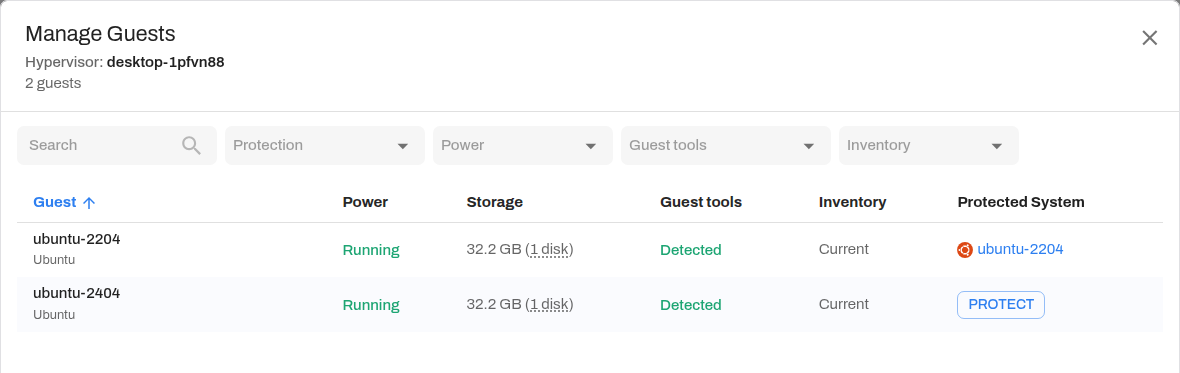
Slide creates a protected system for the guest right away. The Protected System column then links to it. The new protected system starts with the hypervisor's settings for newly-protected systems.
The guest appears in Protected Systems with its hypervisor in the Hypervisor column.

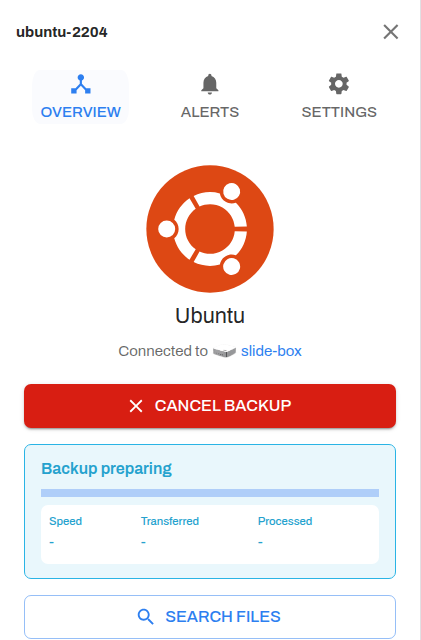
The first backup runs on the protected system's schedule. To start one now, open the protected system and select Backup Now.
Auto Protect
Turn on Auto Protect in the hypervisor's Settings to protect newly discovered VMs automatically.
- With Auto Protect on, Slide creates a protected system for each new VM it discovers.
- With Auto Protect off, new VMs appear as unprotected guests and Slide raises a New Virtual Machine Discovered alert.
Note
Any guests that have already been discovered at the time of Auto Protect being enabled will not be protected.
Agentless protected system details
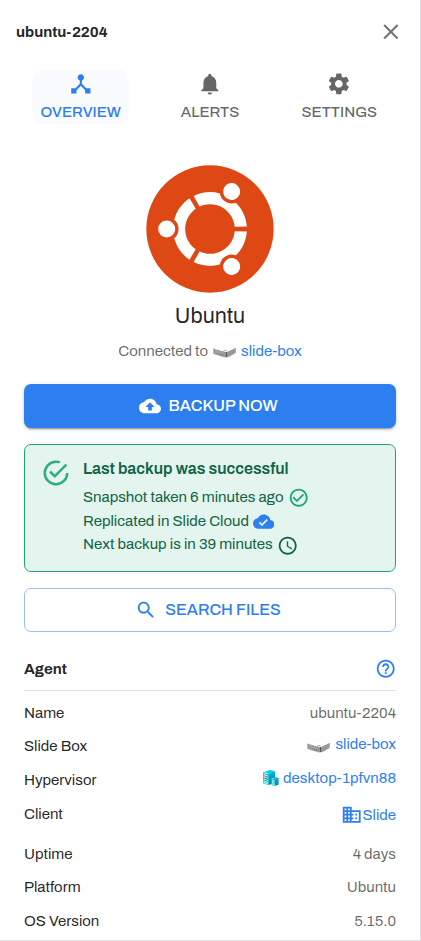
Agentless protected systems show the same overview as agent-based systems, with these differences:
- Hypervisor links to the hypervisor that hosts the guest.
- Details such as IP addresses, MAC addresses, and OS version come from the hypervisor. They depend on Guest Tools and may be missing if Guest Tools aren't detected.
- There is no agent version and no agent check-in status. Connectivity issues are reported on the hypervisor instead.
Settings
Most protected system settings work the same for agentless guests. See Protected Systems settings for Display Name, Agent Passphrase, Pause Backups, Schedule Backups, Snapshot Retention, File Search, Default Restore Settings, and Delete Protected System.
The following settings are specific to agentless guests. Agent-only settings such as Volumes, VSS Writers, Quiescence Scripts, Release channel, and Service Verification don't apply.
Snapshot Consistency
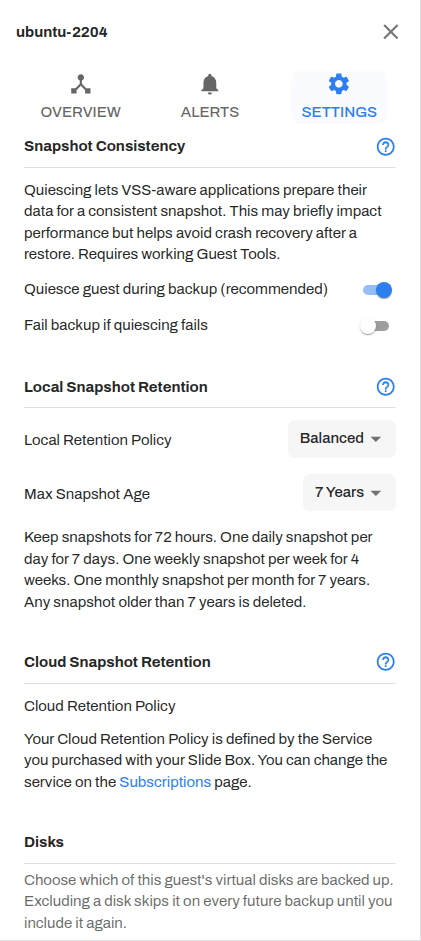
- Quiesce guest during backup (recommended): Asks the guest to prepare its applications before the hypervisor takes the snapshot. On Windows guests, this lets VSS-aware applications flush their data. Requires active Guest Tools.
- Fail backup if quiescing fails: When on, the backup fails if the guest can't be quiesced. When off, Slide continues with a crash-consistent snapshot.
The setting you choose and the result you get are separate. Each snapshot records the consistency that was actually achieved:
| Snapshot Consistency | Meaning |
|---|---|
| Application-consistent | The guest was quiesced for this snapshot, allowing applications to prepare their data. |
| Crash-consistent | The snapshot was taken without quiescing the guest. After a restore, applications may need to recover as they would after a sudden power loss. |
A guest with Guest tools: Detected can still produce a crash-consistent snapshot. For example, if quiescing times out or the guest's backup integration service isn't working. Check Snapshot Consistency on the snapshot itself, not the setting or the Guest Tools status.
New guests start with the consistency settings from the hypervisor's Configuration for Newly-protected Systems. Changing them on the guest only affects that guest.
Disks
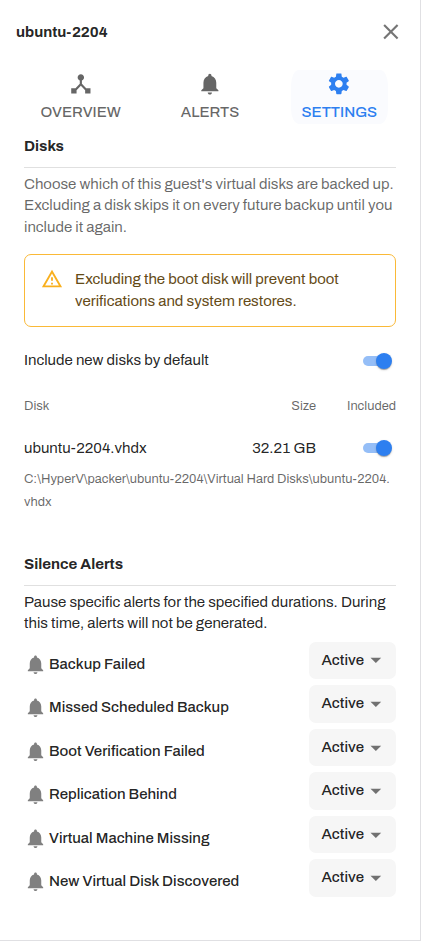
Choose which of the guest's virtual disks are backed up. Excluding a disk skips it on every future backup until you include it again.
- Include new disks by default: When on, disks added to the VM later are backed up automatically. When off, Slide raises a New Virtual Disk Discovered alert and the new disk isn't backed up until you include it.
- Included: Turn individual disks on or off.
Warning
Excluding the boot disk will prevent boot verifications and system restores.
Silence Alerts
Agentless guests can silence Backup Failed, Missed Scheduled Backup, Boot Verification Failed, Replication Behind, Virtual Machine Missing, and New Virtual Disk Discovered.
Snapshots
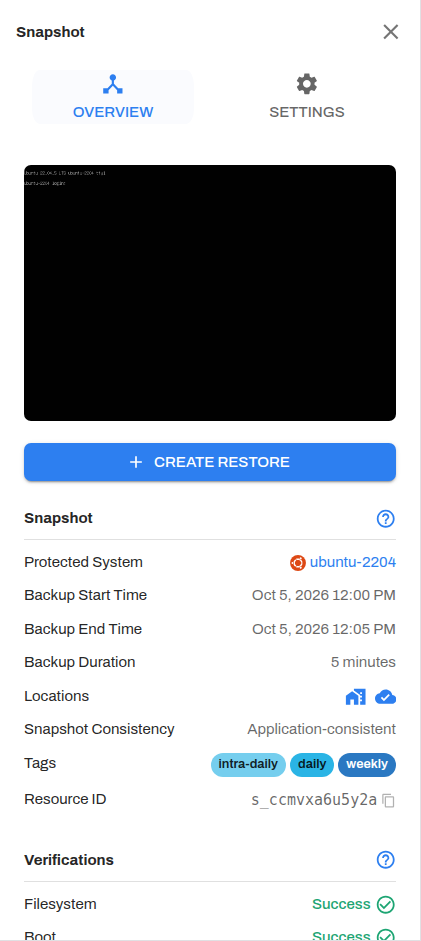
Agentless snapshots appear on the Snapshots page alongside agent-based snapshots. The snapshot details include Snapshot Consistency.
Verification
Slide runs the same verifications on agentless snapshots, but coverage depends on what Slide can read from the guest's disks.
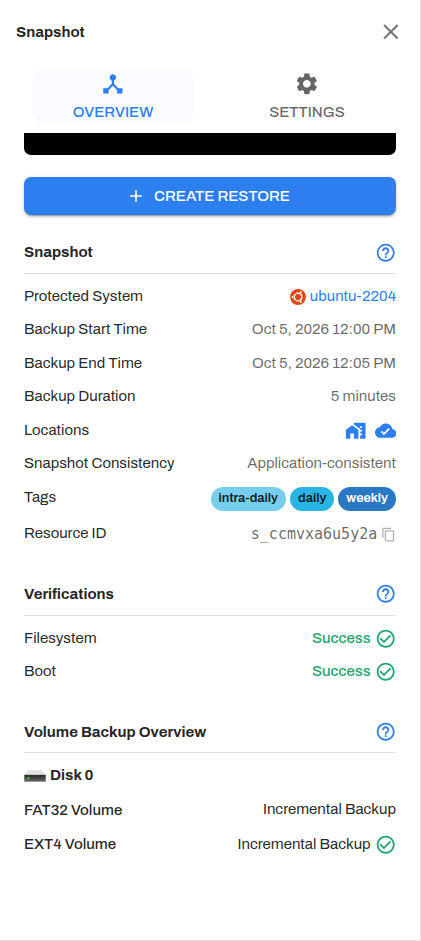
| Verification | Result | Meaning |
|---|---|---|
| Filesystem | Success | Every backed up volume Slide could inspect was healthy. |
| Filesystem | Partial | Some volumes were verified, but Slide couldn't inspect others. |
| Filesystem | Unsupported | Slide couldn't inspect any volume. |
| Boot | Unsupported | Boot verification is not yet supported for this protected system, or Slide couldn't confirm the guest finished booting. |
The Console shows Partial or Unsupported when Slide couldn't inspect some or all volumes, or couldn't verify the guest's boot. These results don't indicate a failed backup or confirmed damage. Slide doesn't send an alert for either result. The Console shows Warning or Error when Slide inspected a volume and found a problem.
Recovering an agentless guest
Select Create Restore on a snapshot.
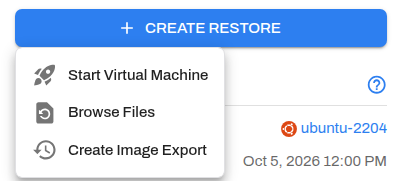
| Restore | Notes |
|---|---|
| Start Virtual Machine | Boots the snapshot as a VM on the Slide Box or in the Slide Cloud. Whether it boots depends on the guest OS and its drivers in the recovery environment. |
| Browse Files | Requires a filesystem Slide can read. |
| Create Image Export | Exports the virtual disks. Works even when Slide can't read the guest's filesystem. |
Troubleshooting
| Error | What to check |
|---|---|
| The hypervisor could not create a snapshot of this virtual machine. | Check the VM's state and checkpoints in Hyper-V Manager, and the host's Hyper-V-VMMS event log. |
| Unable to protect guest VM. | Refresh the guest list and try again. If the hypervisor shows Hypervisor Unreachable, resolve that first. |
For hypervisor and guest alerts, see Slide Agentless alerts. For connection problems, see Hypervisors troubleshooting.