SaaS Backup
Early access
SaaS Backup is in early access. A few features aren't available yet. See Limitations.
Slide SaaS Backup protects your clients' Microsoft 365 data in secure cloud storage managed by Slide. There's no Slide Box and no agent to install. You connect a Microsoft 365 tenant from the Slide Console, choose what to protect, and Slide takes care of the rest: discovering users, running backups on a schedule, and keeping recovery points for the retention period you chose.
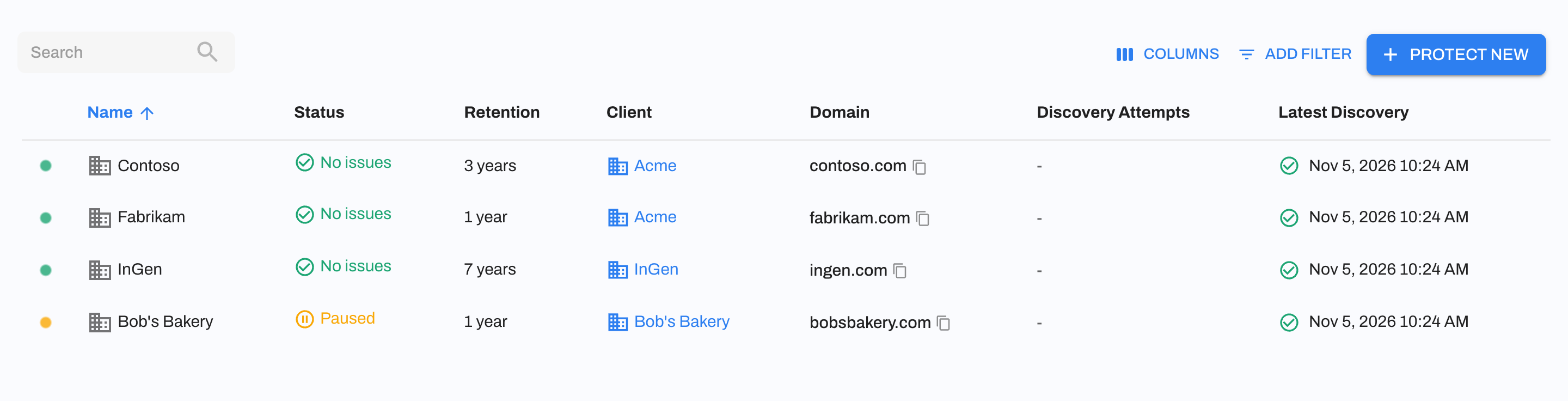
Features:
- Microsoft 365 backup: Back up Mail, OneDrive, SharePoint, Teams and Entra.
- Multi-tenant onboarding: Connect many client tenants at once through Microsoft Partner Center (GDAP), or connect a single tenant directly.
- Auto-Protect: Newly discovered resources are protected automatically.
- Granular backup scheduling: Back up as often as every hour, with schedules that can be set per tenant, per resource, or per application.
- Global search: Search across a tenant's backed-up data to find what you need to restore.
- Always-on encryption: All backed-up data is encrypted in transit and at rest. File and mail contents are also encrypted with AES-256, using a key unique to each tenant.
- Restore to Microsoft 365: Push mail and OneDrive files back into the original user or another user. Live data isn't overwritten unless you allow it in Account Settings.
- Downloads and share links: Download items as files, ZIP archives, or Outlook PST files, or send someone a time-limited share link.
If you're ready to get started, head over to Authorization to connect your first tenant.
How It Works
Unlike agent backups, which take image-based backups of a protected system to a Slide Box, SaaS Backup copies data directly from Microsoft 365 to cloud storage managed by Slide, using the Microsoft Graph API. SaaS backups are kept separate from the Slide Cloud that stores Slide Box backups.
Here's a high-level overview of the process:
- You connect a tenant by signing in to Microsoft and granting Slide access. Slide creates its own apps in the tenant so it can read (and, for restores, write) data.
- You activate protection, choosing a client, a retention period, and whether to Auto-Protect new resources.
- Slide runs discovery to find the users, shared mailboxes, and other resources in the tenant.
- Each protected resource is backed up on its schedule. The first backup copies all of the resource's existing data; every backup after that only copies what changed.
- Each completed backup creates a recovery point that you can browse, download, share, or restore back to Microsoft 365.
Terminology
SaaS Backup organizes your data into four levels. You'll see each of them in the SaaS section of the Slide Console menu.
- Tenant: A client's Microsoft 365 organization (a Microsoft Entra tenant). Each tenant can be associated with a client. See Tenants.
- Resource: Something within a tenant that can be protected, such as a user, a shared mailbox, a SharePoint site, or a Microsoft 365 group. See Resources.
- Application: A type of data that belongs to a resource, such as a user's Mail or OneDrive. Backups run at the application level. See Applications.
- Recovery point: A completed backup of one application at a point in time. Recovery points are what you browse and restore from in the Explorer.
What's Protected
| Resource type | Applications | Supported |
|---|---|---|
| User | Mail (including calendar, contacts, and tasks), OneDrive |  |
| Shared Mailbox | Mail (including calendar, contacts, and tasks) | |
| Site | SharePoint | |
| Group | SharePoint, Teams | |
| Entra | Entra ID (users, groups, and roles) | |
SaaS Backup supports Microsoft 365 commercial (worldwide) tenants. Tenants in Microsoft 365 GCC High, Microsoft 365 DoD, and Microsoft 365 operated by 21Vianet (China) aren't supported.
Note
Google Workspace isn't supported.
See Backups for details on what is and isn't included for each application.
Data Protection
- Encryption: All backed-up data is encrypted in transit and at rest. File and mail contents are also encrypted with AES-256, using an encryption key unique to each tenant. Keys are managed by Slide.
- Data location: Backup data is stored in data centers in the United States (US East). The data location is set when you connect the tenant and can't be changed afterwards.
- Immutability: Recovery points can't be changed after they're taken.
- Retention: You choose a retention period of 1 year, 3 years, or 7 years when you activate protection. See Retention.
Schedule Backups
Backups run on a schedule that you can set at three levels:
- Tenant: The default schedule for every resource and application in the tenant.
- Resource: Overrides the tenant schedule for one resource (e.g. back up the CEO's mailbox more often).
- Application: Overrides the schedule for one application of a resource.
Resources and applications inherit their schedule from the level above until you override it. To override, open the resource or application, go to the Settings tab, and enable Override inherited schedule in the Schedule Backups section.
The schedule has the following settings:
- Backup Interval: How often backups run. Available options are every 1, 2, 3, 6, 8, 12, or 24 hours.
- Between / At: The time window in which backups run. For a 24-hour interval, you choose the time of day the backup runs instead.
- Days: The days of the week on which backups run. At least one day must be selected.
- Timezone: The timezone the schedule is based on.
By default, a new tenant is backed up every 3 hours, every day. The schedule is a target: when Microsoft 365 limits how fast data can be read (throttling), a backup can start late or take longer, so recovery points can be further apart than the schedule. Slide also runs discovery once a day to find new users and mailboxes.
Billing
SaaS Backup is billed monthly, per billable seat. At the end of each month, Slide counts the billable seats across all of your clients' tenants and bills that quantity on your next invoice. The price per seat depends on the retention period of each tenant.
Billable Seats
A billable seat is a licensed Microsoft 365 user whose resource is protected or paused in Slide. Users count as billable seats while they're paused because their backups are still kept. Everything else in a tenant is included at no extra cost.
When Slide discovers a tenant's users, it skips any user without a Microsoft 365 license. Users without a license, including most guest users, never appear in Slide, so they can't be protected or billed.
| What you protect | Billable seat? |
|---|---|
| Protected users | Yes |
| Paused users (including users in a paused tenant) | Yes |
| Shared mailboxes | No |
| Guest users without a license | No (not discovered) |
| Unlicensed users | No (not discovered) |
| Archived users (deleted or unlicensed in Microsoft 365, backups kept) | No |
| Unprotected resources | No |
| SharePoint sites, Microsoft 365 groups, and Entra | No |
| Users in a tenant whose client is marked as your own organization | No |
Here are a few examples:
- A client's tenant has 25 licensed users and 3 shared mailboxes, all protected in Slide. That's 25 billable seats.
- An employee leaves and you convert their mailbox to a shared mailbox in Microsoft 365. Slide's next discovery adds it as a Shared Mailbox resource and moves its mail backups to it, and the old user resource becomes Archived. Neither counts as a billable seat.
- An employee leaves and their account is deleted in Microsoft 365. Their user resource becomes Archived, and they stop counting as a billable seat, but their backups are kept for the rest of the retention period.
- You turned off Auto-Protect and only protect 10 of a client's 40 users. That's 10 billable seats.
- You pause backups for 5 of a client's 25 protected users. That's still 25 billable seats.
Limitations
SaaS Backup is in early access, and there are a few things it doesn't do yet:
- Teams chats (one-on-one and group chats) aren't backed up.
- Online archive mailboxes aren't backed up. See the FAQ.
- Google Workspace isn't supported.