Resources
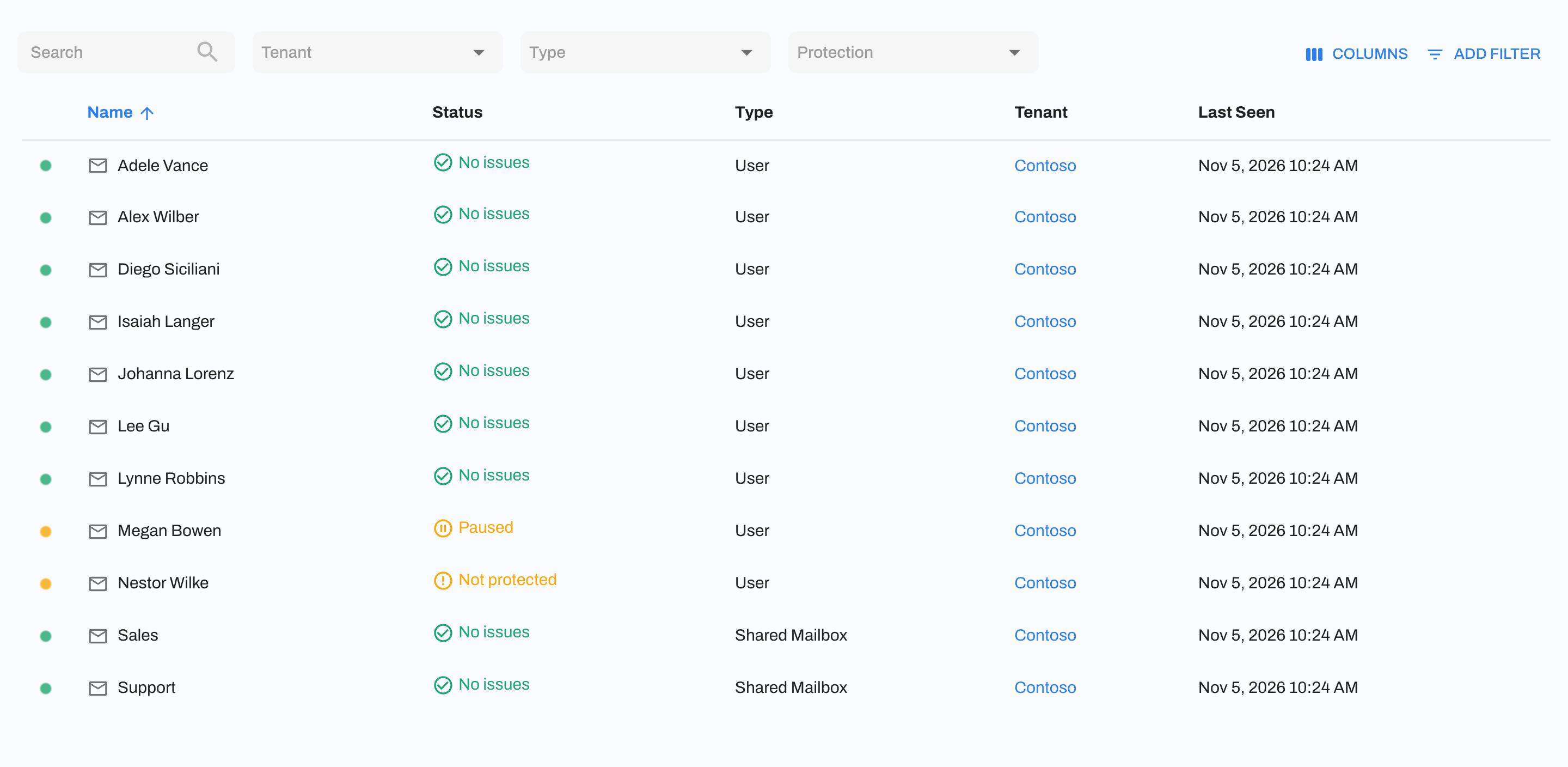
A resource is something within a tenant that can be protected, like a user or a shared mailbox. Resources are found automatically during discovery. The Resources page (SaaS > Resources in the Slide Console) lists the resources across all of your tenants.
Resource Types
Each resource type has its own applications, the types of data Slide backs up for it.
- User: A licensed Microsoft 365 user. Applications: Mail and OneDrive.
- Shared Mailbox: A shared mailbox. Applications: Mail.
- Site: A SharePoint site. Applications: SharePoint (the site's document libraries).
- Group: A Microsoft 365 group. Applications: SharePoint (the group's site) and, if the group has a team, Teams.
- Entra: The tenant's Microsoft Entra ID directory. There's one per tenant. Applications: Entra.
The resources table has the following columns:
- Name: The resource's display name.
- Status: The resource's status (see below).
- Type: The resource type.
- Tenant: The tenant the resource belongs to.
- Schedule Origin: Whether the resource uses its tenant's schedule or its own. Hidden by default.
- Last Seen: When discovery last found the resource in Microsoft 365.
- Created At: When the resource was first discovered. Hidden by default.
You can filter by Tenant, Type, Protection, and Schedule Origin.
Resource Statuses
- No issues: The resource is protected and being backed up.
- Not protected: The resource was discovered but isn't being backed up.
- Paused: The resource is paused.
- Paused by tenant: The resource's tenant is paused.
- Archived: The resource no longer exists in Microsoft 365 (or no longer has a license). Its recovery points are kept. See Discovery.
Protecting a Resource
If Auto-Protect is enabled, new resources are protected automatically. To protect a resource yourself, click it on the Resources page and click Protect. It's backed up on its schedule from then on.
To protect every unprotected resource in a tenant at once, use Protect All Resources on the tenant. This is a one-time action and doesn't turn on Auto-Protect.
Info
Users that are protected or paused count as billable seats. Shared mailboxes and other resource types don't. See Billable Seats.
Resource Details
Click a resource to open its details. The Overview tab shows:
- Actions: Backup Now starts a backup of all of the resource's applications right away. Search Files opens the resource in the Explorer.
- Status: The backup status of the resource, such as when it was last backed up, when it'll be backed up next, and whether any applications need attention.
- Resource: Details such as the tenant, resource type, email address, user principal name, or web URL, and when Slide first saw it.
- Applications: The resource's applications, with their last and next backups.
- Latest Recovery Points: The most recent recovery points for the resource.
Resource Settings
The Settings tab lets you change the following:
- Display Name: The name Slide uses for this resource.
- Pause Protection: See Pause.
- Schedule Backups: Override the tenant's schedule for this resource. See Schedule Backups.
- Remove Protection: See Removing Protection.
Pause
You can pause backups for a single resource for 30 minutes, 1 hour, 2 hours, 4 hours, 8 hours, 1 day, 1 week, or Indefinitely. Set it back to Active to resume. Paused resources keep their recovery points.
To pause every resource in a tenant, pause the tenant instead.
Removing Protection
Remove Protection stops backups for the resource and deletes its data. You'll need to type DELETE and click Unprotect to confirm.
Warning
Removing protection removes all data associated with the resource, including its backups and recovery points. This cannot be undone. If you only want to stop backups for a while, pause the resource instead.