Orders
The Orders page in the Slide Console lists every order on your account: new Slide Box purchases, changes to an existing subscription, replacements, and Slide Box returns. You'll find it under Billing → Orders in the left navigation, or by searching for "Orders" in the Power Bar.
An order is created when you accept a quote, so the Orders page is where you follow a purchase from processing through delivery. Slide also creates an order when it sends you a return label, for example after you cancel and return a Slide Box, so you can track the return here too. If you haven't accepted a quote yet, the page shows You don't have any orders.
Note
Only Account Owners, Account Admins, and Billing users can view the Orders page.
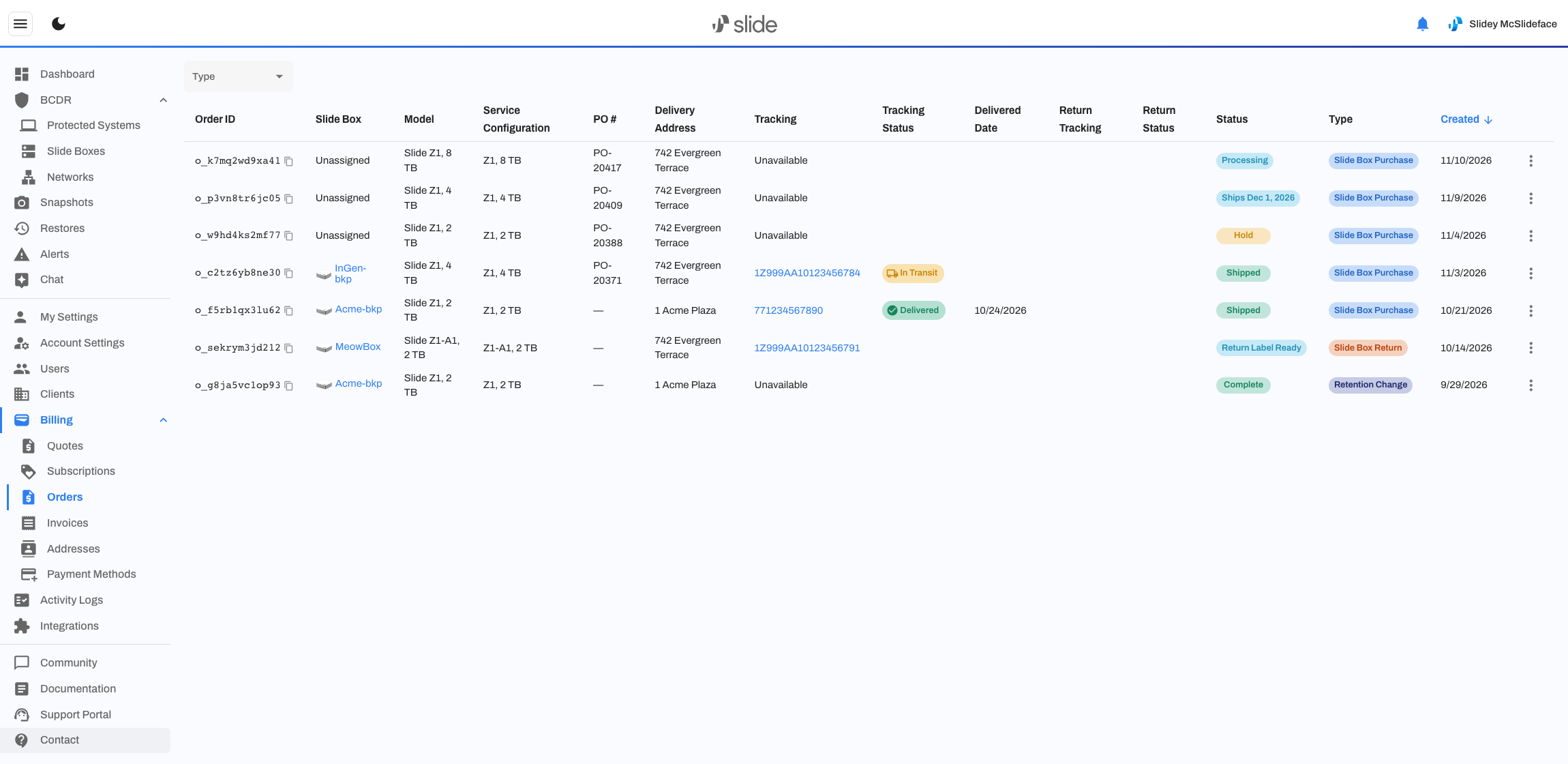
Orders are listed newest first. Each order shows the following columns:
- Order ID: The unique ID of the order. Click the copy icon next to it to copy the ID, which is handy when you contact Slide about an order.
- Slide Box: The Slide Box the order applies to. New purchases show Unassigned until Slide assigns a specific Slide Box to the order, which happens when the order is fulfilled. Click the Slide Box name to open it on the Slide Boxes page.
- Model: The Slide Box hardware model and size, for example Slide Z1, 4 TB.
- Service Configuration: The model and storage size of the subscription on the order, for example Z1, 4 TB.
- PO #: The purchase order number you entered when you accepted the quote. It shows — if you didn't enter one. The PO number is also printed on the shipping label.
- Delivery Address: The first line of the shipping address. Hover over it to see the full address.
- Tracking: The carrier tracking number. Click it to open tracking on the carrier's website. It shows Unavailable until the order has a shipping label.
- Tracking Status: The latest status reported by the carrier (see Tracking statuses). Hover over it to see the carrier's most recent tracking detail.
- Delivered Date: The date the carrier delivered the shipment. This only appears once the carrier reports the shipment as delivered.
- Status: Where the order is in its lifecycle (see Order statuses).
- Type: The kind of order (see Order types).
- Created: The date the order was created. Click the column header to change the sort order.
Order Types
Use the Type filter above the table to show only one kind of order. Select the blank option at the top of the list to clear the filter.
- Slide Box Purchase: A new Slide Box you purchased by accepting a quote.
- RMA: A Slide Box that Slide is sending you under a return merchandise authorization.
- Hardware Change: A move to a different Slide Box model, from Upgrade / Downgrade on the Subscriptions page.
- Storage Change: A storage size change on a Slide Box that supports sliding storage, from Adjust Storage.
- Retention Change: A change to the cloud retention on your subscription, from Change Your Service Plan.
- Reactivation: A canceled subscription that has been reactivated.
- Replacement: A replacement Slide Box that Slide is sending you for a Slide Box that has an issue.
- Slide Box Return: A Slide Box you're sending back to Slide, for example after a cancel and return or a hardware change.
A globe icon next to a Slide Box Return means the return is an international shipment. International returns need extra customs and verification steps before Slide can send the return label, so they may take a little longer.
Order Statuses
The Status column shows where each order is. Most orders move through these statuses:
- Processing: Slide has received the order and is preparing it.
- Ships date: The order is scheduled to ship on a future date, because you chose Ship on a Future Date when you accepted the quote. Hover over the status to see the scheduled date.
- Hold: The order is on hold as part of a staggered shipment. If you place a large order that needs to ship over a period of time, your Sales Representative works out the shipping schedule with you.
- Shipped: The order has left Slide. Use the Tracking and Tracking Status columns to follow the delivery.
- Complete: The order is finished. Orders that don't ship hardware, such as a Storage Change, Retention Change, or Reactivation, are marked Complete as soon as you accept the quote, because the change is applied to your existing Slide Box right away.
- Canceled: The order was canceled and won't ship.
Return Statuses
A Slide Box Return has its own set of statuses that follow the return shipment back to Slide:
- Processing: Slide is preparing your return shipping label.
- Return Label Ready: Your prepaid return label is ready. Download it from the order's menu (see Downloading a quote or return label), attach it to the box, and drop it off with the carrier.
- In Transit to Slide: The carrier has the Slide Box and it's on its way to Slide.
- Received by Slide: Slide has received the Slide Box and is checking it in.
- Return Complete: The return is finished.
Tracking Statuses
Once an order has a shipping label, the Tracking Status column shows the latest status from the carrier:
- Pre-Transit: The label has been created, but the carrier doesn't have the package yet.
- In Transit: The package is on its way.
- Delivered: The carrier has delivered the package. The Delivered Date column shows when.
- Returned: The package is being returned to the sender.
- Failure: The carrier reported a delivery problem. Contact the carrier, or reach out to Slide Support if you need help.
- Unknown: The carrier hasn't reported a recognizable status yet.
Tracking links open on the carrier's website for UPS, USPS, FedEx, DHL, and DPD UK shipments.
Downloading a Quote or Return Label
Open the three-dot menu at the end of an order's row to download the documents for that order.


- Download Quote: Downloads a PDF of the quote you accepted for the order. This is available for every order type except Slide Box Return. It's grayed out if no quote document is available for the order.
- Download Return Label: Opens the prepaid return shipping label for a Slide Box Return in a new tab, so you can print it. This appears once the return label is ready.
If an order has neither option, for example a return whose label isn't ready yet, the row has no three-dot menu.
Order Emails
Slide emails you when an order ships, with the tracking information, and sends updates about returns. Like other billing emails, order emails go to every user with the Account Owner, Account Admin, or Billing role.
If you have one of those roles and don't want these emails, you can stop them for yourself by turning off Billing and order emails in My Settings. This only affects your own inbox: other users with those roles keep receiving them. You'll still receive emails about your own requests, such as quotes for service changes, upgrades, or downgrades.
Replies to billing and order emails go to billing@slide.tech.