Power Bar
The Power Bar is a command palette that provides quick access to navigation, actions, and search across the Slide Console. Press Cmd+K (Mac) or Ctrl+K (Windows/Linux) to open it from anywhere in the application.
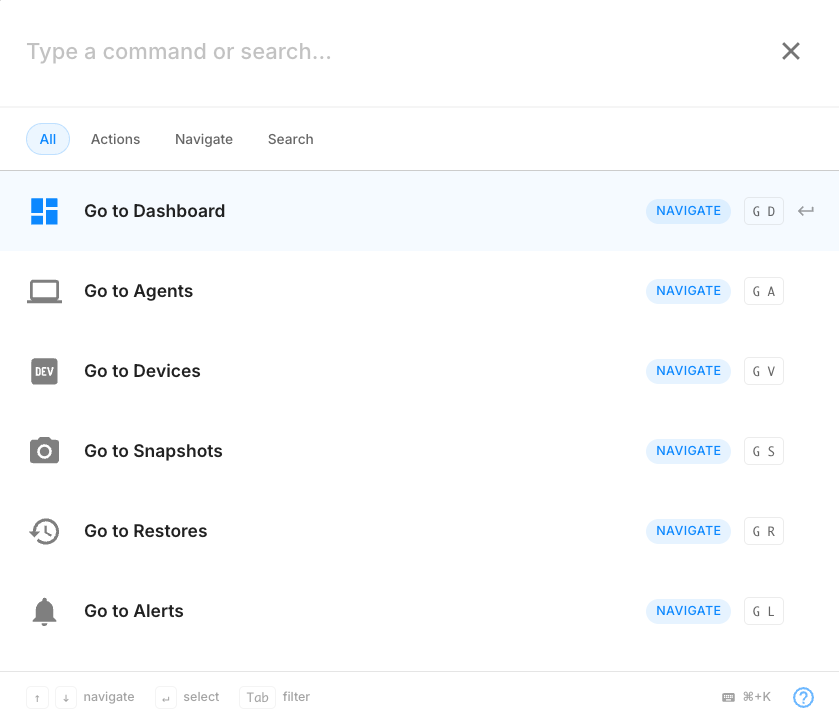
The Power Bar supports three types of commands:
- Navigation: Quickly jump to any page in the console
- Actions: Perform operations like starting backups or creating VMs
- Search: Find agents, devices, and clients
Opening the Power Bar
Press Cmd+K (Mac) or Ctrl+K (Windows/Linux) to open the Power Bar. Press Escape or click outside the modal to close it.
Navigation Commands
Use navigation commands to quickly jump to any section of the Slide Console without using the sidebar menu.
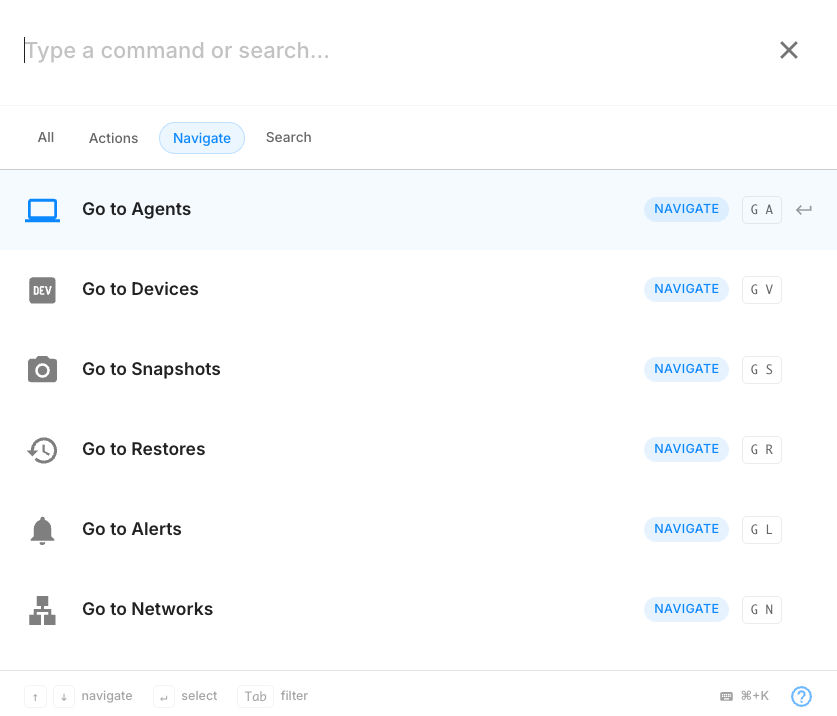
Available navigation shortcuts:
| Command | Shortcut | Description |
|---|---|---|
| Go to Dashboard | G D | Navigate to the main dashboard |
| Go to Agents | G A | View protected systems |
| Go to Devices | G V | View Slide Boxes |
| Go to Snapshots | G S | Browse all snapshots |
| Go to Restores | G R | View active restores |
| Go to Alerts | G L | Check system alerts |
| Go to Networks | G N | Manage virtual networks |
| Go to Users | Manage user accounts | |
| Go to Clients | View and manage clients | |
| Go to Billing | Access billing information | |
| Go to Audit Logs | Review activity logs | |
| Go to Settings | G , | Open your settings |
| Go to Account | View account details | |
| Contact Support | Reach the support team | |
| Open Documentation | Open Slide Docs |
Keyboard Shortcuts
Navigation shortcuts use G as a leader key. Press G followed by the second key to navigate directly without opening the Power Bar.
Action Commands
Action commands let you perform operations directly from the Power Bar without navigating to specific pages first.
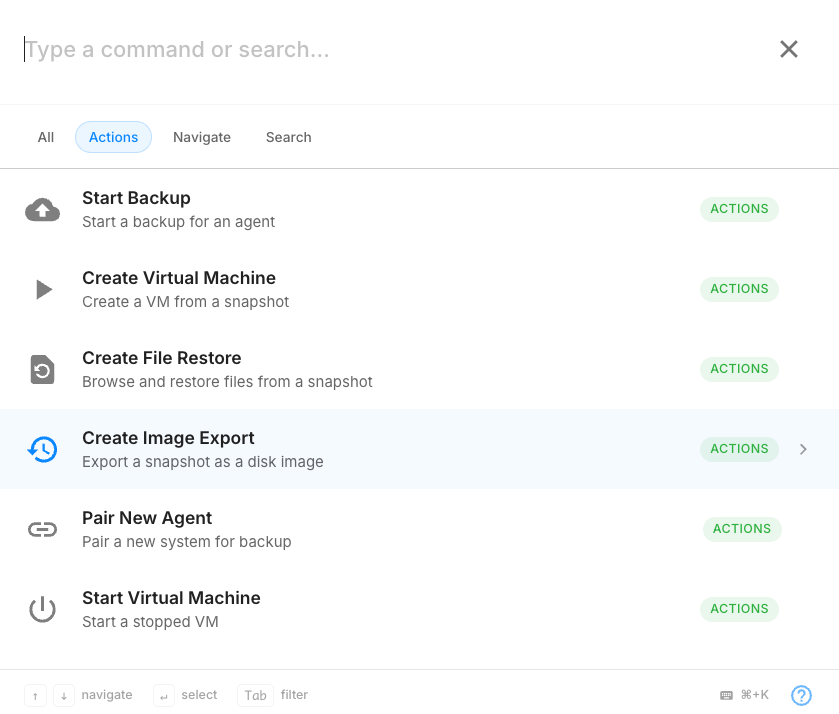
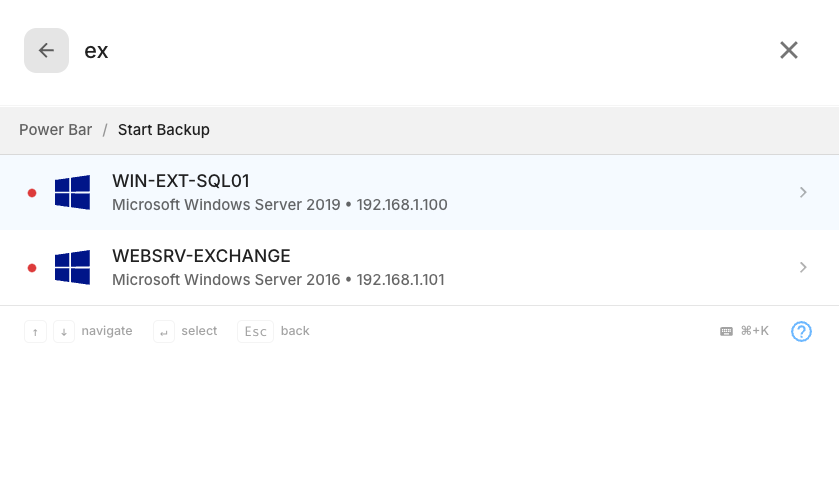
Start Backup
Trigger an immediate backup for any protected system. After selecting "Start Backup", choose the agent you want to back up.
Create Virtual Machine
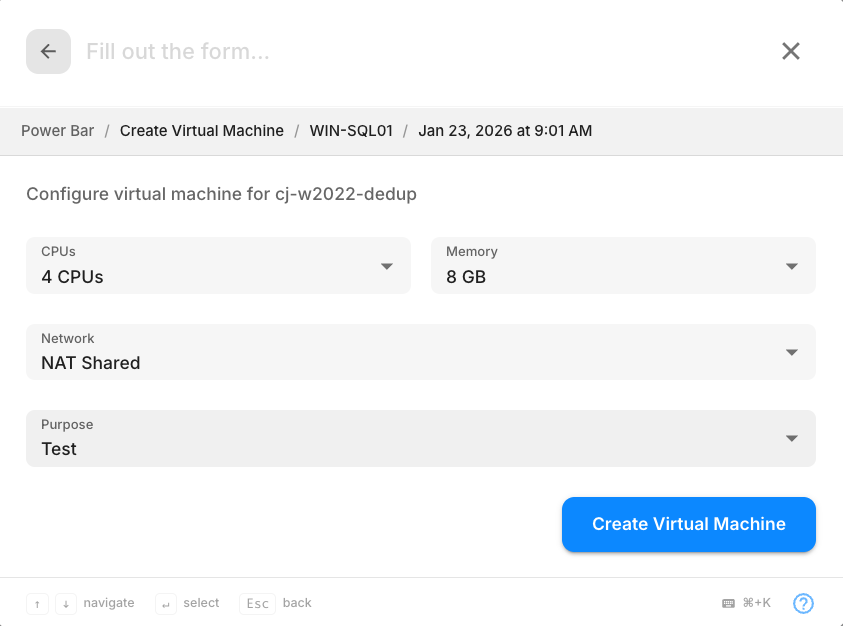
Spin up a virtual machine from any snapshot for disaster recovery testing or data access. The Power Bar guides you through:
- Selecting the agent
- Choosing a snapshot
- Confirming VM creation
Quick Keywords
Type vm, virt, virtual, dr, or disaster to quickly find the Create Virtual Machine action.
Create File Restore
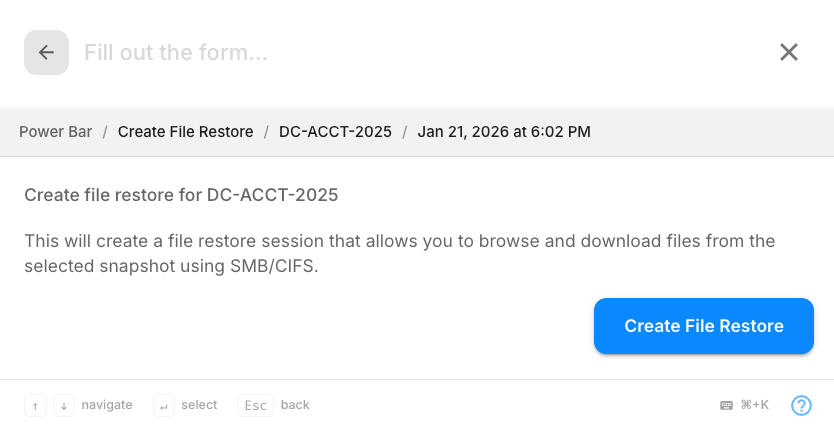
Browse and restore individual files from any snapshot. This creates a file-level restore session where you can download specific files or folders.
Quick Keywords
Type file, files, browse, smb, or restore to quickly find the Create File Restore action.
Create Image Export
Export snapshots to various disk image formats for use with other virtualization platforms.
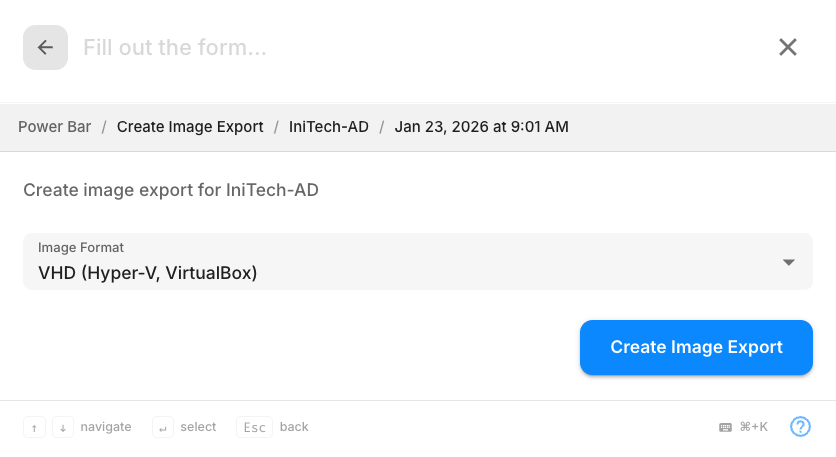
Supported export formats:
- VHD - Microsoft Virtual Hard Disk
- VHDX - Microsoft Hyper-V Virtual Hard Disk
- VMDK - VMware Virtual Machine Disk
- QCOW2 - QEMU Copy On Write
- Raw - Raw disk image
Start / Stop Virtual Machine
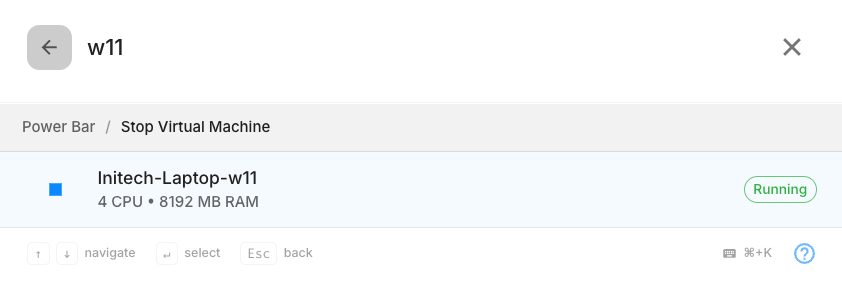
Control running virtual machines directly from the Power Bar.
- Start Virtual Machine: Power on a stopped VM
- Stop Virtual Machine: Shut down a running VM
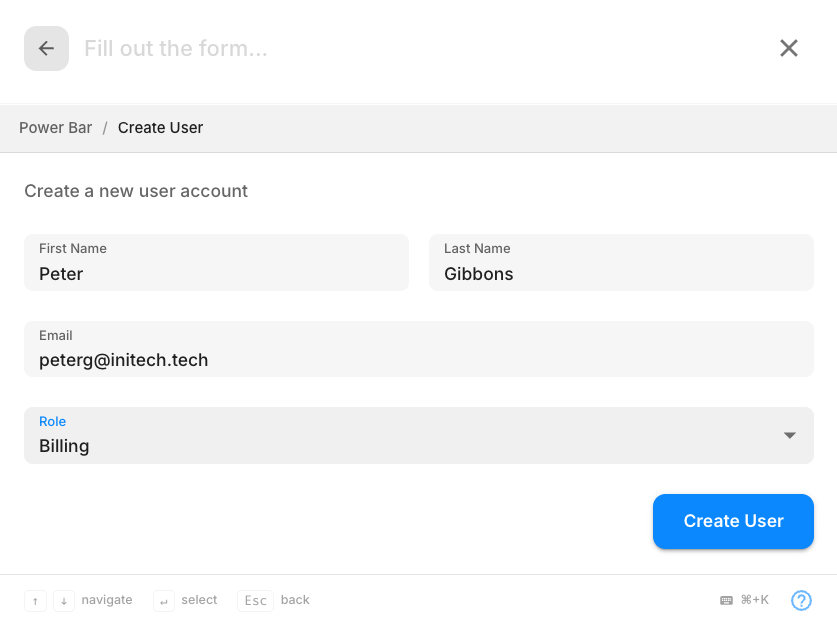
Create User
Add new user accounts with role-based access control.
Search
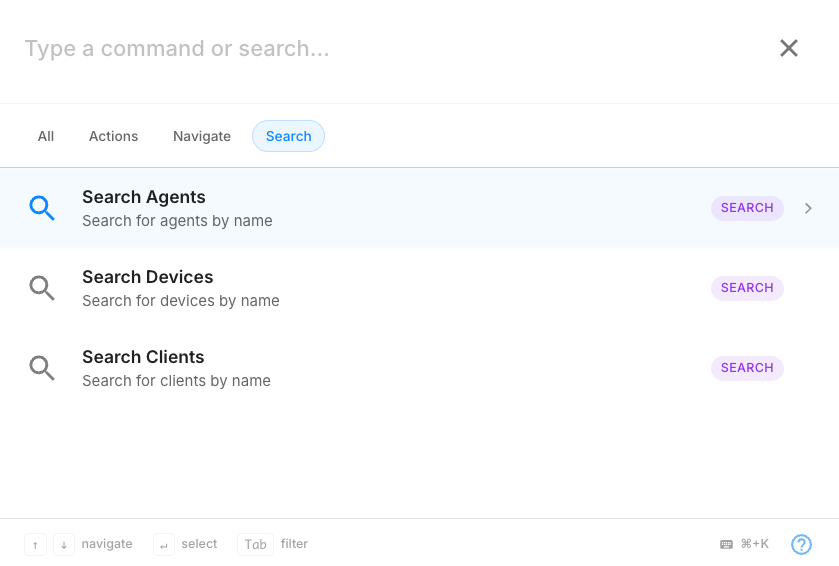
Use search commands to find agents, devices, and clients across your organization.
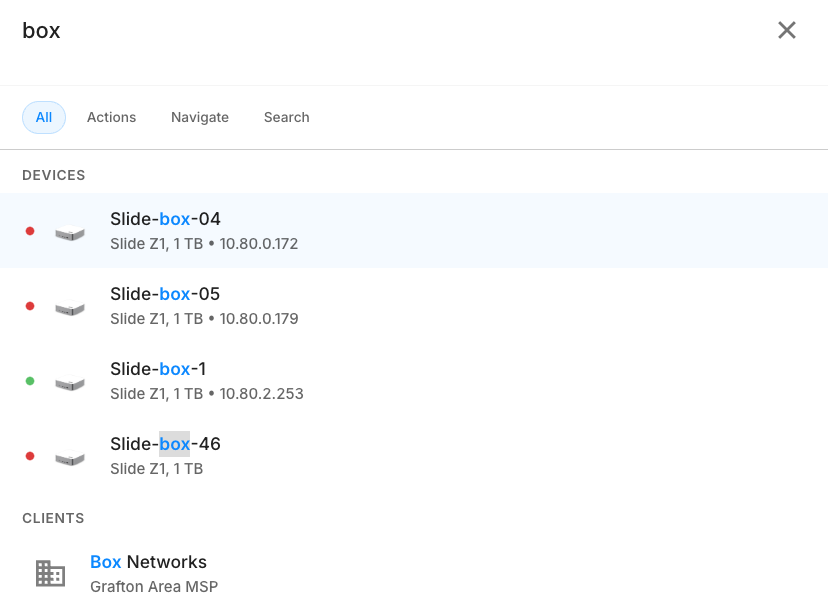
Search results are fuzzy-matched, so partial names and slight misspellings will still find results.
Category Filters
Filter Power Bar results by category using the tabs at the top or keyboard shortcuts:
| Shortcut | Category |
|---|---|
Cmd/Ctrl + 0 | All |
Cmd/Ctrl + 1 | Actions |
Cmd/Ctrl + 2 | Navigate |
Cmd/Ctrl + 3 | Search |
You can also press Tab to cycle forward through categories or Shift+Tab to cycle backward.
Agent Context Actions
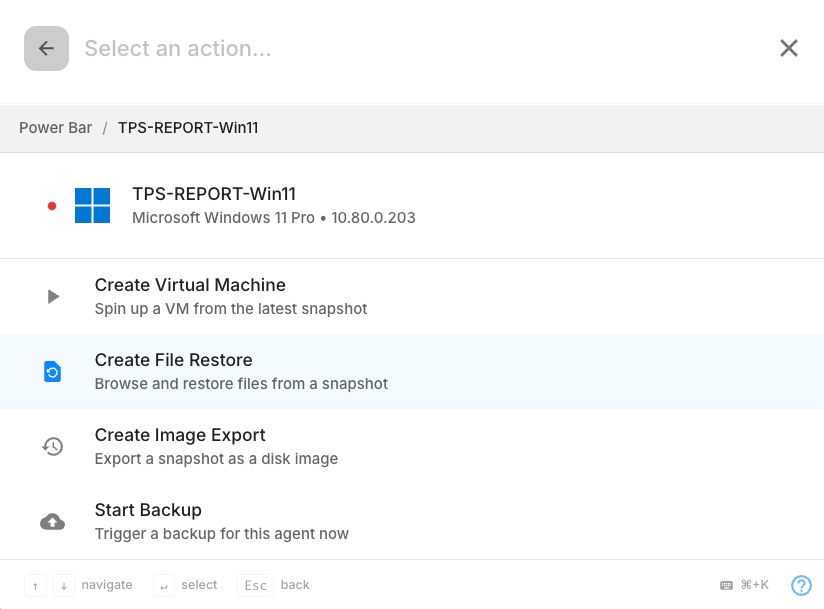
When browsing agents in search results, press the right arrow key (→) on any agent to see quick actions available for that specific agent:
- Create Virtual Machine
- Create File Restore
- Create Image Export
- Start Backup
Keyboard Shortcut Reference
| Key | Action |
|---|---|
Cmd/Ctrl + K | Open/close Power Bar |
↑ / ↓ | Navigate results |
Enter | Select item or execute command |
→ | Show agent context actions |
Tab | Next category filter |
Shift + Tab | Previous category filter |
Escape | Close or go back |
Backspace | Go back (when search is empty) |
Cmd/Ctrl + 0-3 | Quick filter by category |
Shift + Enter | Advanced options (Image Export) |