ConnectWise PSA Integration
The Slide ConnectWise PSA integration enables bidirectional synchronization between Slide and your ConnectWise PSA. It automatically creates service tickets from Slide alerts, syncs company data, and maintains ticket status synchronization across both platforms.
Overview
When enabled, the ConnectWise PSA integration provides the following capabilities:
- Automatic Ticket Creation: Slide alerts automatically generate service tickets in your ConnectWise service board.
- Company Synchronization: ConnectWise companies are synced with Slide clients for unified client management.
- Bidirectional Status Updates: Tickets and alerts are automatically resolved across both platforms.
- Centralized Alert Management: View and manage backup issues directly within your existing PSA workflow.
Prerequisites
Before configuring the integration, ensure you have:
- An active ConnectWise Manage account with administrative access
- Permission to create API Members and security roles in ConnectWise
- For cloud-hosted instances: Your ConnectWise instance region (e.g., "North America"
https://na.myconnectwise.net) - For on-premise instances: Your ConnectWise PSA server domain (e.g.,
connect.mycompanydomain.com) - For on-premise instances: Inbound access to cloud.slide.tech (159.89.241.157) on port 443 (TCP)
- Your ConnectWise Company ID
- A designated service board for Slide-generated tickets
Step 1: Create a Security Role in ConnectWise
To ensure the Slide integration has appropriate permissions, create a dedicated security role in ConnectWise Manage. It is critical that this role has the necessary permissions listed below.
- Log in to your ConnectWise Manage instance
-
Navigate to System > Security Roles
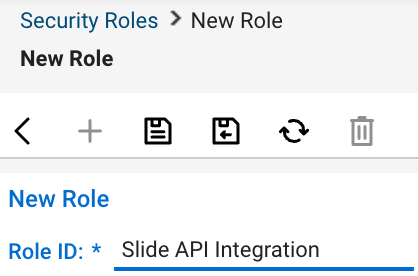
Creating a Security Role in ConnectWise -
Click the + button to create a new security role
- Enter a name for the role (e.g., "Slide API Integration")
-
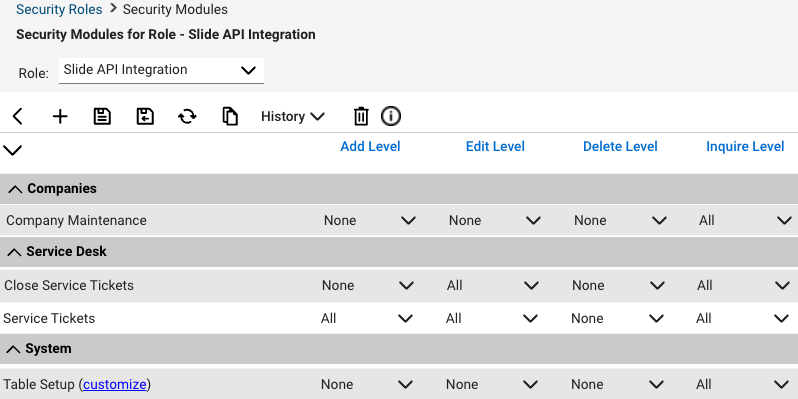
Configure the permissions listed below
Module Permission Level Company Company Maintenance Inquire (All) Service Desk Close Service Tickets Edit (All), Inquire (All) Service Desk Service Tickets Add (All), Edit (All), Inquire (All) System Table Setup Inquire (All) -
Click Save to create the security role
Info
Creating a dedicated security role ensures the integration has only the necessary permissions to function properly while maintaining security best practices.
Step 2: Create an API Member
Next, create a dedicated API Member in ConnectWise for the Slide integration.
- In ConnectWise Manage, navigate to System > Members
- Select the API Members tab
-
Click the + button to create a new API Member
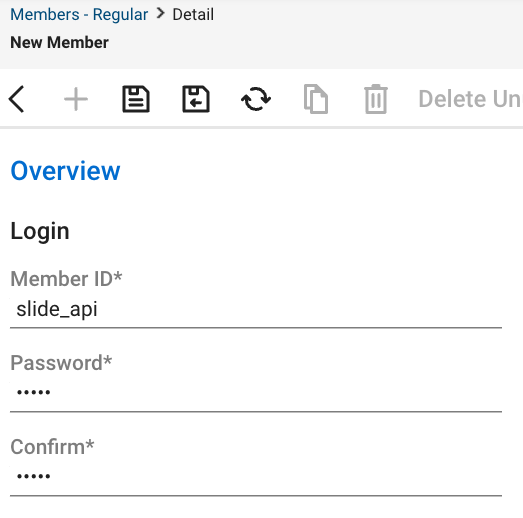
Creating an API member in ConnectWise -
Fill out the New Member form:
- Member ID: Enter a unique identifier (e.g., "slide_api")
- Member Name: Enter a descriptive name (e.g., "Slide Integration")
- Role ID: Select the security role you created in Step 1
- Click Save to create the API Member
Warning
Create a new API Member specifically for this integration. Do not reuse existing API Members, as this can cause security and tracking issues.
Step 3: Generate API Keys
After creating the API Member, generate the API keys that Slide will use to authenticate with ConnectWise.
- Open the API Member you just created
- Navigate to the API Keys tab
-
Click the + button to create a new API key
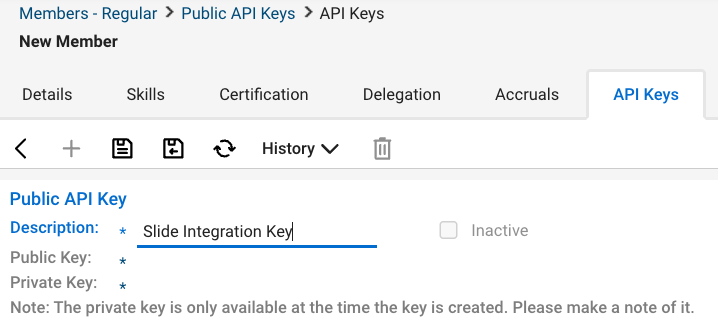
Generating Public and Private API keys in ConnectWise -
Enter a Description (e.g., "Slide Integration Key")
- Click Save to generate the keys
- Immediately copy and securely store both the Public Key and Private Key
Warning
The Private Key is only displayed once when the key is created. If you lose it, you will need to generate a new API key. Store both keys in a secure password manager or secure storage location.
Step 4: Configure Service Board Settings
Determine which ConnectWise service board will receive Slide-generated tickets.
- In ConnectWise Manage, navigate to System > Service Boards
- Note the name of the service board you want to use for Slide alerts
- Optionally, create a dedicated service board for Slide alerts if you want to separate them from other tickets
Tip
Consider creating a dedicated service board or status workflow for Slide alerts to help distinguish automated alerts from manually created tickets.
Step 5: Configure the Integration in Slide
Now that ConnectWise is configured, enable the integration in your Slide account.
Info
Existing Slide alerts will not be affected by enabling the integration. Only new alerts will generate tickets in ConnectWise.
- Log in to Slide Console
- Navigate to Integrations
-
Locate the ConnectWise PSA integration tile and click Configure

Unconfigured ConnectWise PSA integration -
Enter the following information:
- Hosting Type: Select whether your ConnectWise instance is cloud-hosted or on-premise
- Cloud-hosted: Select your ConnectWise instance region (e.g.,
North America) - On-premise: Enter your ConnectWise PSA server domain (e.g.,
connect.mycompanydomain.com)
- Cloud-hosted: Select your ConnectWise instance region (e.g.,
- Company ID: Your ConnectWise Company identifier
- Public Key: The Public Key from Step 3
- Private Key: The Private Key from Step 3
- Hosting Type: Select whether your ConnectWise instance is cloud-hosted or on-premise
-
Click Authorize to validate your credentials and proceed to the next step
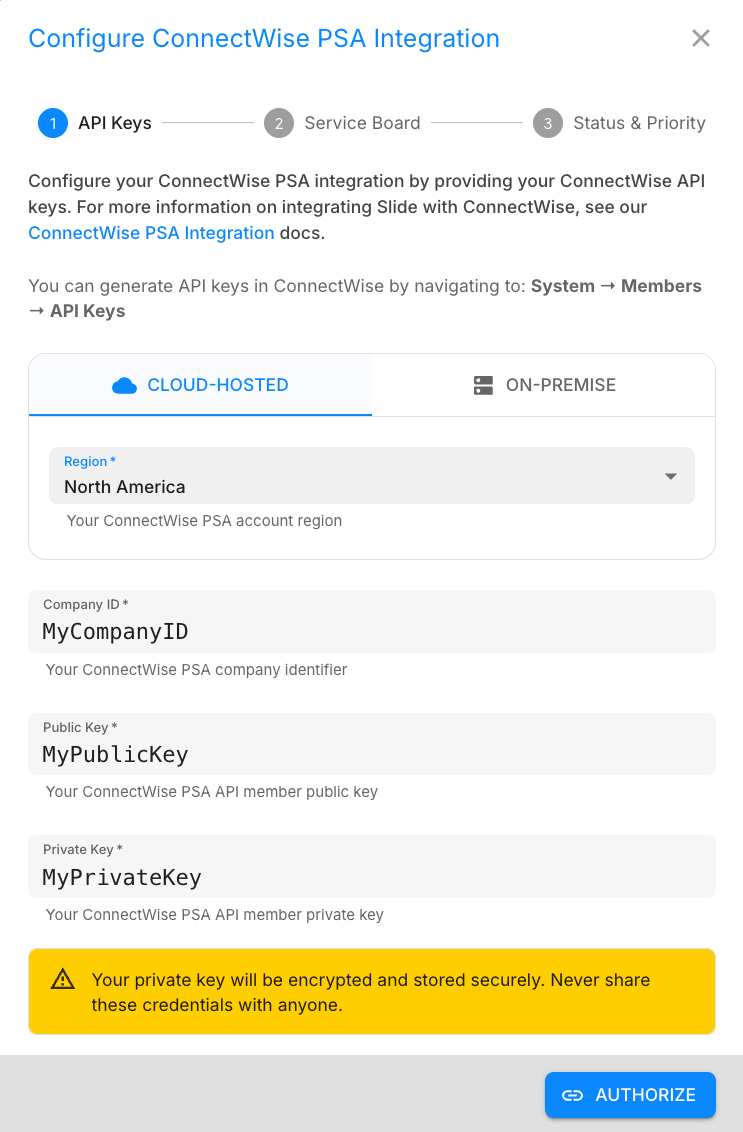
Configuring the ConnectWise PSA integration credentials -
Select the service board you noted in Step 4 and click Next:
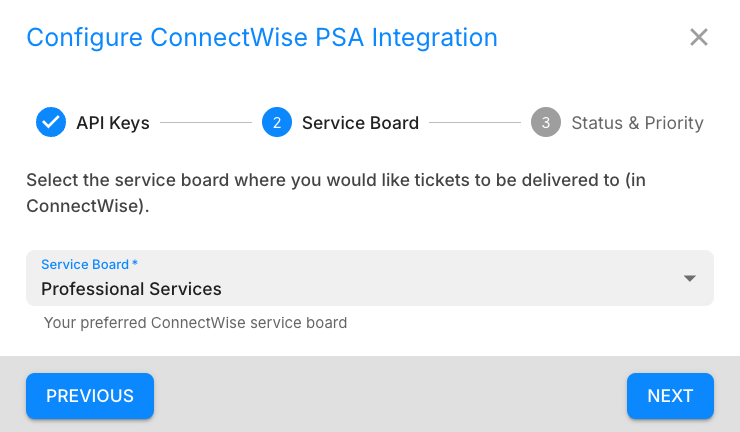
Choosing the ConnectWise service board -
Configure the following integration settings for Slide-generated tickets:
- Default Status: The initial status for new tickets (e.g., "New" or "Open")
- Default Priority: The default priority level (e.g., "Quick Response" or "High")
- Default Ticket Type: The default ticket type (e.g., "Quick Response" or "High")
- Default Ticket Subtype: The default ticket subtype (e.g., "Workstation" or "Server")
- Default Ticket Item: The default ticket item (e.g., "Outage" or "Repair/Fix")
-
Click Save to complete the integration setup
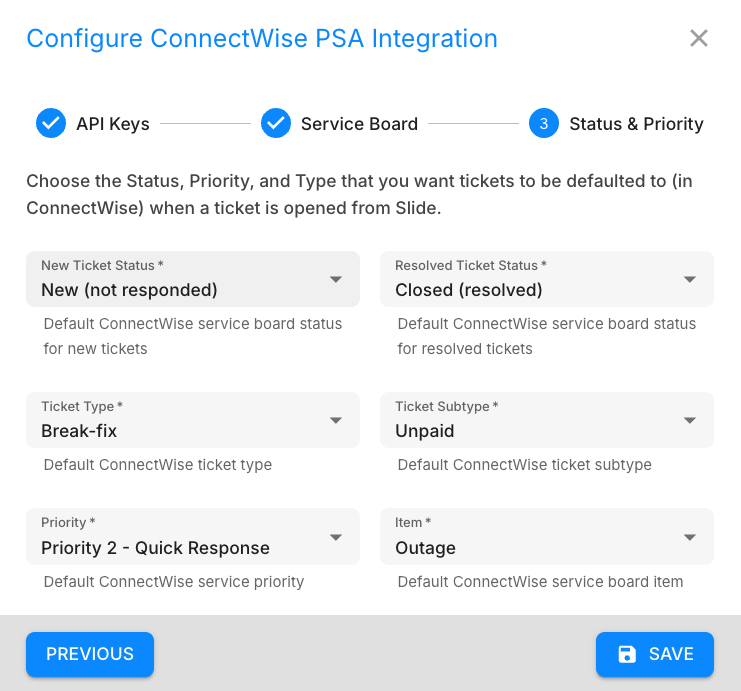
ConnectWise PSA ticket configuration
Map Companies and Clients
After your integration is configured and saved, you can begin mapping your ConnectWise companies to Slide clients. As part of reconciling your company data, the integration automatically attempts to fuzzy match ConnectWise company names to Slide clients. You should review and update these mappings as needed.
- In the ConnectWise PSA integration settings in Slide Console, navigate to the Client Mapping section
- For each Slide client in the left column, select the corresponding ConnectWise company from the right column
- Use the company status dropdown to filter companies by status (e.g., "Active")
-
Click Save to apply the changes
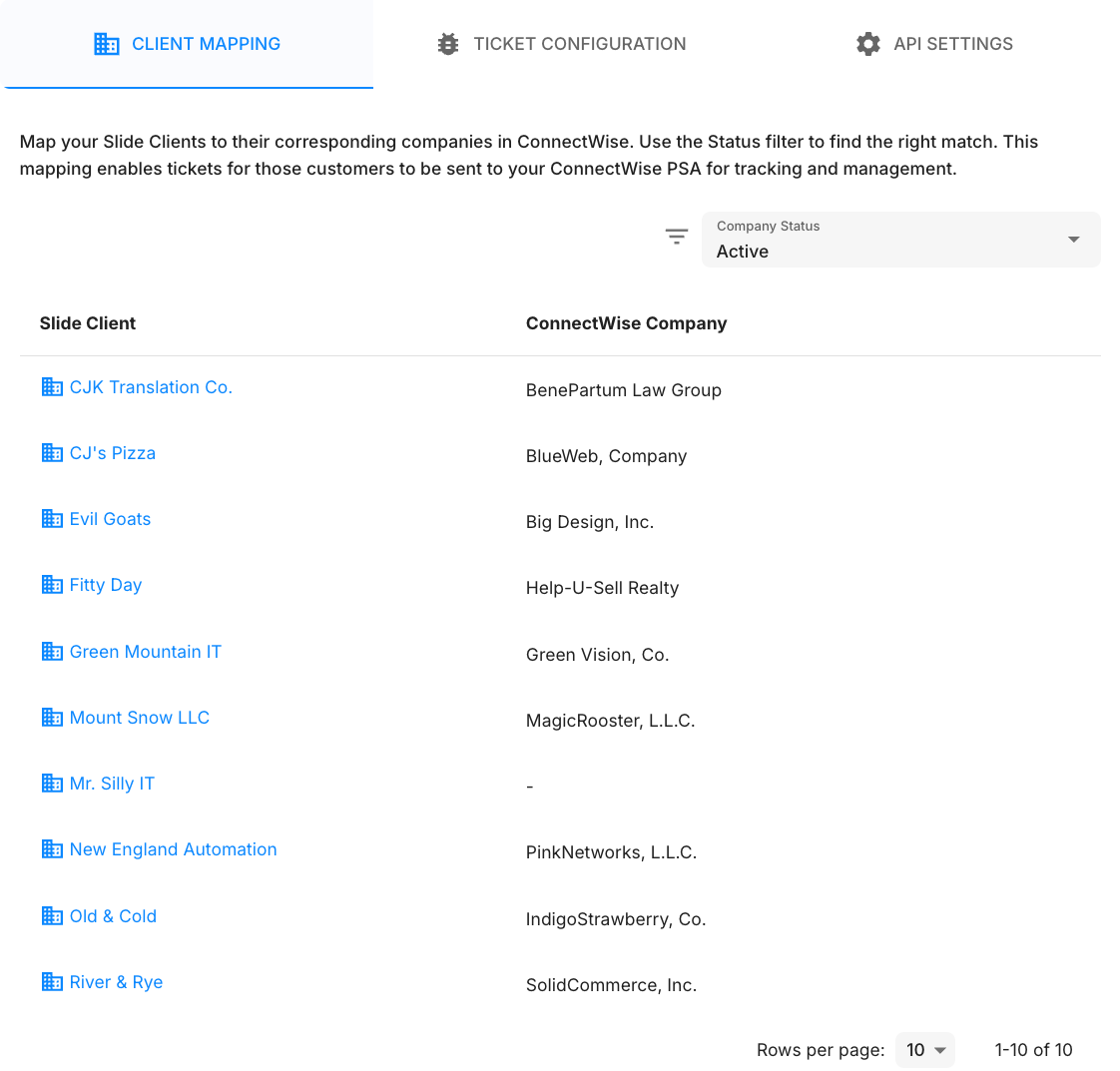
ConnectWise company to Slide client mapping
Operational Behaviors
Once configured, the ConnectWise PSA integration operates automatically with the following behaviors:
Automatic Ticket Creation
When Slide generates an alert (e.g., backup failure, agent offline, storage low), a corresponding service ticket is automatically created in ConnectWise with:
- Summary: A descriptive title based on the alert type (e.g., "[slidebox-01] Slide Box storage is critically low (< 10% free)").
- Description: Detailed information about the alert, including error codes, affected resources, and recommended actions.
- Company: The mapped ConnectWise company corresponding to the Slide client.
- Board: The service board specified in the integration settings.
- Status: The default status configured in the integration settings.
- Priority: The default priority configured in the integration settings.
- Type: The default type configured in the integration settings.
- Subtype: The default subtype configured in the integration settings.
- Item: The default item configured in the integration settings.
The ticket description includes a link back to the Slide alert for easy reference.
Auto-Resolving ConnectWise Tickets
When a Slide alert is resolved (either manually or automatically), the corresponding ConnectWise ticket is automatically updated:
- The ticket status is changed to the configured "Resolved" status (e.g., "Closed" or "Resolved")
- The ticket resolution time is recorded
This applies to auto-resolved alerts as well as manually resolved alerts.
Auto-Resolving Slide Alerts
Conversely, when a ConnectWise ticket created by Slide is closed or resolved in ConnectWise:
- The corresponding Slide alert is automatically marked as resolved
- An activity log entry is created in Slide indicating the alert was resolved
- The alert no longer appears in the unresolved alerts count
This bidirectional synchronization ensures that resolving an issue in either system updates the other, preventing duplicate work.
Integration Status and Monitoring
You can monitor the health and activity of your ConnectWise integration in Slide Console:
- Navigate to Integrations
- View the ConnectWise PSA integration status:
- Enabled: Integration is active and functioning normally.
- ConnectWise API Authorization Failed: Integration encountered an authorization issue, verify your API keys.
- ConnectWise API Authentication Failed: Integration encountered an authentication issue, verify your ConnectWise Region and Company ID.
- Disabled: Integration is disabled, normal operation is suspended.
- Unconfigured: Integration is not configured.
Tip
If you see an error status, verify that your API keys are still valid in ConnectWise and that the API Member has not been deactivated or deleted.
Troubleshooting
Connection Test Fails
If the connection test fails when configuring the integration:
- For cloud-hosted instances: Verify the ConnectWise Region is correct
- For on-premise instances: Verify the server domain is correct and accessible from the internet
- Confirm the Company ID matches your ConnectWise company identifier
- Ensure the Public and Private Keys are copied correctly without extra spaces
- Check that the API Member is active and has the correct security role assigned
- Verify the security role has the required permissions listed in Step 1
Tickets Are Not Being Created
If Slide alerts are not generating ConnectWise tickets:
- Confirm the integration status shows "Enabled" in Slide
- Verify the service board name is spelled correctly and exists in ConnectWise
- Check that the default status and priority exist on the configured service board
- Check that the default type, subtype, and item exist on the configured service board
- Ensure the Slide client is mapped to a ConnectWise company
Tickets Are Not Auto-Resolving
If tickets are not automatically resolving when alerts are resolved:
- Verify the "Resolved" status configured in Slide matches a valid closed/resolved status in ConnectWise
- Check that the ConnectWise ticket was created by the Slide integration (manually created tickets are not synced)
- Ensure the API Member still has permission to update service tickets
Company Data Not Syncing
If ConnectWise companies are not appearing in Slide:
- Verify the API Member has "Company Maintenance: Inquire (All)" permission
- Manually trigger a sync by clicking Sync Now in the integration settings
- Check that the companies are active (not inactive) in ConnectWise
For additional assistance, please contact Slide support.