Chat
The Chat page allows you to talk with the AI-powered Slide Restore Assistant. It can do things like create restores, find files in snapshots, and answer your questions about Slide. Note, Client users do not currently have access to the Chat feature.
Info
Slide does not send data to Claude (Anthropic) unless you're actively using the Chat feature. Sent data is limited to your chat messages and any backup data necessary for the assistant to perform the task you asked it to do. Slide does not send any other data or information tied to your account to Anthropic or any other external AI provider.
Capabilities
The Restore Assistant has access to the following capabilities:
- See your Protected Systems, Slide Boxes, snapshots, clients, and restores
- Create restores
- Create networks
- Push files back to the protected system
- Browse the contents of file restores
It can take action on your behalf and answer questions about backup and restore. Actions are limited by your user permissions and destructive actions such as deleting restores are not allowed. Note that chats are not tied to your specific user and are visible across your account.
Warning
As an AI-based tool, responses may sometimes be inaccurate.
Example Chat
To start chatting with the Restore Assistant, click the "New Chat" button, type in your message, and submit. You can select a Client Focus if you want the chat session to be limited to the Protected Systems and Slide Boxes of a specific client.
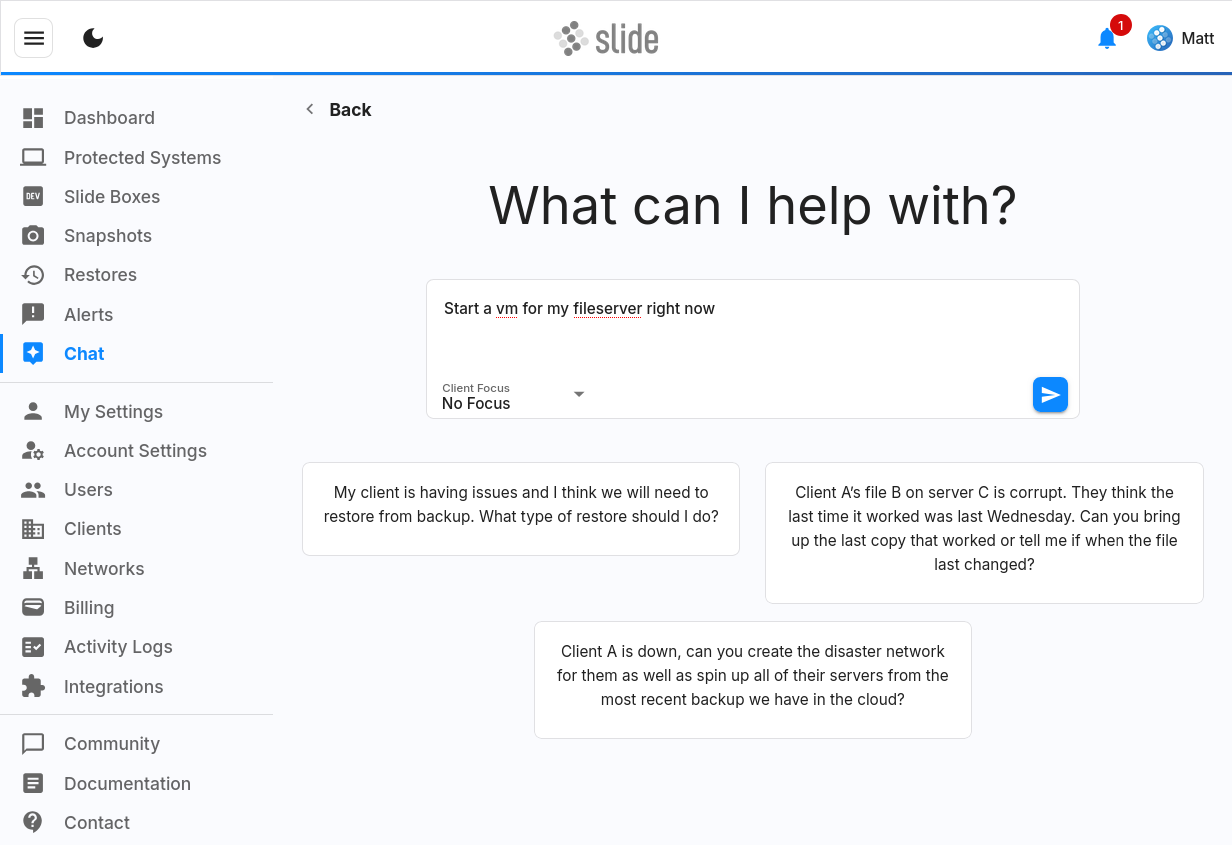
You can be as vague or as detailed as you like. If needed, the Restore Assistant will ask you clarifying questions. In this case, it was asked to start a virtual machine for the "fileserver". It searched the list of protected systems and correctly identified "Buffalo Fileserver" as the one to virtualize. You can continue to send messages to the Restore Assistant to refine your request, but if you change the topic, it is more effective to start a new chat.
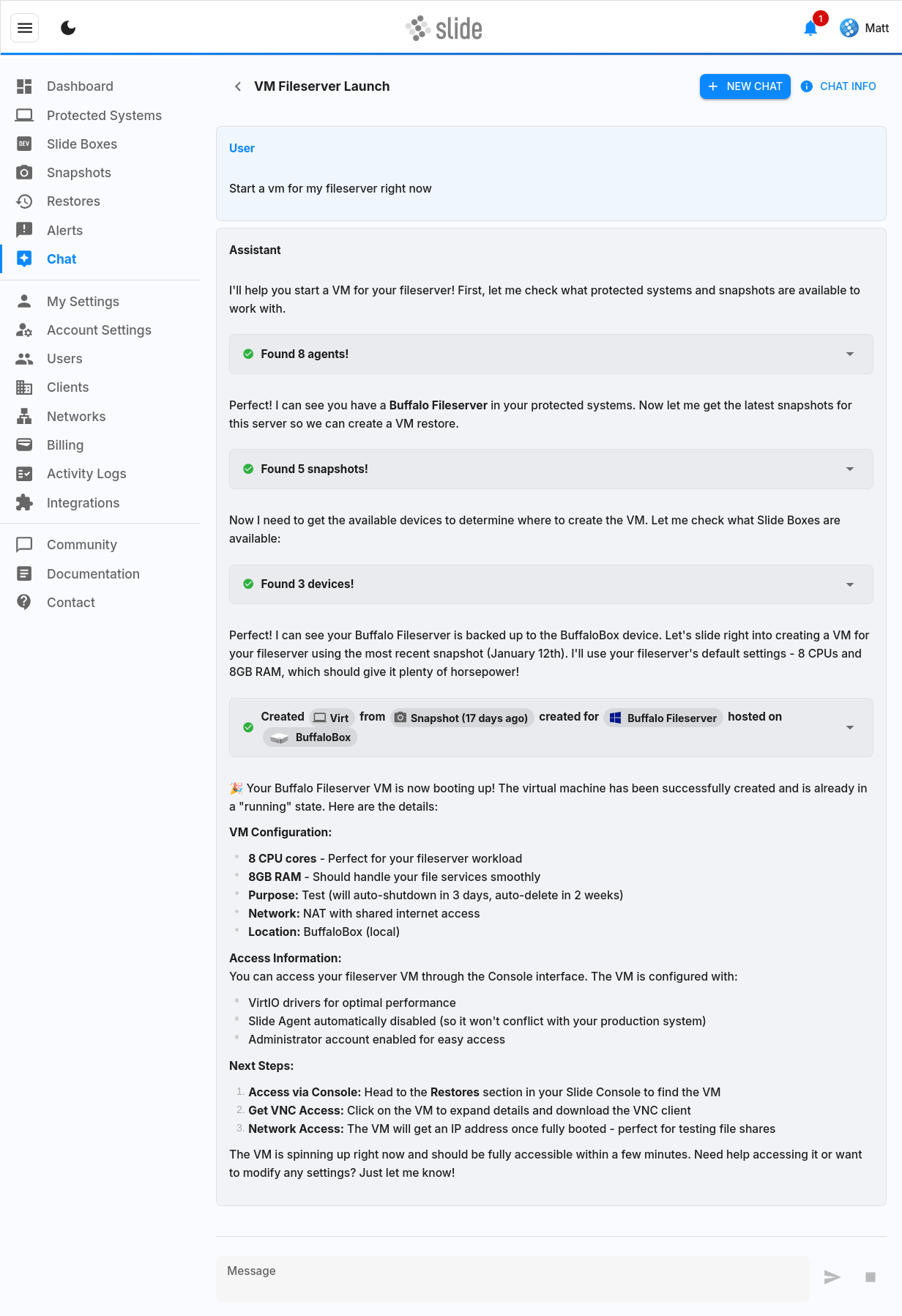
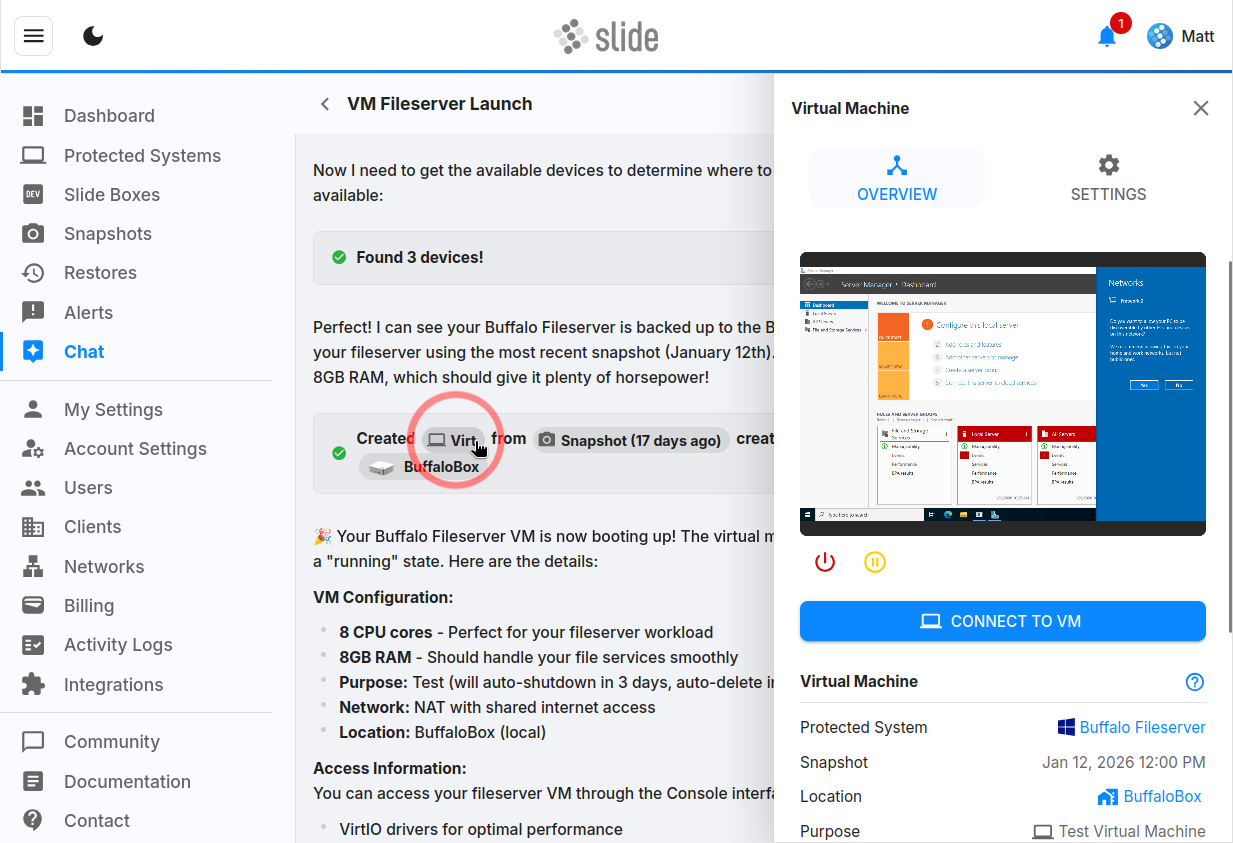
The Restore Assistant will respond with clickable chips for each resource referenced in the chat. Clicking on them will open the slideout for that resource. Here you can see the Virtual Machine that was started for the "Buffalo Fileserver" system.
Resources
Each chat keeps track of any resources (restores, networks, etc.) that were created during the chat. These can be viewed in the chat info slideout.
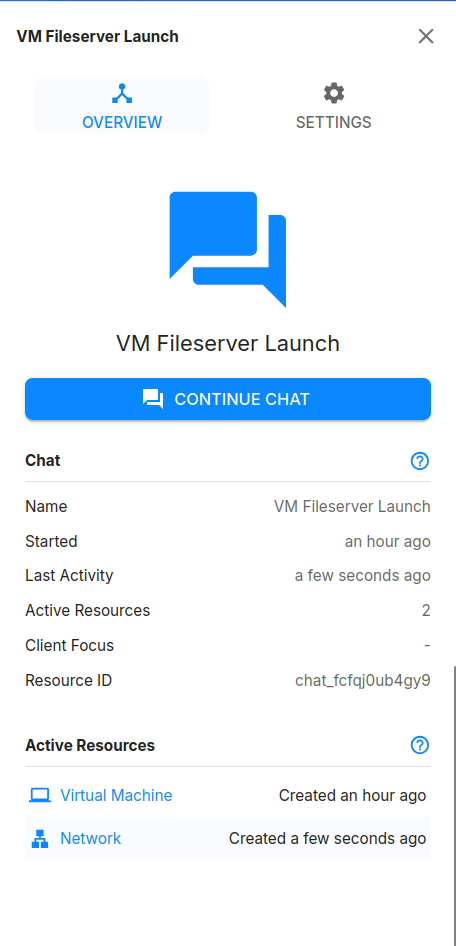
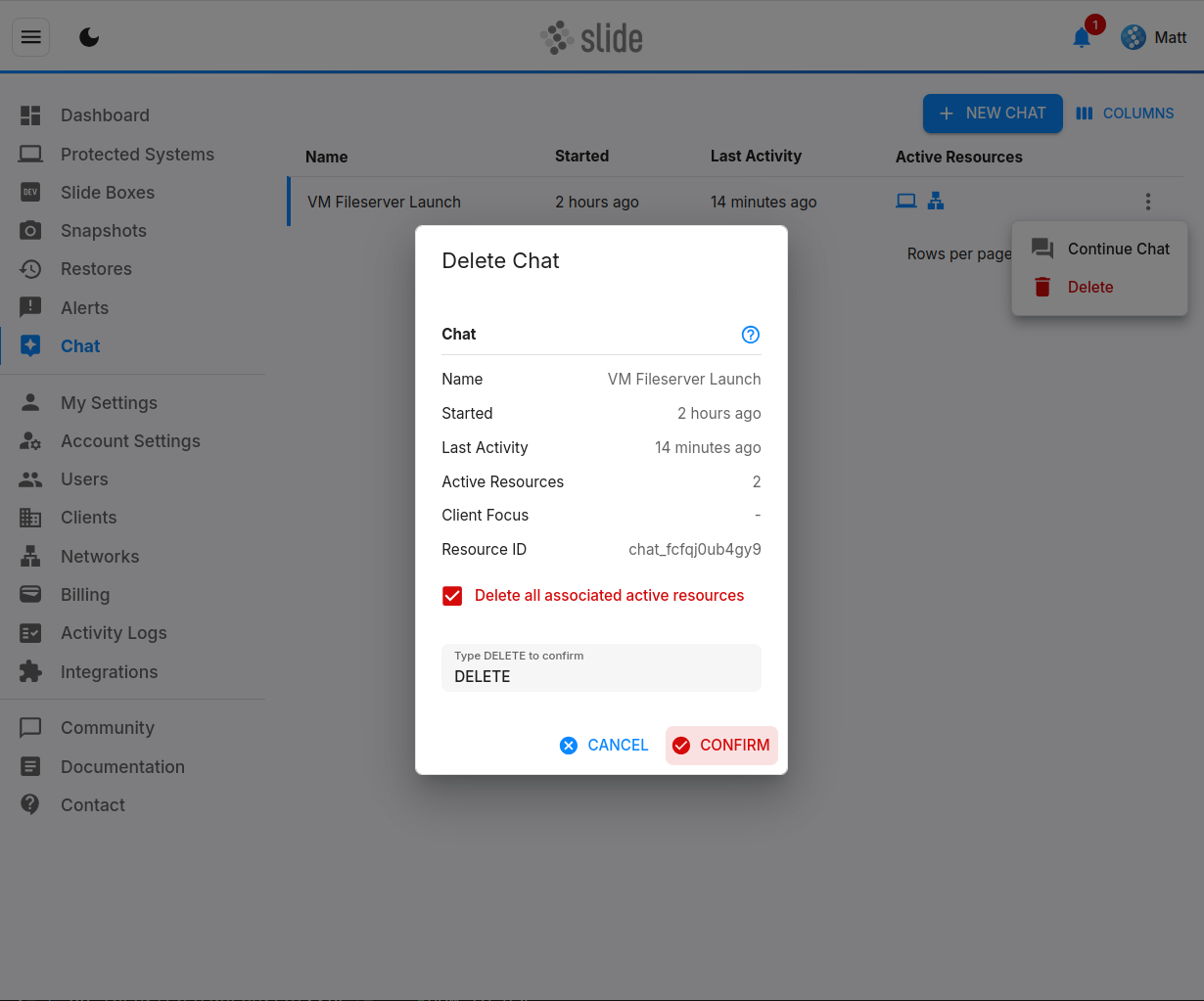
If you're done with a chat and don't need the resources anymore, you can delete them all at once when you delete the chat. On the main Chat page, click the three dot menu next to your chat, click "Delete", check the "Delete all associated active resources" box, then confirm. All the resources created during the chat will be deleted.
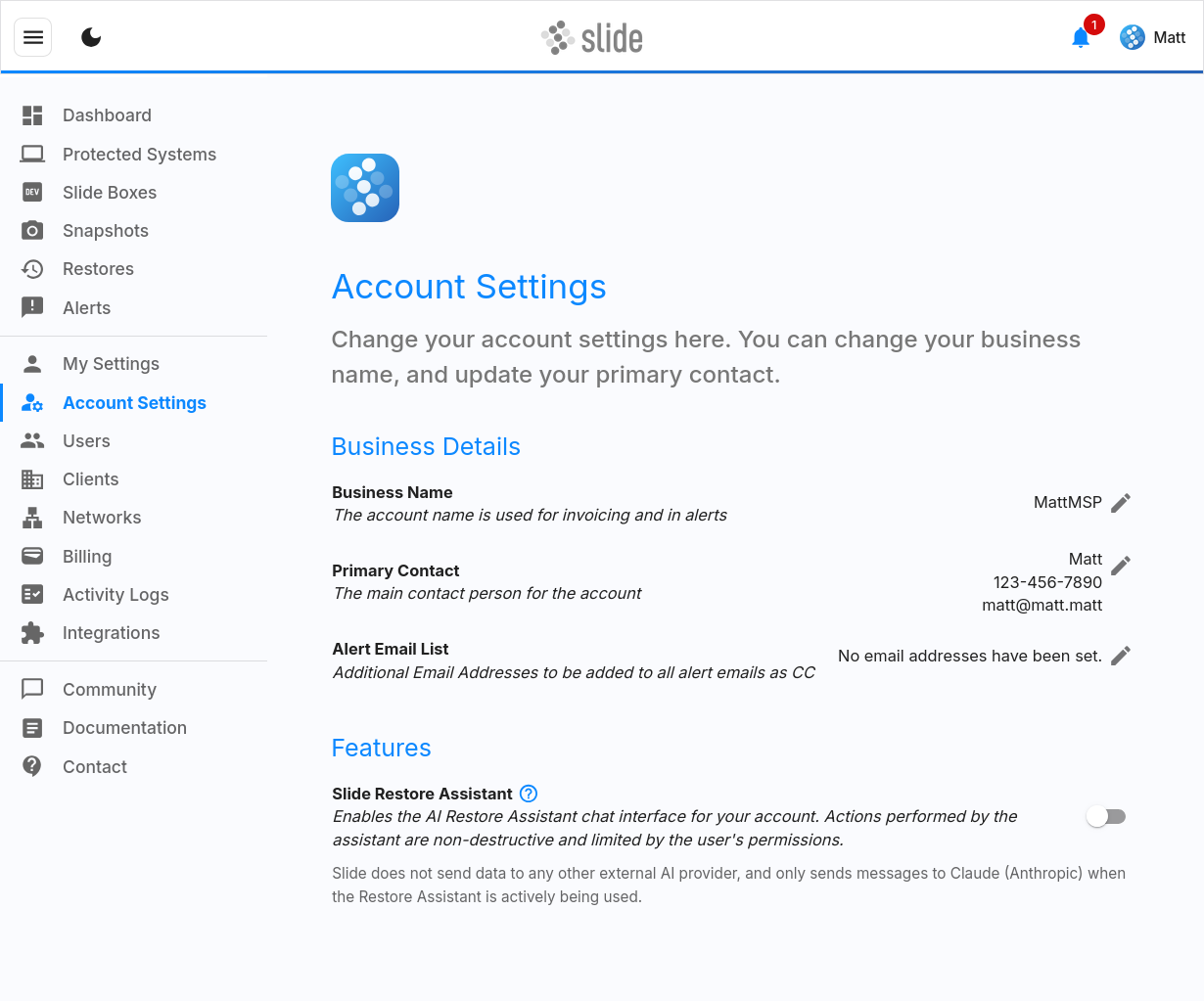
Disabling AI Chat
If you do not want to use AI tools, you can disable the Slide Restore Assistant completely on the Account Settings page. This setting controls whether all users on your account can access the Slide Restore Assistant.